MyDeviceHub is a device management tool for enterprises who have multiple Vscan Air devices and would like to manage them centrally
It is accessed by enterprise administrators via a dedicated web-based portal and provides functionality such as registration for probes, set up of user access lists, DICOM server settings, etc. MyDeviceHub can be purchased as part of the Vscan Air Fleet digital solution.
NOTE: Probes with Fleet solution enabled cannot be registered or unregistered by anyone other than an administrator. The administrator can register a probe from the app or the MyDeviceHub portal. Unregister probe option is only available via the app.1. User access
Enterprise administrators can restrict usage of Fleet enabled probes to certain named users. When attempting to connect to a Vscan Air probe, the app checks existing access restrictions. If the signed in user is not authorized to use the connected probe, the following error will be displayed. In this case, the user may choose to use a different Vscan Air probe or contact the Enterprise administrator to update the access control list.
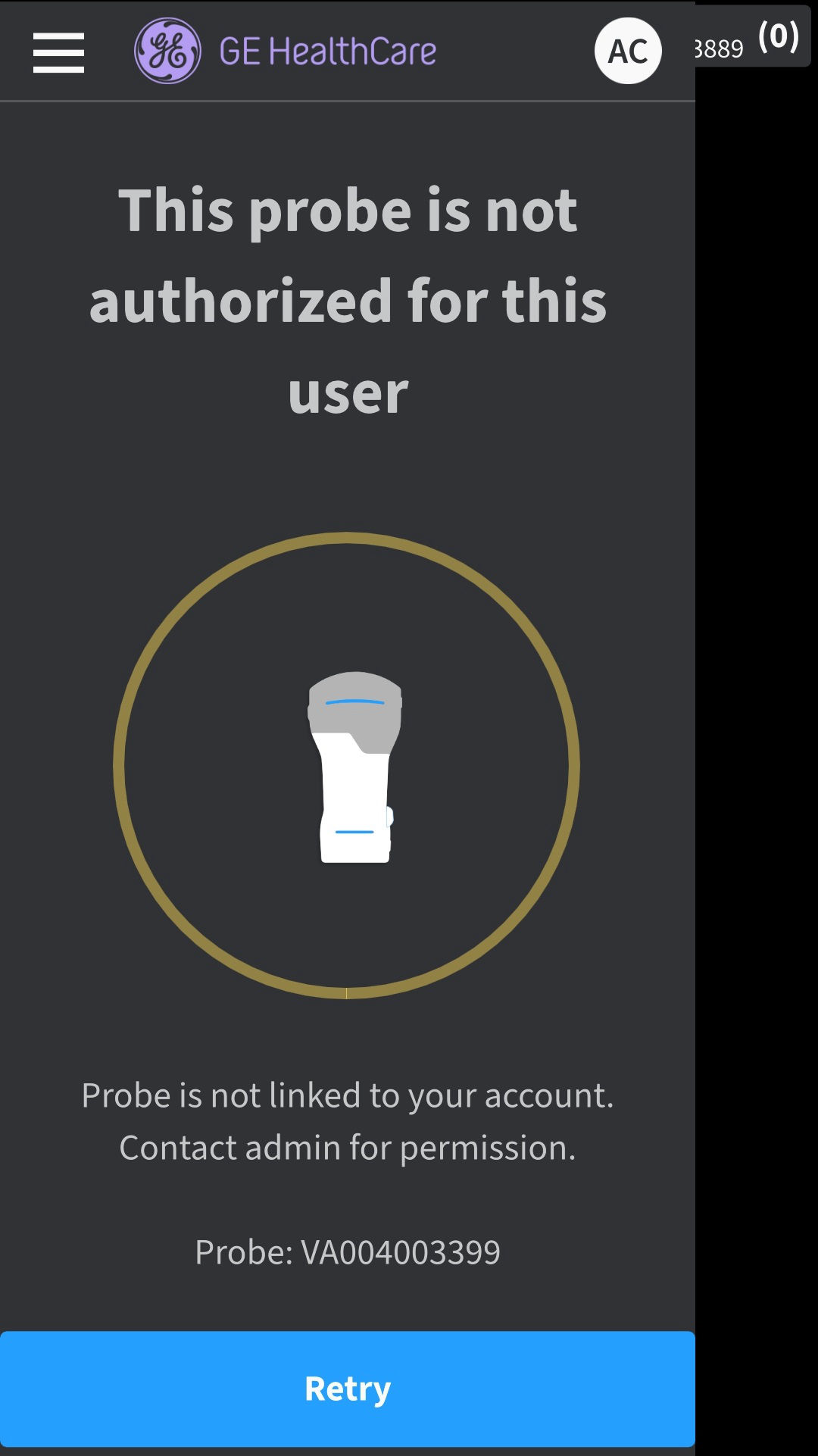
Error message
NOTE : After access rights for a probe are updated by an administrator, the user must sign out of the app and sign back in for the changes to be reflected in the app.2. Importing server configurations
The app is able to import any DICOM server settings that have been entered by the Enterprise administrator via the MyDeviceHub portal. The first time a user connects to a Fleet enabled probe, the app provides the user an option to import these settings as shown below.
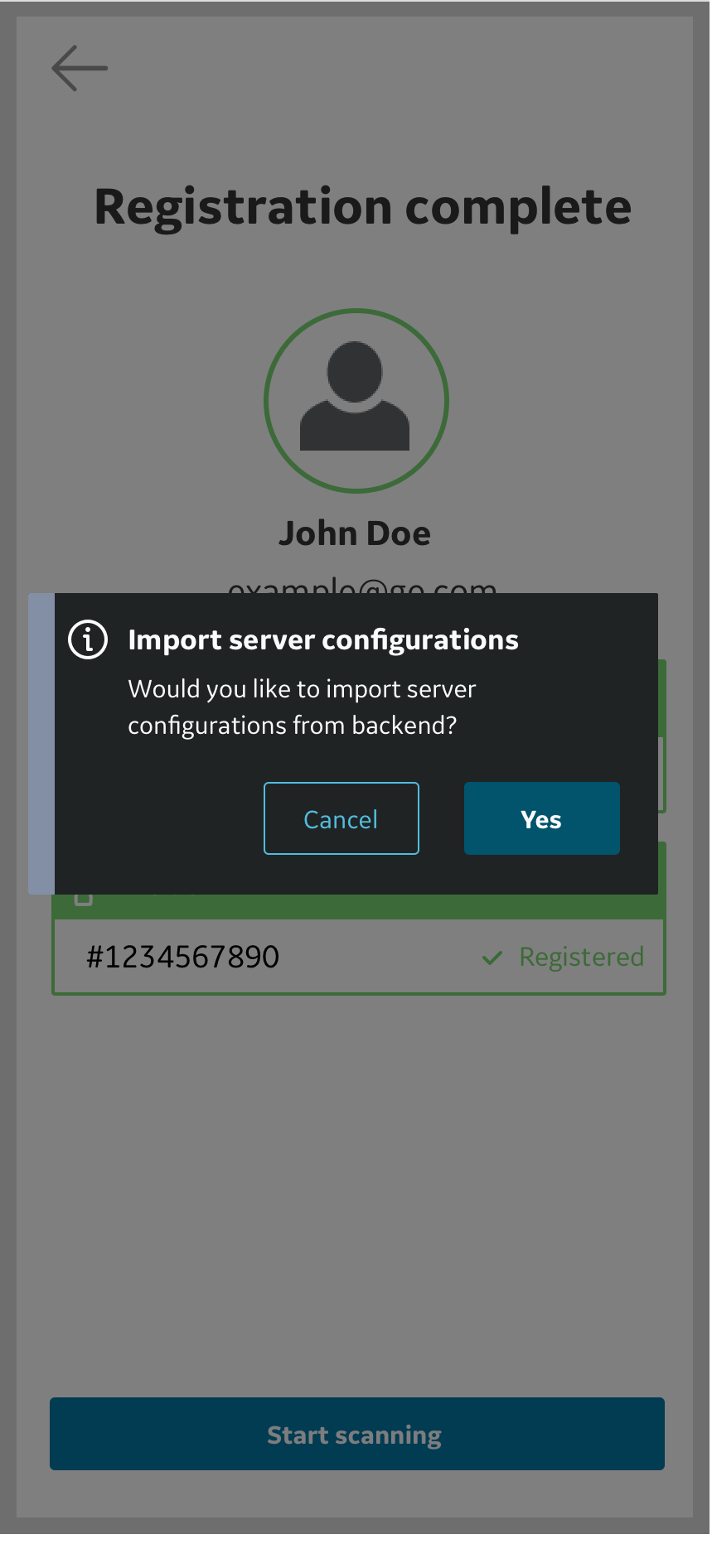 Auto-import of server configuration
User can choose to accept or deny the configuration settings from backend. If user choses to accept the configuration, the server settings will be updated in the application. The user can also download server configurations from the backend whenever desired. Click on the button , on the Servers page to the import settings.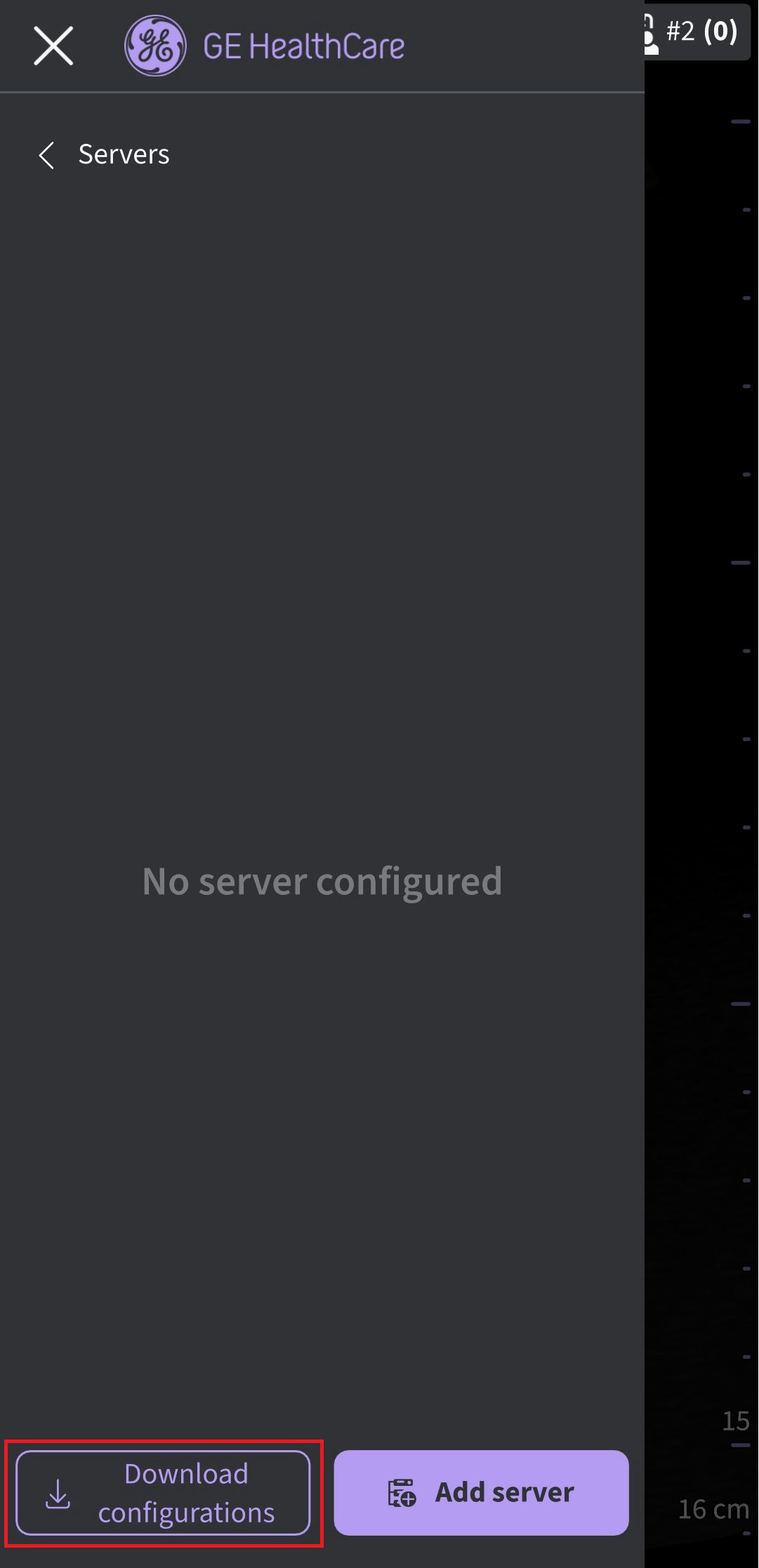
Manual import of server settings
If DICOM server configurations are received from the MyDeviceHub, they will be added to Menu → Connectivity → Servers.
For more details refer to Configure DICOM Image Server
Disclaimer: The information herein is not intended to replace the product’s User Manual. Please consult the User Manual for comprehensive information and cautionary guidance about the product’s operation and use.