Edit an Annotation
Tap the annotation text field to select the text and tap again to enable editing. Press 'done' on the keyboard and tap outside the annotation text field to exit annotation edit mode.
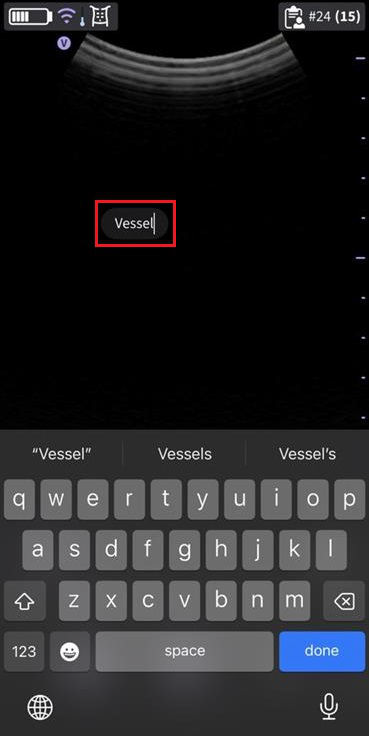
Edit annotation
Reposition an Annotation
Select Annotation, tap the annotation text and drag to position it elsewhere. Tap outside the annotation text field or select another tool to exit annotation edit mode
NOTE
User can position the annotations anywhere on the image.
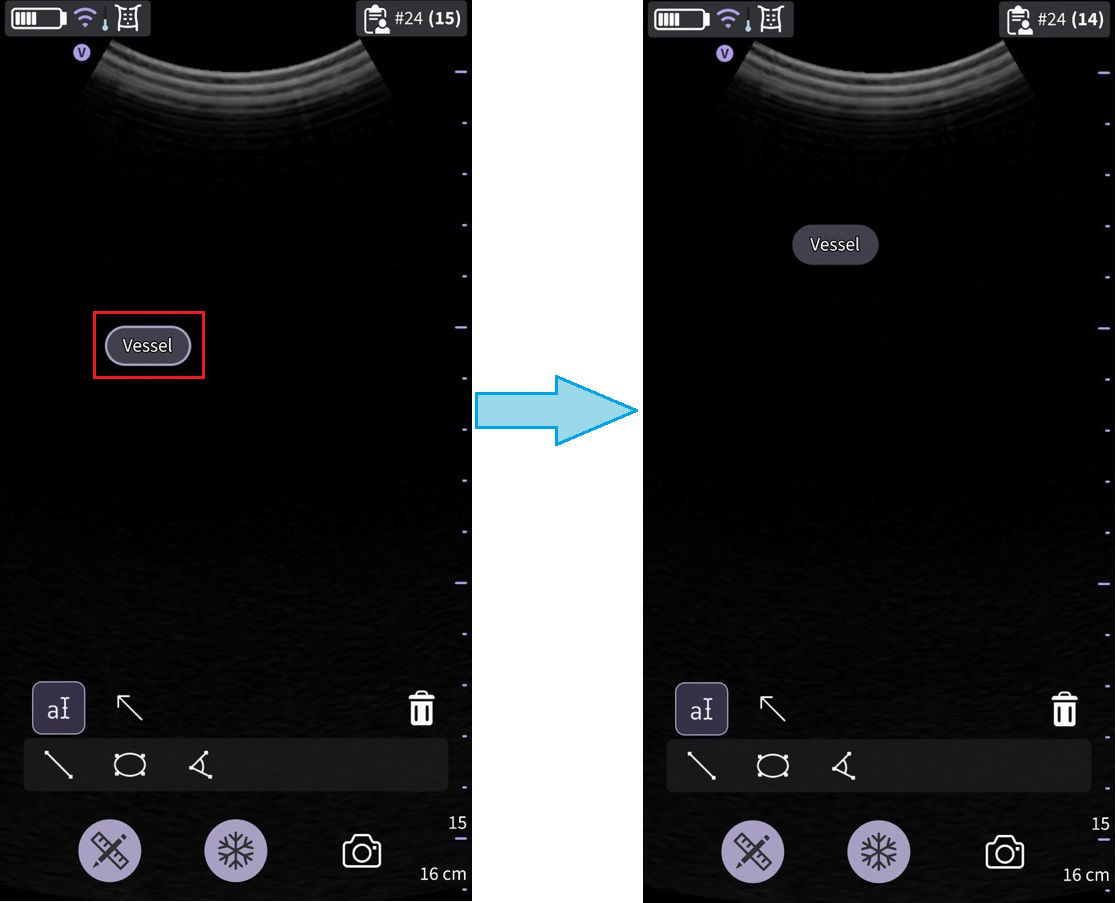
Repositioning annotation
Delete Annotation
1. Single tap to enter selected mode.
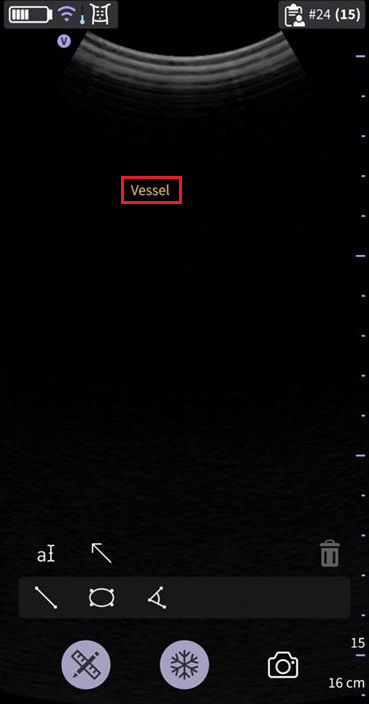
Select annotation
2. Press the Bin icon  to delete. When the Bin icon is tapped, the selected item is deleted, and any previous entered annotation is selected. The last in first out principle applies to annotations, measurements, and arrows.
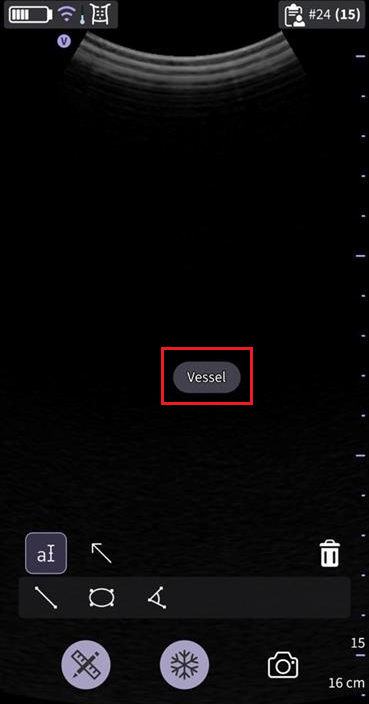
Deleting annotation
Arrow Pointer
The Vscan Air app supports a maximum of 5 pointers/arrows on a frozen or recalled image.
- To add an arrow on an image, activate annotation (
 ) and select arrow (
 ).
). - Position the arrow by moving the teardrop ends.
- Press anywhere on the screen to accept positioning.
- An arrow can be deleted when selected by pressing the Bin can

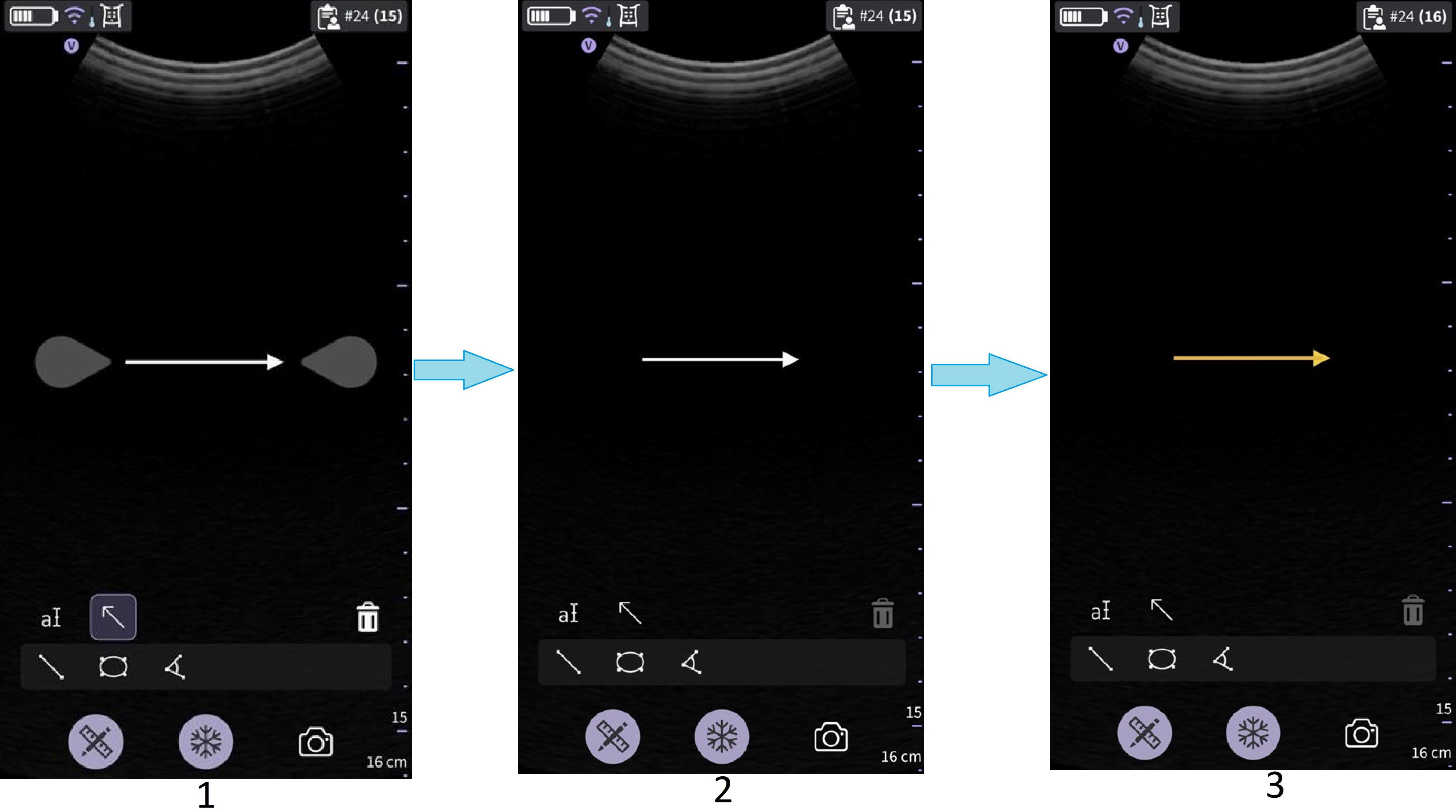
Arrow states
1. Selected / interactive
2. Deselected
3. Stored
User can lengthen, position or rotate the arrow pointer anywhere on the image.
Disclaimer: The information herein is not intended to replace the product’s User Manual. Please consult the User Manual for comprehensive information and cautionary guidance about the product’s operation and use