Follow the procedure below to configure a new Modality Performed Procedure Step (MPPS) Server.
1. Press Menu → Connectivity → Servers.
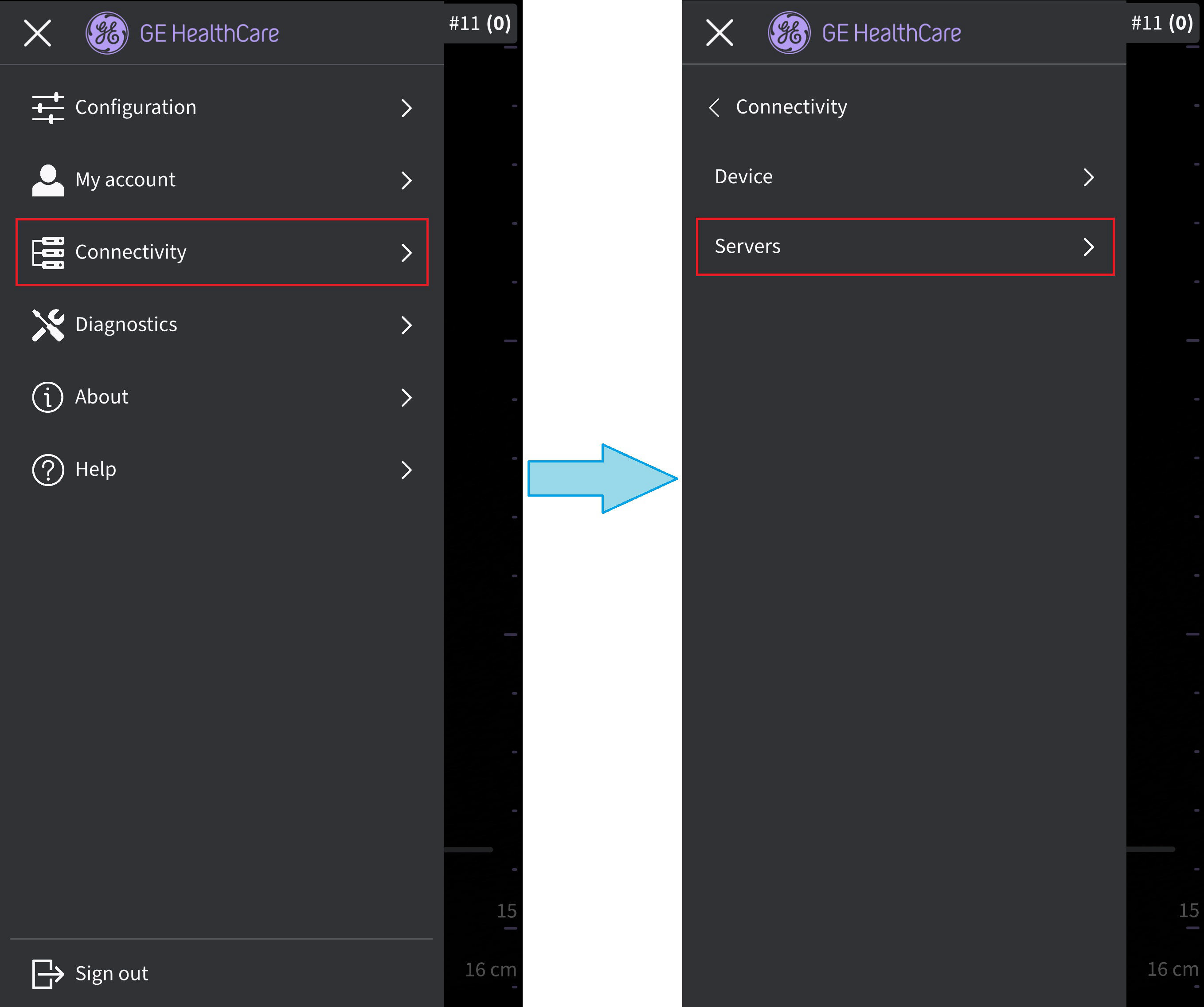 Server settings
2. Select Add server in the Servers screen.
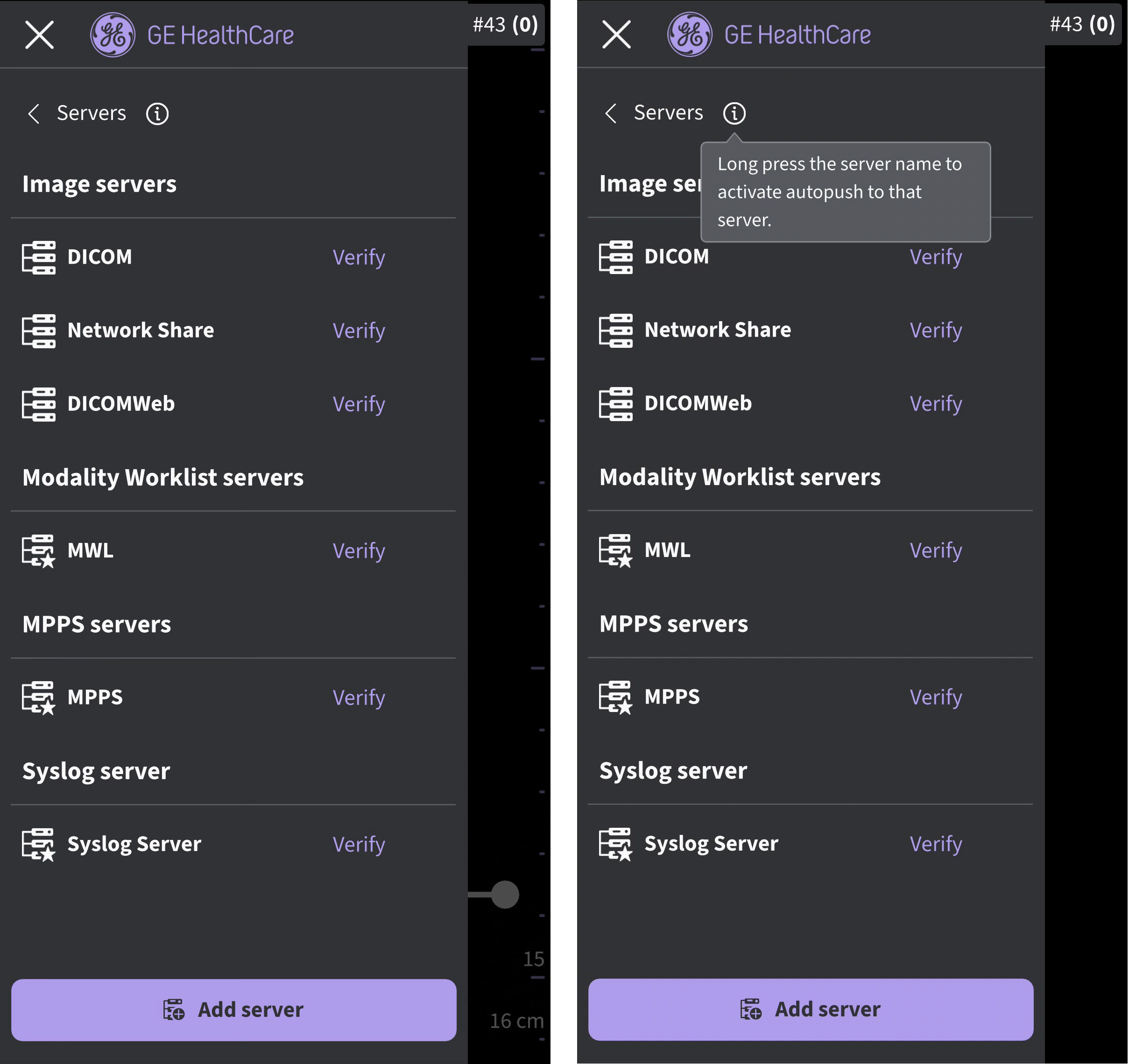
Add server
3. On the “Add server” screen, select “MPPS Server” from the drop-down list of “Server type” and enter the configuration information in the respective fields to add the MPPS Server.
Select “Secure DICOM” if applicable to the MPPS Server selected. See ‘Secure DICOM for more information.
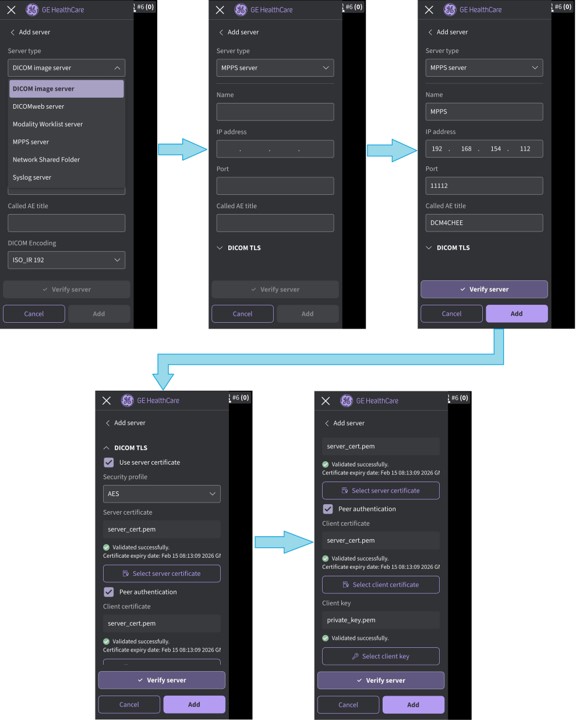
Enter configuration information
4. Press Verify server to verify communication with the MPPS Server.
- “Verify server succeed” pop-up message displays if the communication with the Server is established successfully.
- Press OK and then Press Add to add the MPPS Server.
- If communication fails, check the server settings and make necessary corrections.
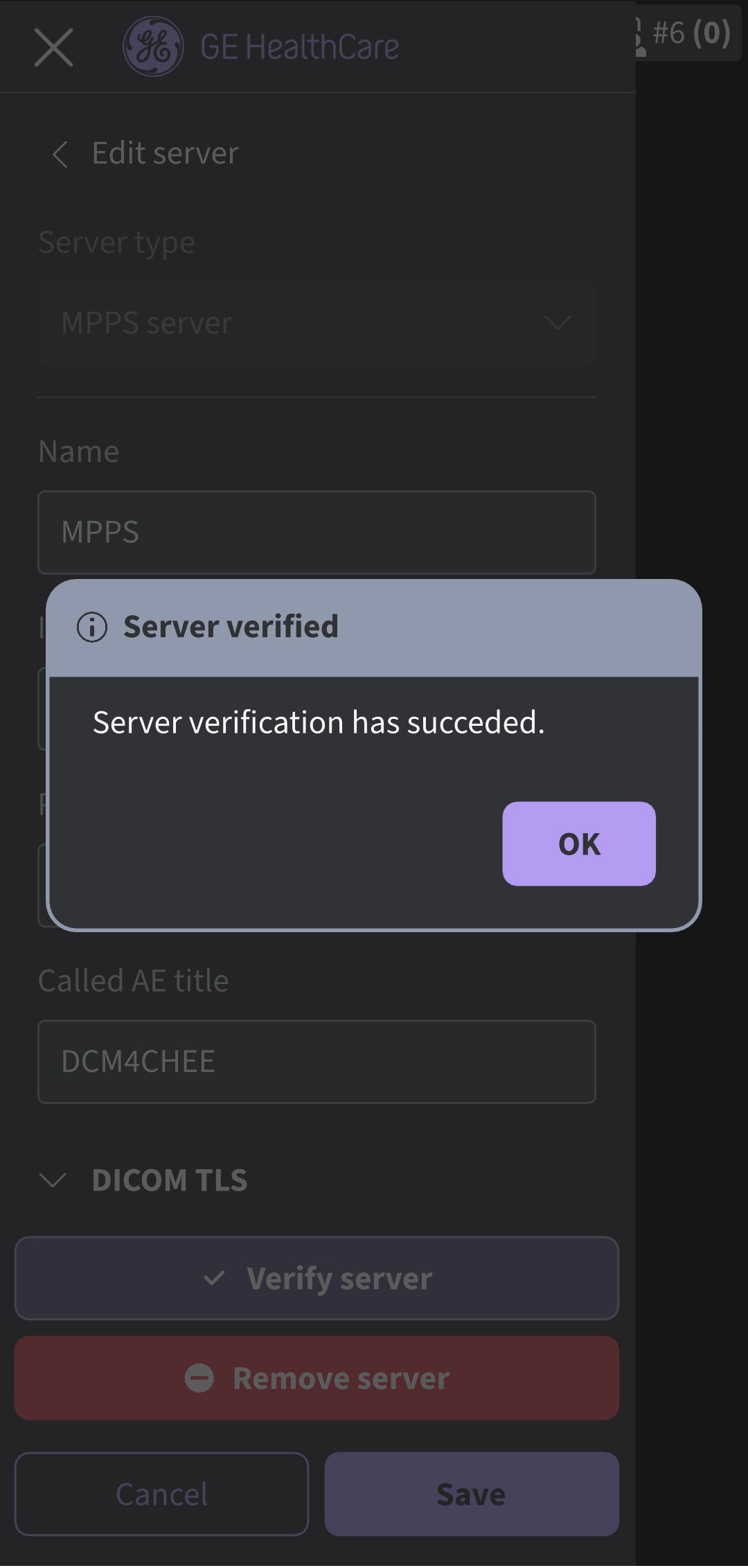
MPPS server
NOTE: Make sure that the display device hosting the Vscan Air app and the configured MPPS server is connected to the same network
5. Once the MPPS Server is added, you will find the server name under Servers. If there are multiple MPPS Servers, you have to choose the desired MPPS Server as a favorite server. To set MPPS Server as favorite, tap on the respective star mark and press YES on the pop-up message screen.
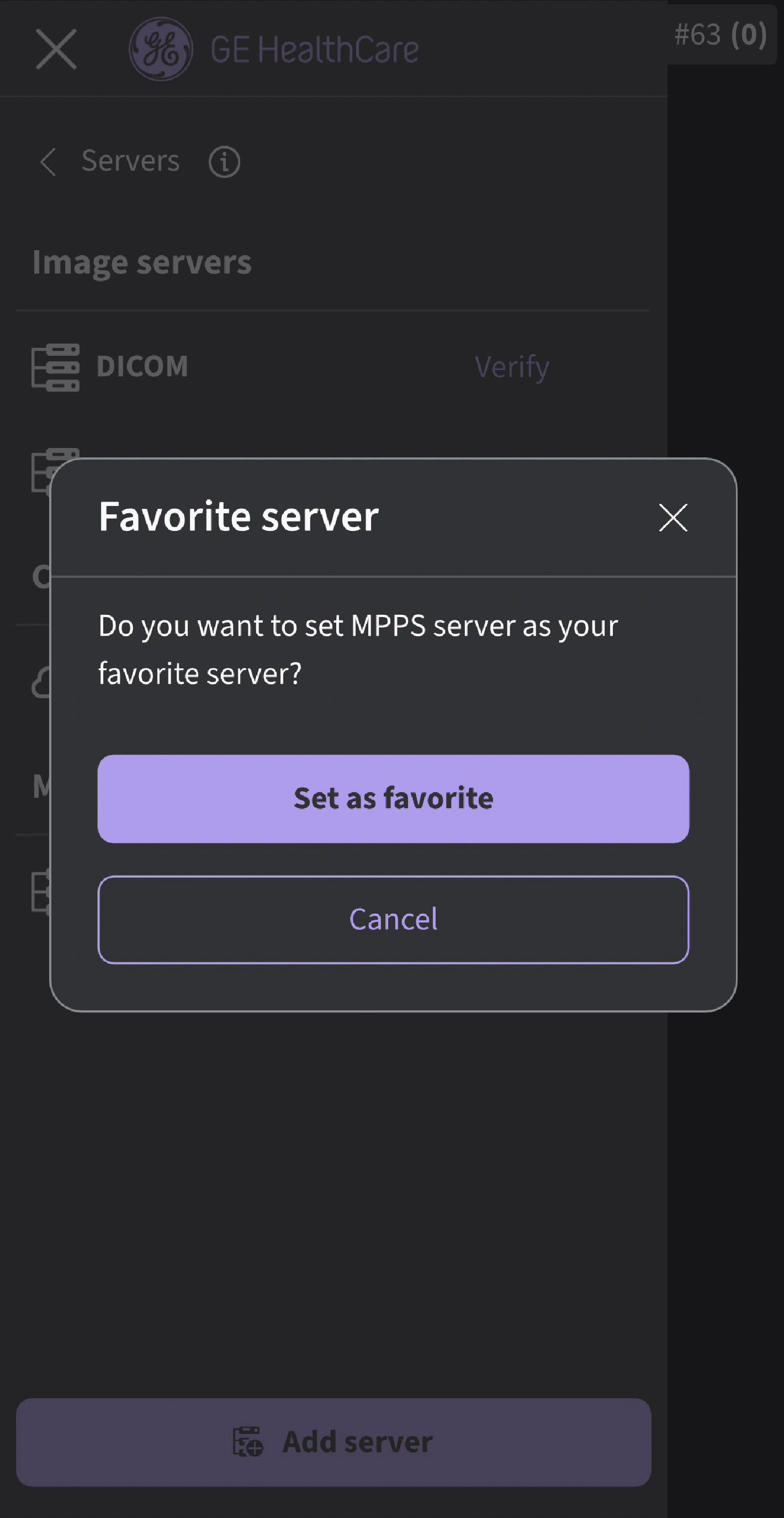
Select MPPS server as favorite
Disclaimer: The information herein is not intended to replace the product’s User Manual. Please consult the User Manual for comprehensive information and cautionary guidance about the product’s operation and use.