When operating over a network, syslog uses a client-server architecture where a syslog server listens for and logs messages coming from clients.
To configure Syslog Server:
1. Press Menu → Connectivity → Servers.
2. Select Add server on the Servers screen.
3. On the “Add server” screen, select “Syslog Server” from the drop-down list of “Server type”.
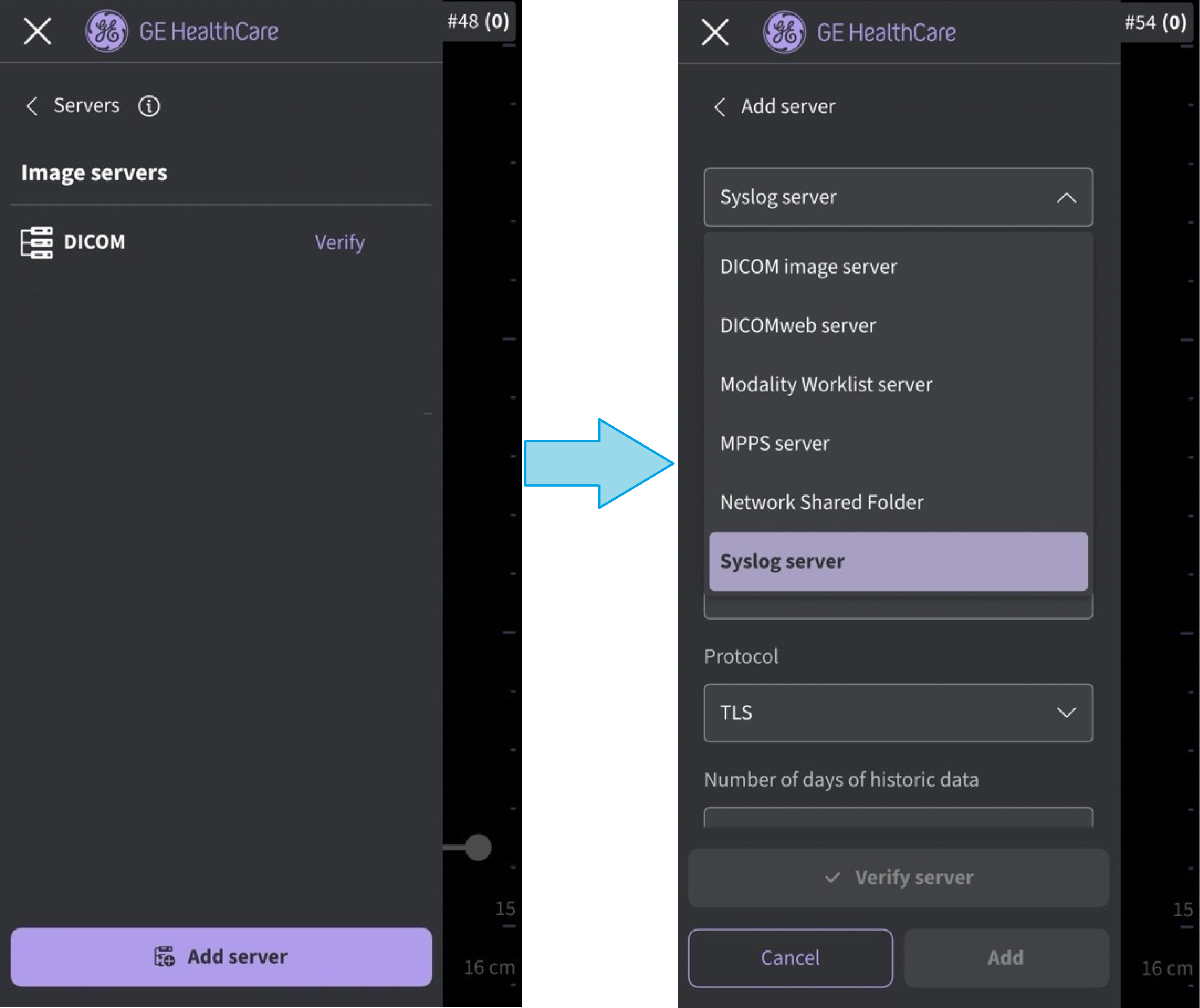
Add server - select Syslog server
NOTE
Please be aware that RFC 5424-compliant syslog servers are supported and recommended for full compatibility with the syslog feature.
4. Select Protocol type when configuring the Syslog Server.
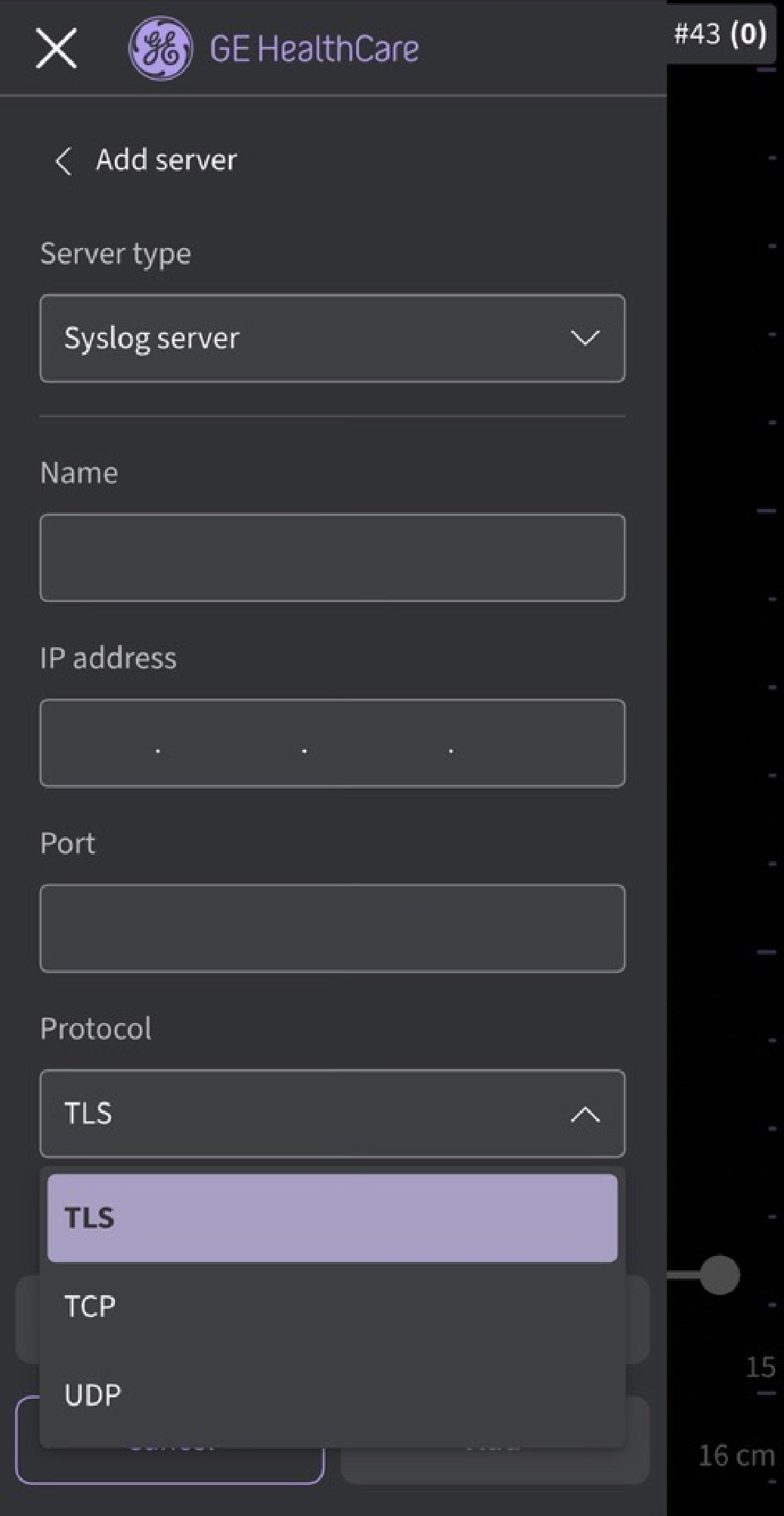 Syslog server protocol
NOTE
UDP is not recommended for audit log transmission due to its unreliable nature, which may result in data loss. The recommended protocol for secure and reliable transmission is TLS.
5. Enter configuration information and press Add.
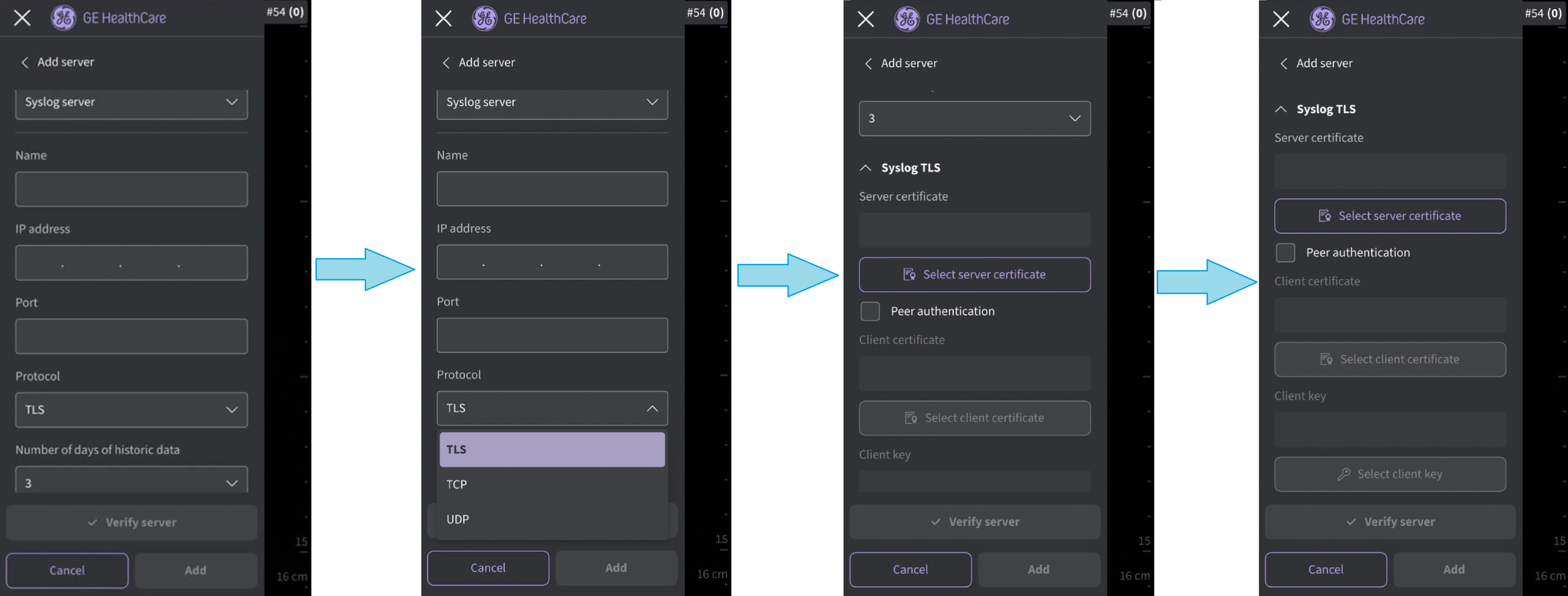
Syslog server configuration
The setting “Number of days of historic data“ signifies that only certain days of stored events will be transferred from the Vscan Air app to the Syslog server in case the Syslog server connection is broken. Range is 1 to 7 days.
NOTE
Only one syslog server configuration is made available. Once a Syslog server has been configured, the option to select “Syslog Server“ will no longer be available in the list of server types in the “Add server“ page.
If communication fails, check the server settings, and make necessary corrections.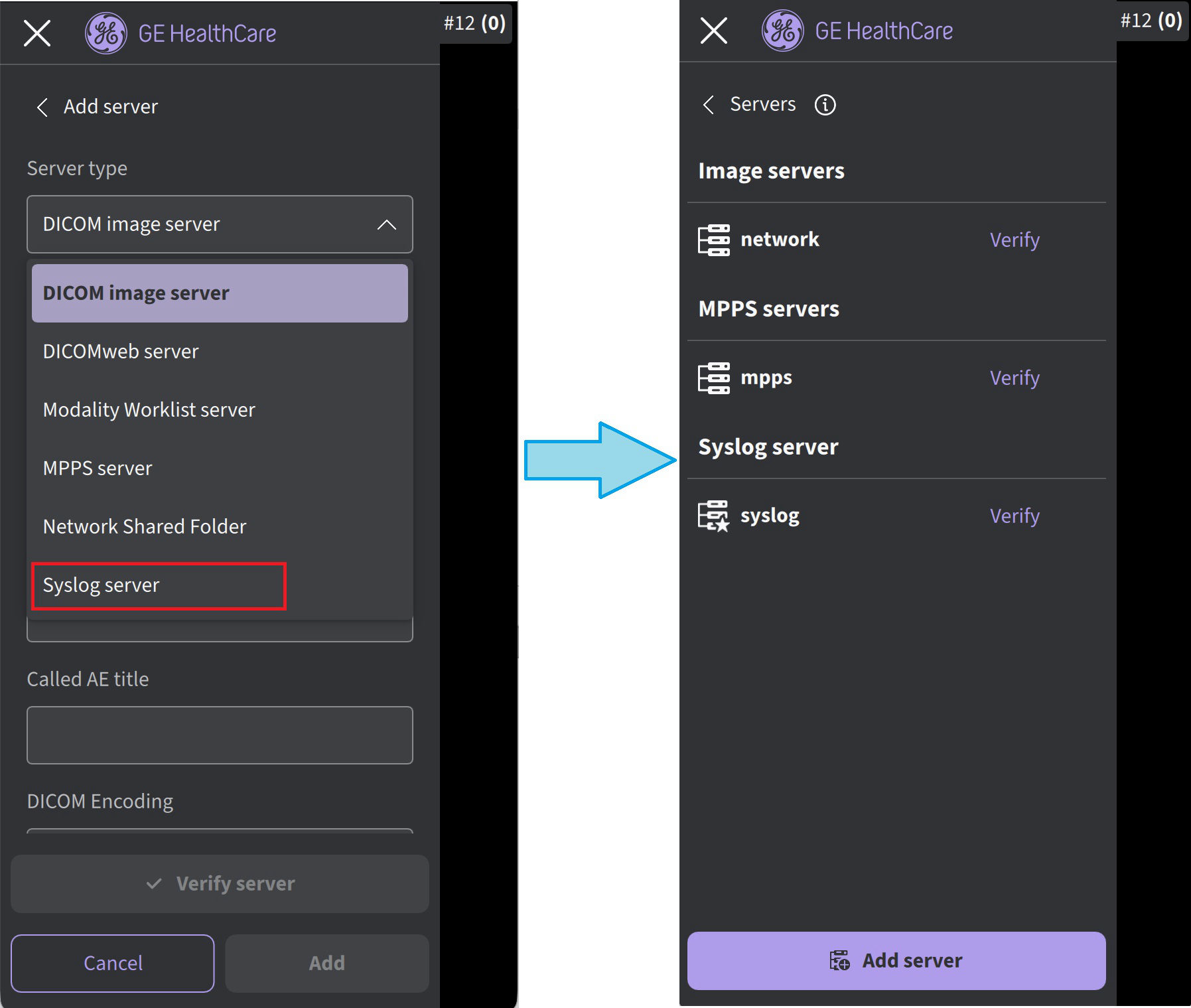 Syslog server
NOTE
The configured Syslog server becomes favorite by default and this setting can not be deselected.
ATNA compliant logs
Vscan Air supports audit logging in accordance with the DICOM ATNA standard, which is part of the IHE (Integrating the Healthcare Enterprise) ATNA profile. Audit messages conform to RFC-3881. The audit messages can be transmitted to external Syslog servers and are compatible with servers that support the RFC-5424 Syslog message format.
Configure syslog server (continued)
Upon selecting the UDP protocol during Syslog configuration a notification will state that server verification is not supported if the UDP protocol is selected.
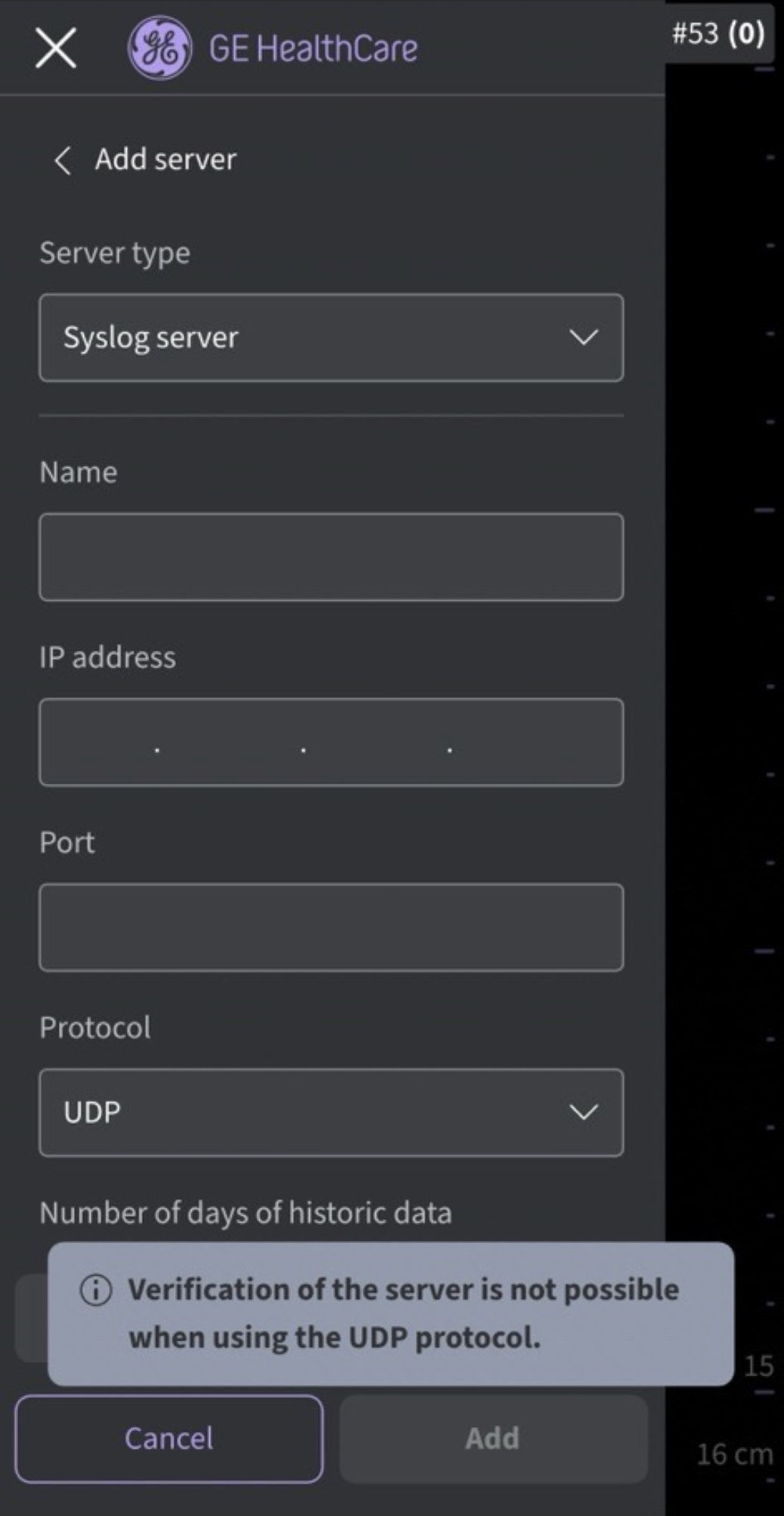
UDP verification message
When a user is signed in as an enterprise user it is possible to download the Syslog server configuration from the backend server by clicking on the icon " Download Configurations".
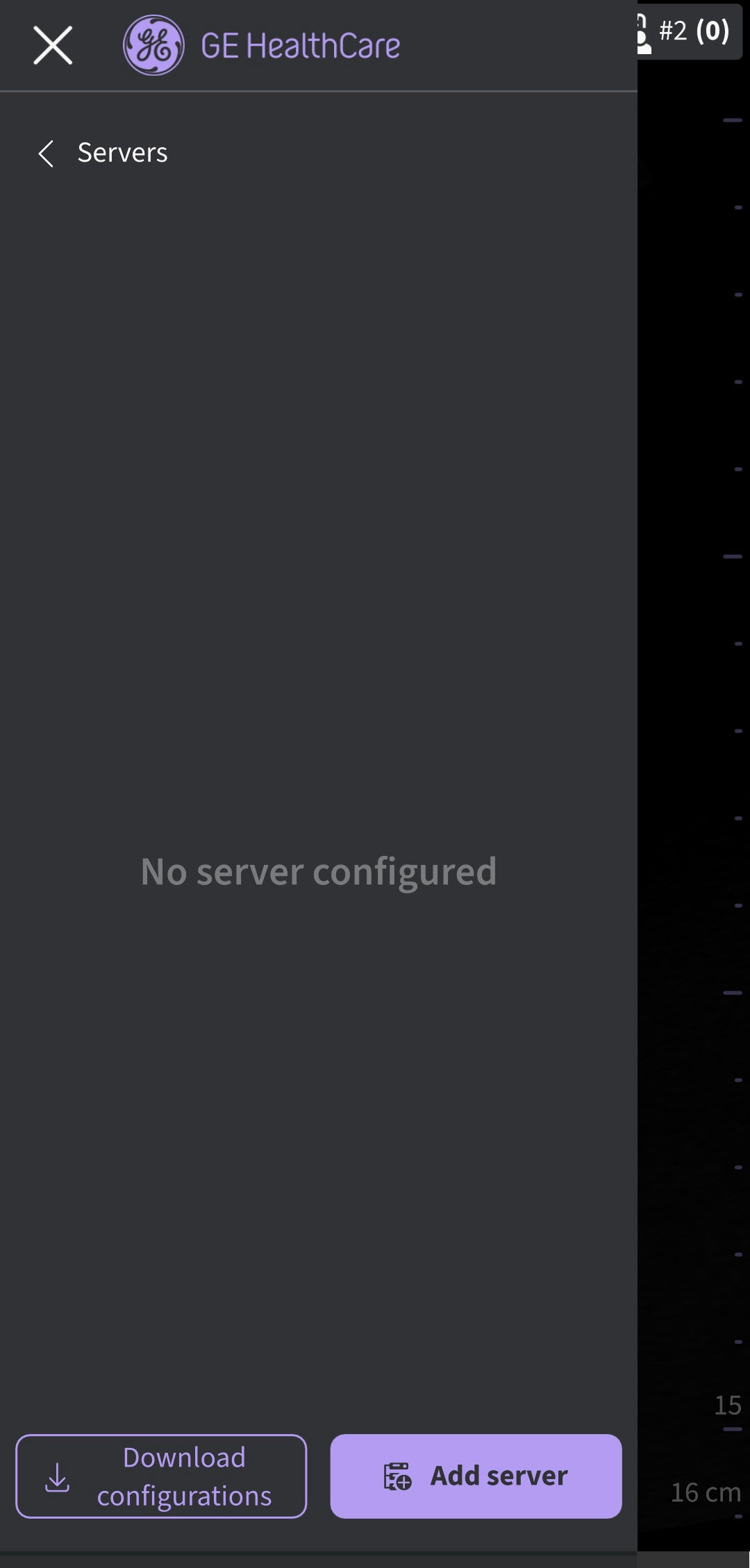 Download Syslog configuration (enterprise environment)
Disclaimer: The information herein is not intended to replace the product’s User Manual. Please consult the User Manual for comprehensive information and cautionary guidance about the product’s operation and use.