This article will take you through the steps to register your Vscan Air app on your mobile device - including registering for the first time and adding additional users
Vscan Air App Installation
For Vscan Air app installation, please follow the instructions shown in Vscan Air App
Create a Vscan Air User Account
1. Click on the Vscan Air app icon on the display device to start the app.
2. Review the End User License Agreement.
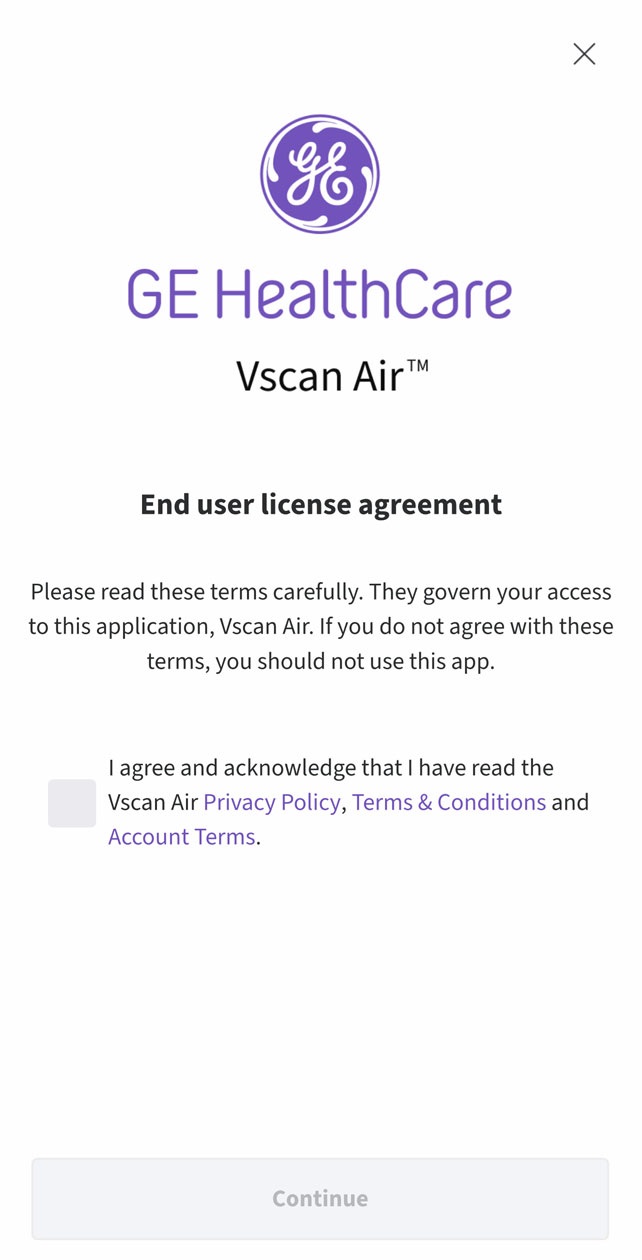 End User License Agreement
3. If accepting check the box to continue. Then press Register to start registration
 Start registration
NOTE: The Vscan Air app can be explored by selecting "Preview". Scanning is disabled while in Preview4. Select “Create New Account” available for selection when the End User License Agreement check-box is checked.
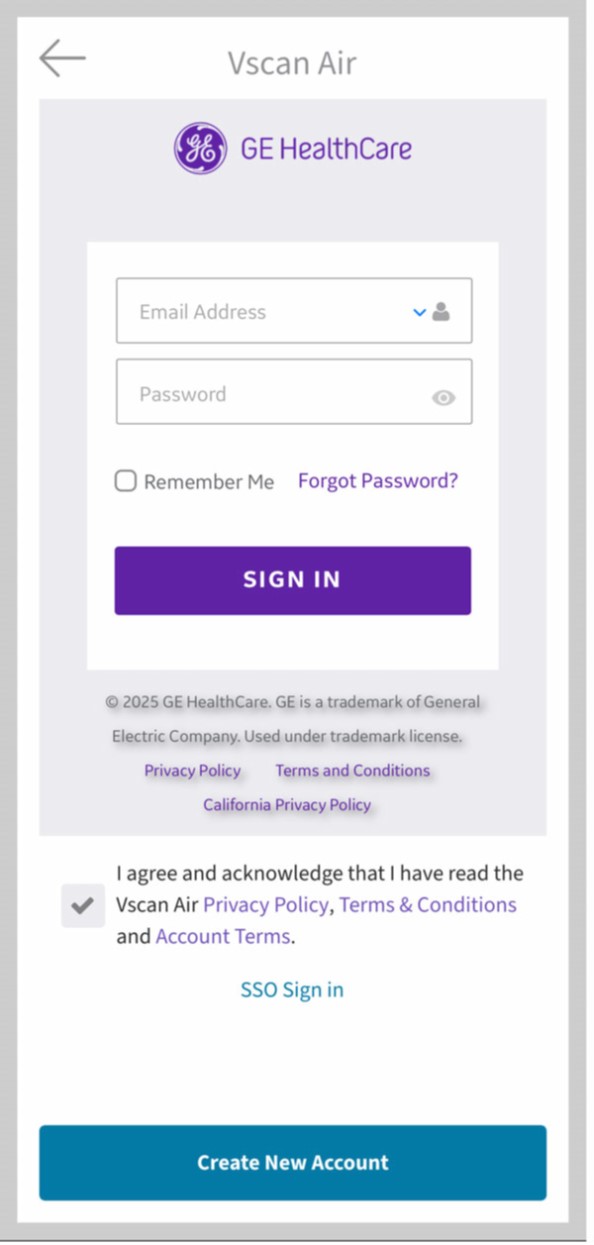
Register the Vscan Air app
NOTE
For security reasons, if the sign in screen is kept open for more than 30 minutes, user is expected to close and open the app again.
If a registered account is already found for the email entered, the app will return to the previous screen to sign in using the existing credentials. If an existing account is not found for the entered email, you will be taken to the next step.

Confirm email address
5. Turn on Vscan Air Probe.
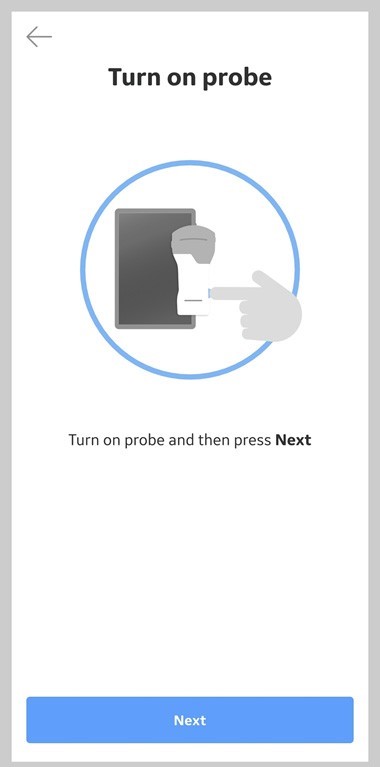
Search for Vscan Air Probe
NOTE: The Vscan Air probe will not be able to connect to the Vscan Air App if the Android or iOS mobile device is in 'Flight mode'.6. Wait for initialization of Vscan Air Probe.
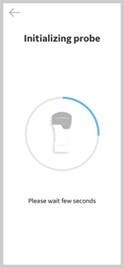
Initialization of Vscan Air Probe
7. Press the power button on Vscan Air Probe to connect to the Vscan Air app.
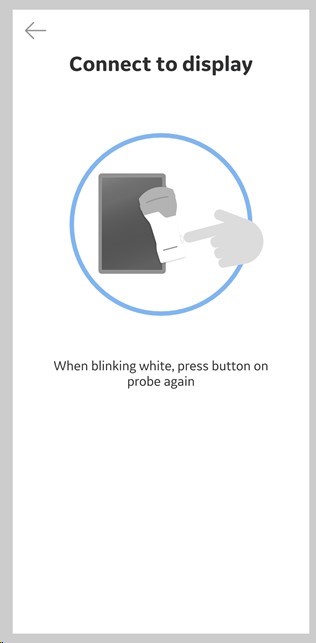
Connect to Display
8. Once Vscan Air Probe is found, select “Continue registration”.
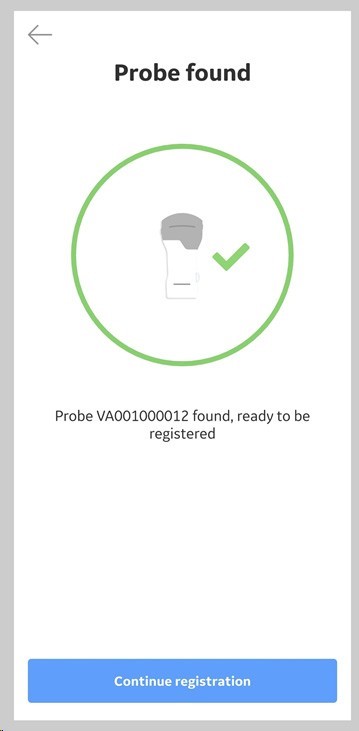
Vscan Air Probe Detected
9. Enter the required information.
10. Confirm that given information is correct.
11. Acknowledge Terms and Conditions related to user accounts and check desired options to either participate in collaborative GE HealthCare activities or to receive special offers and promotions
12. Press Submit.
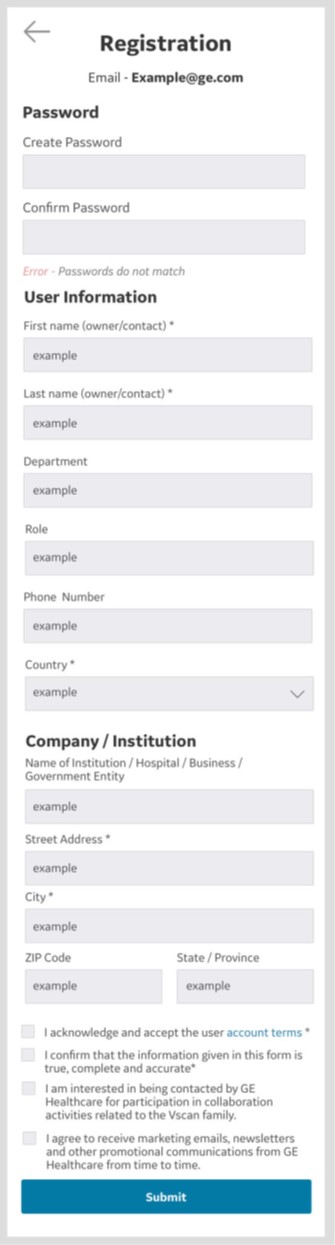
Registration Submission
NOTE
- The password must have at least 8 characters and contain at least one number, one uppercase letter, one lowercase letter, and one of the following special characters: ! " # $ % & ' ( ) * + , - . / : ; < = > ?@ [ \ ] ^ _ ` { | } ~. The password shall neither include “password” nor contain the username or email address.
- Fields marked with an asterisk (*) are required fields.
13. An email is sent to your email address to validate the Vscan Air user account.
 Email confirmation
14. The following activation email will be sent to the registered email
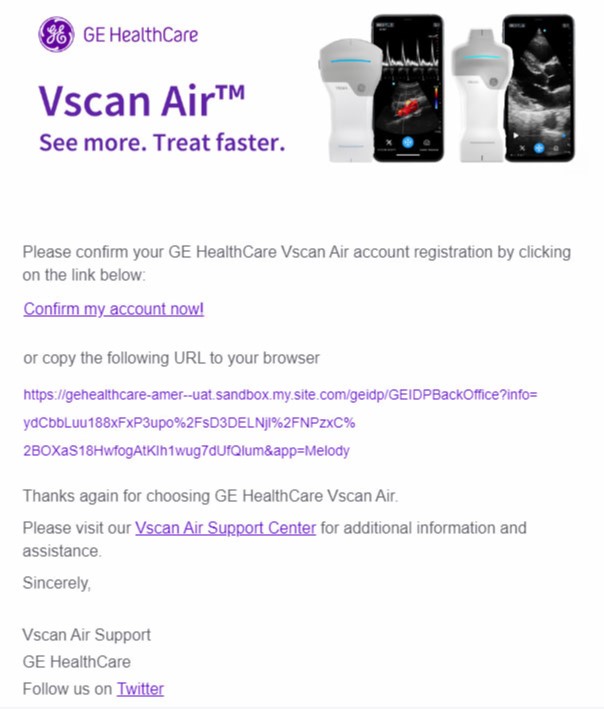 Email Message
NOTE: Please check your spam folder if not receiving the email for validating your user account.
15. Click the link in the email to validate the Vscan Air user account.
16. The account is activated. Sign into the new account.
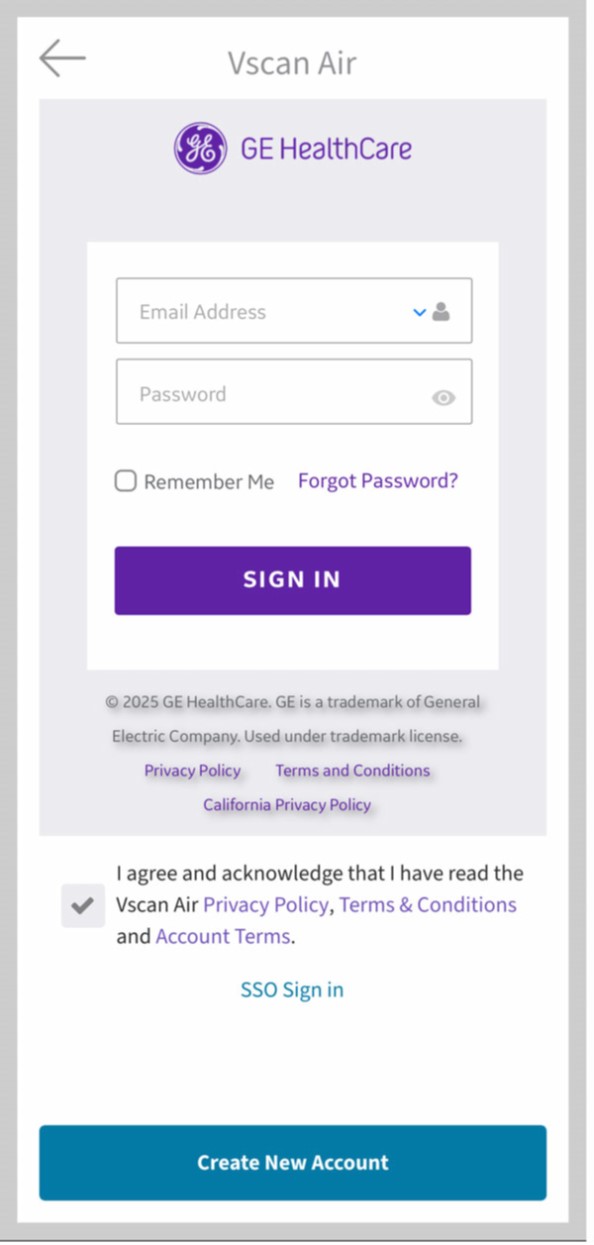
Sign into the account
NOTE: Some mobile devices have convenience settings for keyboards such as "slide to type" or "swipe keyboard" or "one handed keyboard". Enabling these may assist you in faster entry of the password. These are most often found under language or keyboard menu under general settings17. If the account is not activated by clicking the activation link, Vscan Air application will display a warning message. In such scenario, press “Click here” to initiate request for resending the activation email from the sign in screen
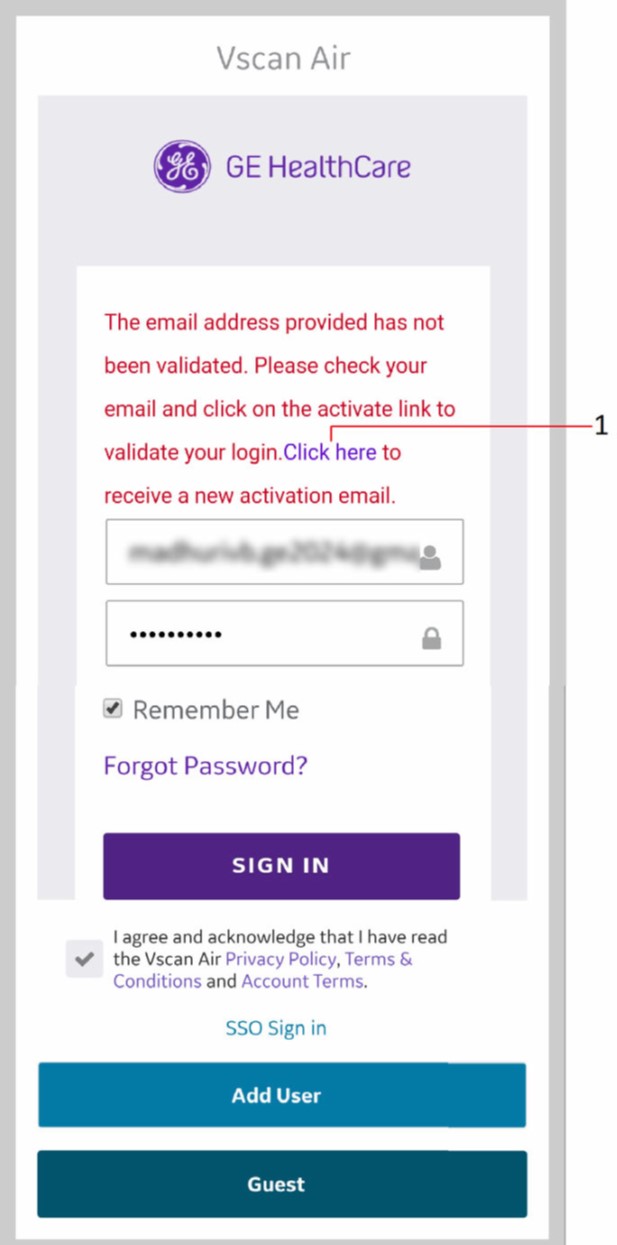
Resending activation mail
18. Once email is validated, the app screen will show registration details. Click Confirm to proceed
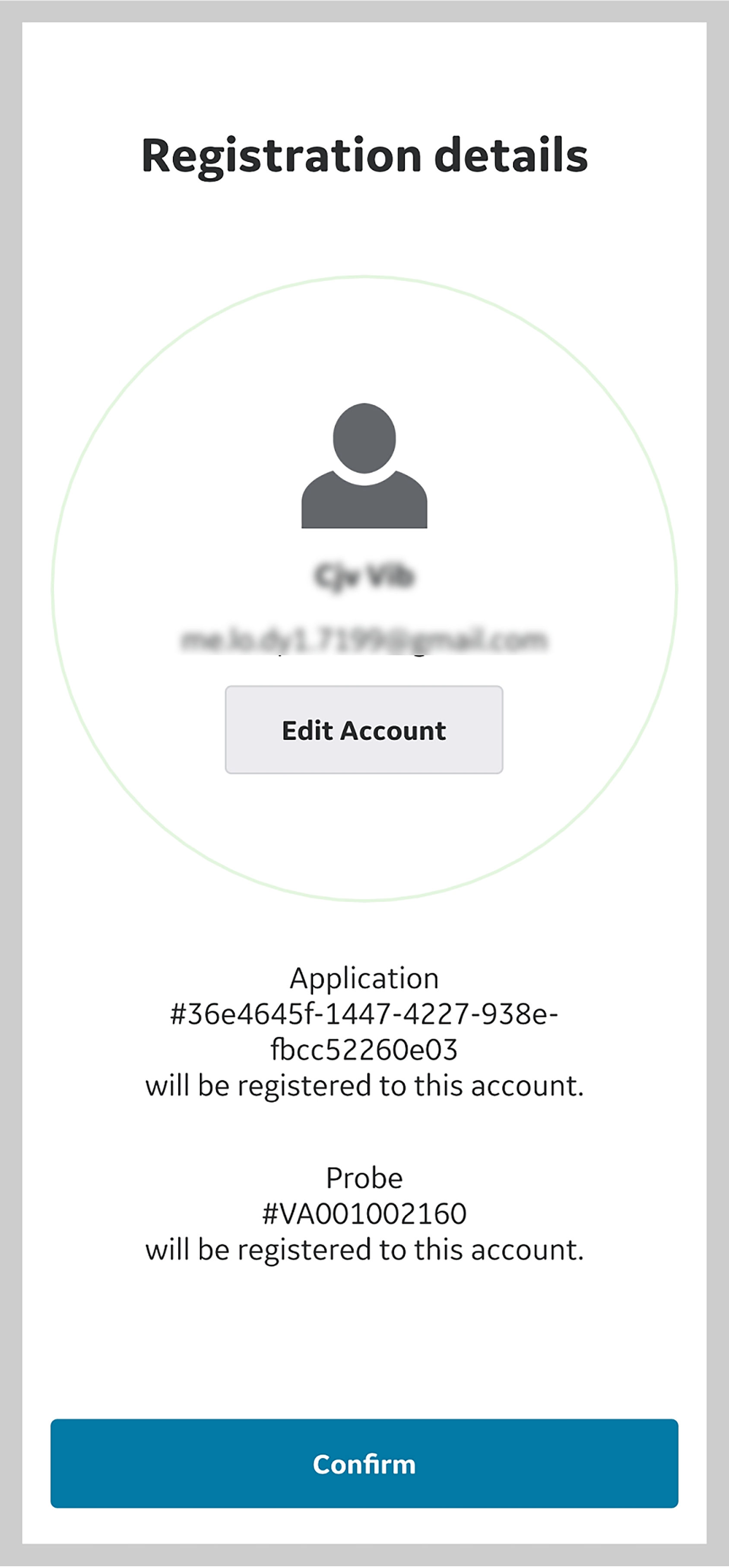 Confirm Registration
19. Registration is complete. Security PIN can be set for secure data access by selecting 'Add security PIN' or proceed without Security PIN by selecting 'Skip'
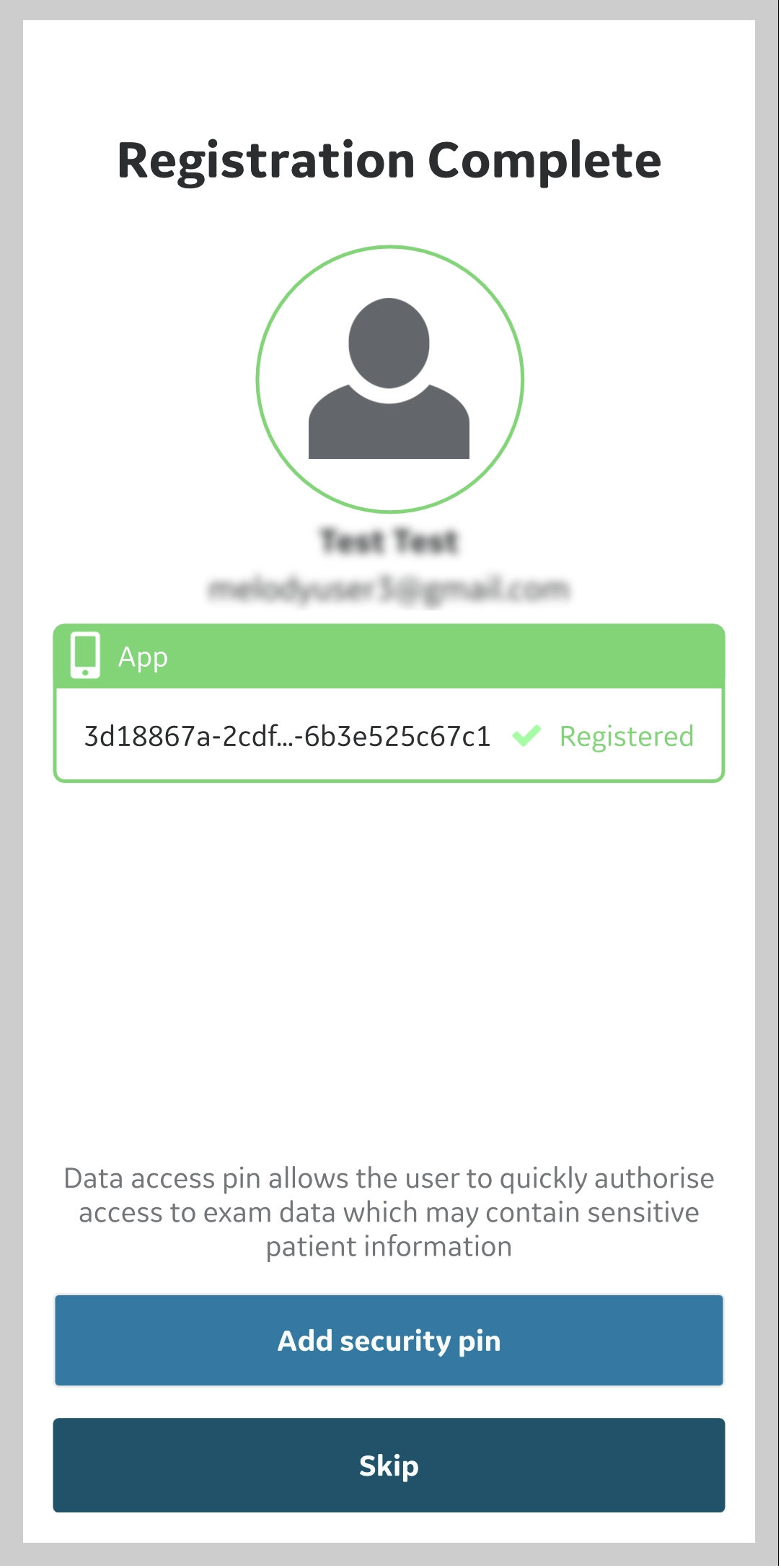 Registration Complete
20. To add a security PIN code after completing Vscan Air registration, See Device Security for more information
21. Configure the automatic sign-out frequency
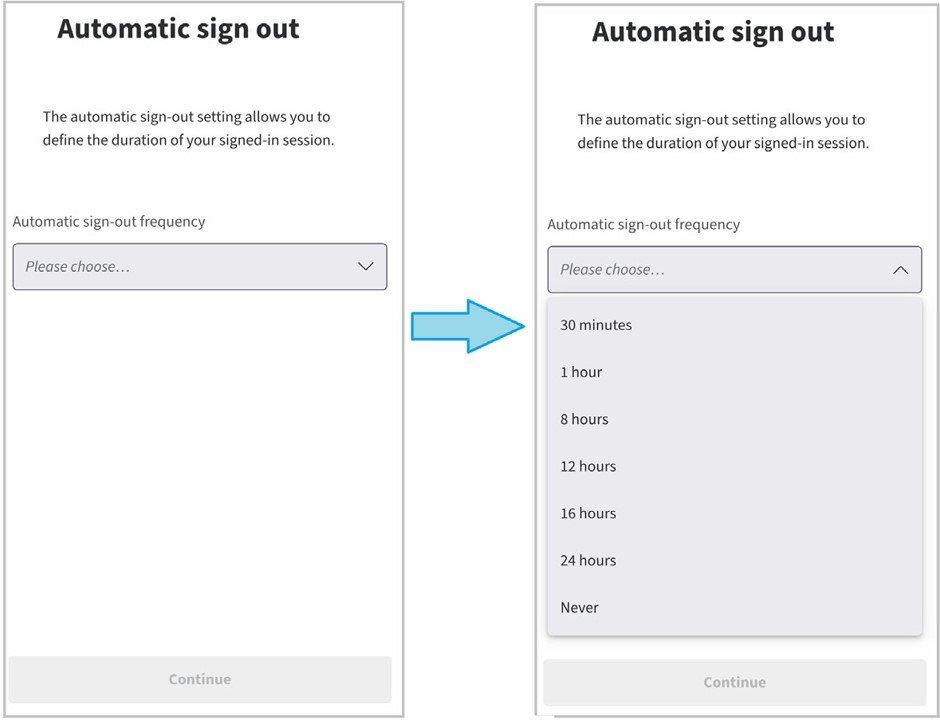
Sign-out frequency options
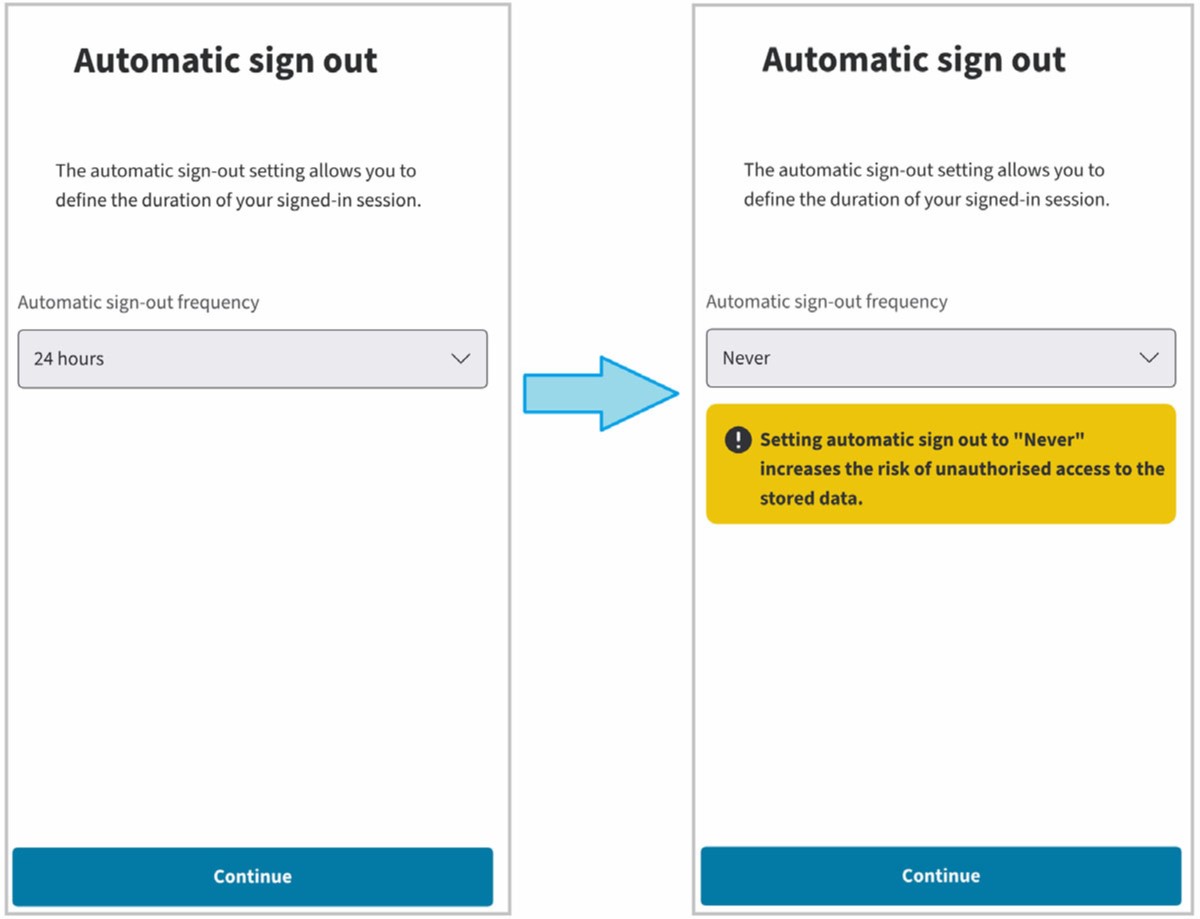
Select Sign-out frequency
22. The Vscan Air Probe is now connected to the app.
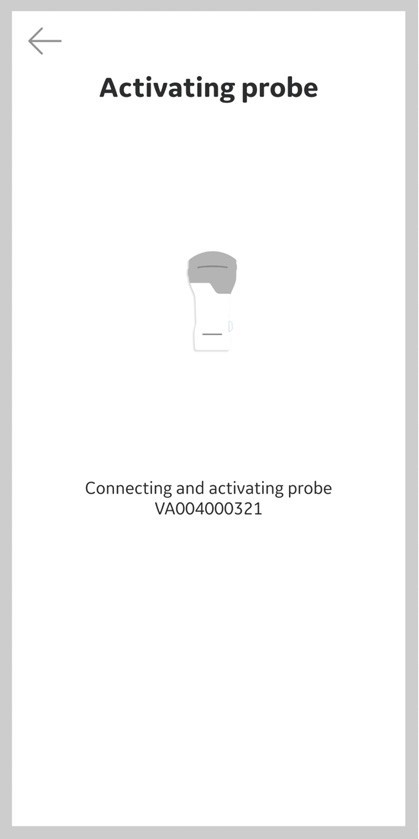
Vscan Air Probe Activation
NOTE: When the Wi-Fi connection to the paired probe is unexpectedly lost, the Vscan Air App shows warning message as 'Lost connection to Probe' (see figure below).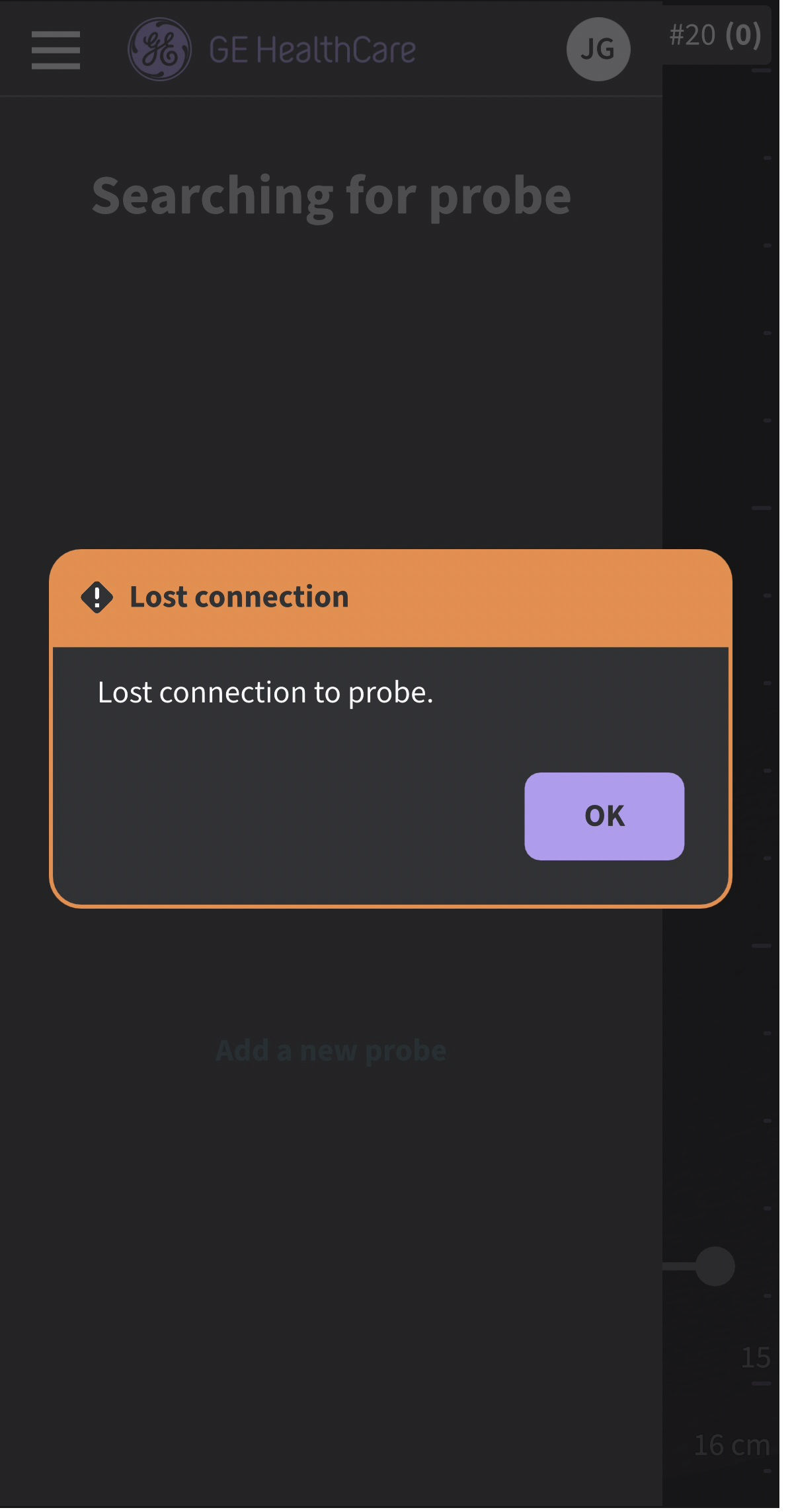
Vscan Air Probe Connection Lost
Disclaimer: The information herein is not intended to replace the product’s User Manual. Please consult the User Manual for comprehensive information and cautionary guidance about the product’s operation and use.
TABLE OF CONTENTS