Learn about the optimisation of Pulsed Wave (PW) Doppler settings like Doppler gain, Toggling, Doppler Sample volume gate position, Velocity scale, Sweep speed, Angle correct, Baseline, PW Cursor and Steer
1. Doppler gain
Move your finger to the right or left to in the PW doppler display area to increase or decrease gain
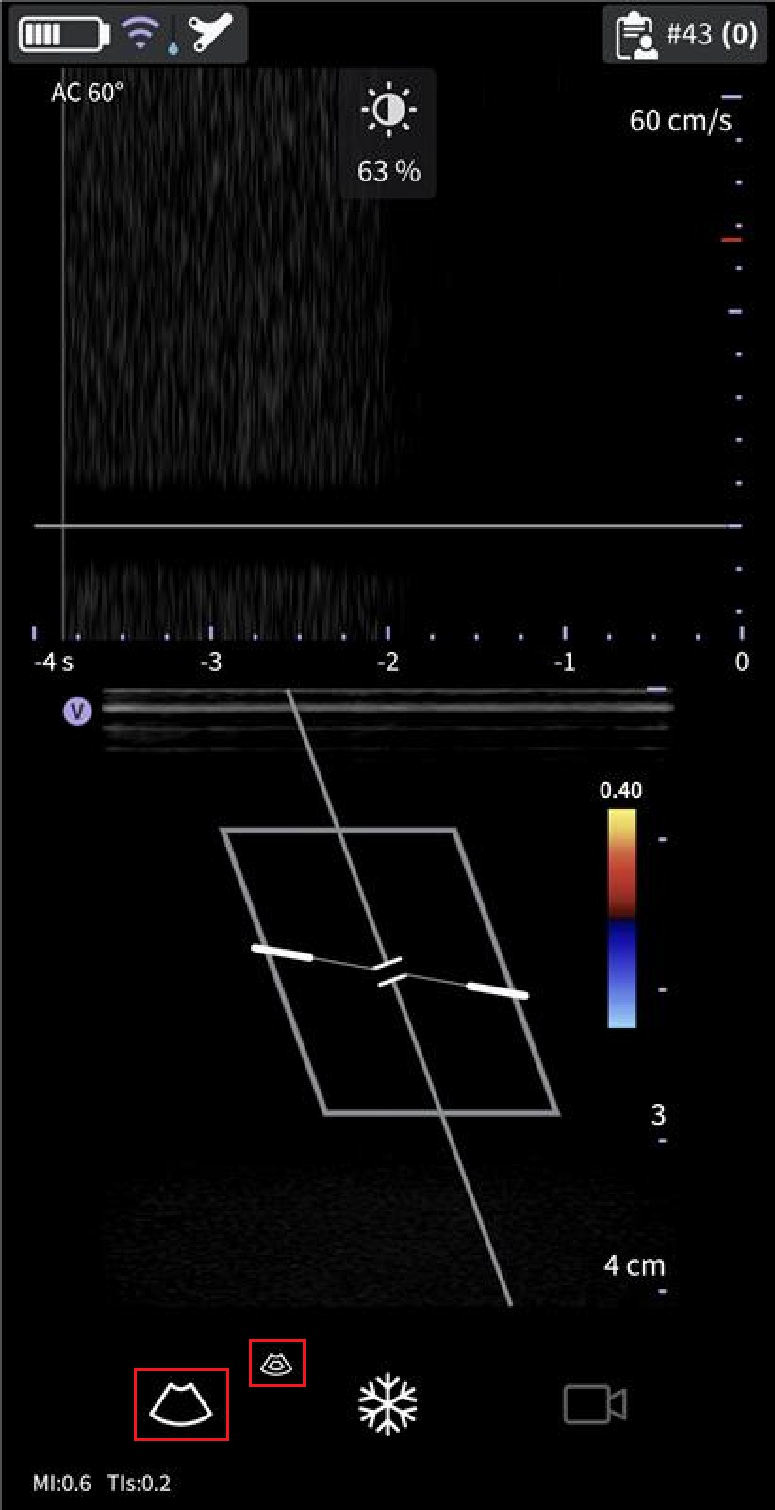
PW Gain
2. Toggling
• Toggle between live Doppler (color-mode frozen) and live color-mode (Doppler spectrum frozen) is available in PW modes.
• Freeze icon can freeze both color-mode and Doppler spectrum simultaneously.
3. Doppler sample volume gate position
• Move the sample volume gate on the color-mode cursor. The gate is positioned over a specific position within the vessel.
• To move sample volume gate position, tap the cursor then move it in any direction until it is positioned inside the vessel of interest.
4. Velocity scale
• Scale adjusts the velocity scale to accommodate faster/slower blood flow velocities.
• To increase or decrease velocity swipe your finger up/down on or close to the on-screen velocity ruler. Swipe at least half a centimeter to initiate velocity scale adjustments. The display updates the velocity scale after adjusting.
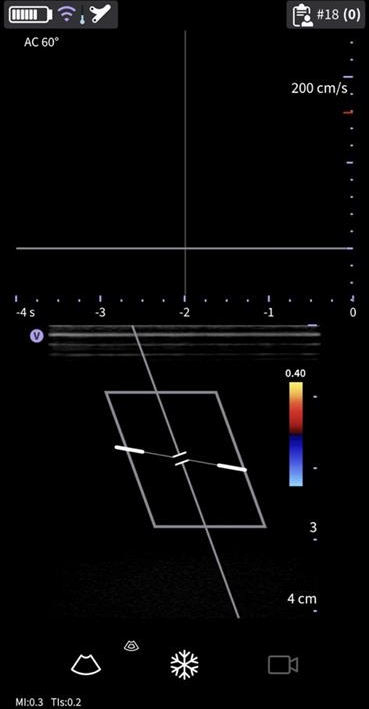 Velocity scale
5. Sweep speed (time scale)
• Sweep speed adjusts the time scale to optimize the display (time) resolution.
• To increase or decrease sweep speed swipe your finger left/right on or close to the on-time scale ruler. Swipe at least half a centimeter to initiate Sweep speed adjustments. The display updates Sweep speed after adjusting.
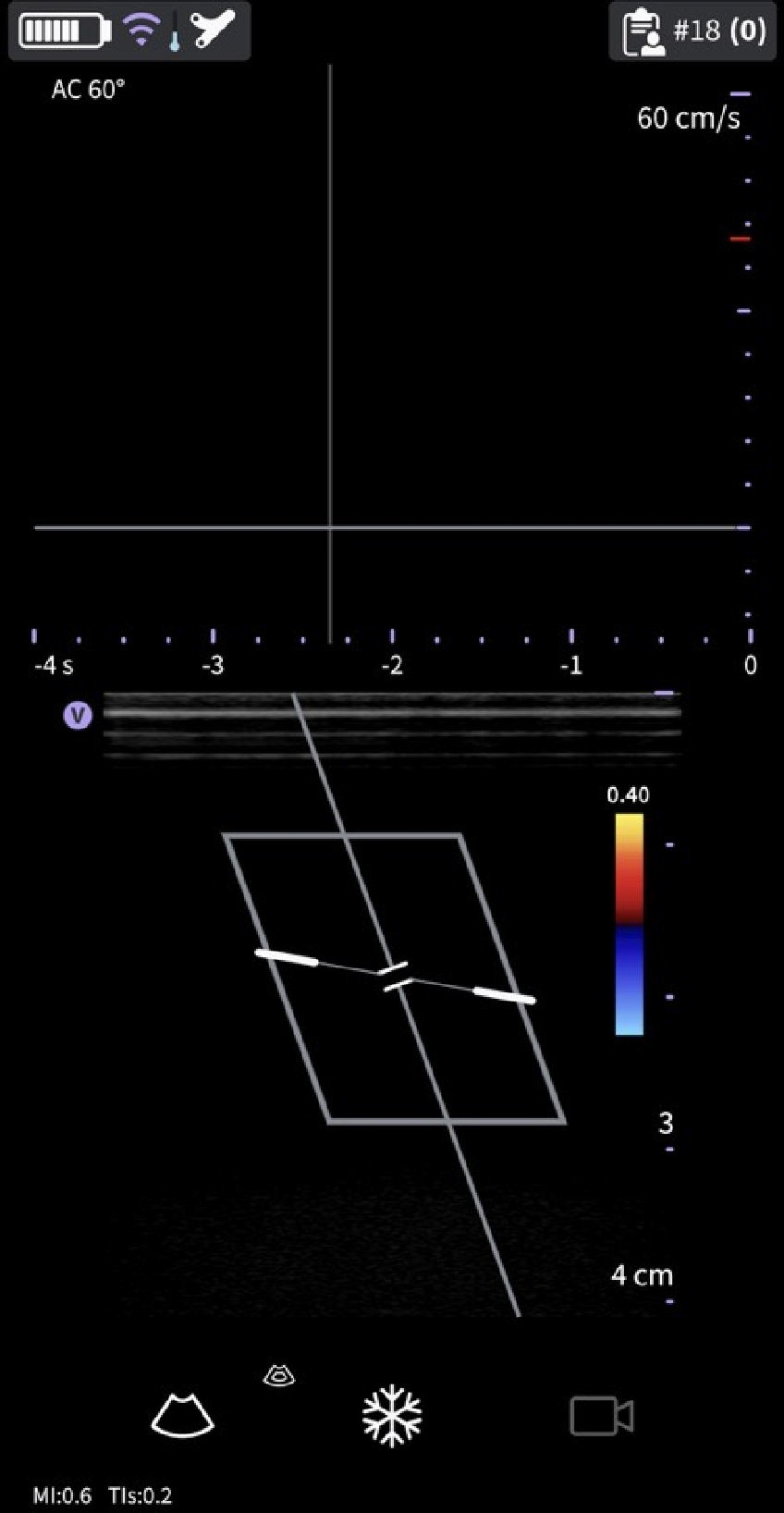 Sweep speed
6. Angle Correct
Angle correct represents angle in degrees between the PW-mode cursor and angle correct indicator.
NOTE
• When the Doppler mode cursor and angle correct indicator are aligned (the angle is 0), the angle correct indicator as a blue line on top of PW cursor line can be seen.
• The angle correct number in degrees displays as long as the angle correct is not set to zero (0).
• The Doppler Angle displays in red when the angle exceeds 60°. Angle correct values are limited to 80° since values greater than 80° are not accepted by the Vscan Air app.
7. Baseline
• Baseline rearranges the velocity scale without changing the velocity scale. Readjusts the positive and negative velocities limit without changing the total velocity range.
• Baseline adjusts the point in the spectrum where the velocity is zero. To shift the baseline, drag Baseline up down directly on the spectral image.
8. PW Cursor
• The PW cursor displays the Doppler mode cursor on either the live B‑mode or B+Color image.
• Drag the cursor on the image to position it over the desired target before you activate the Doppler spectrum. The cursor can also be adjusted on the live color-mode image when spectral display is frozen.
9. Steer
The PW Cursor steer will align to the color steer. Color steer is only available for the linear transducer. If needing to change the PW cursor steer, then leave PW-mode, adjust color steer as desired and return to PW.
Screen layout PW doppler
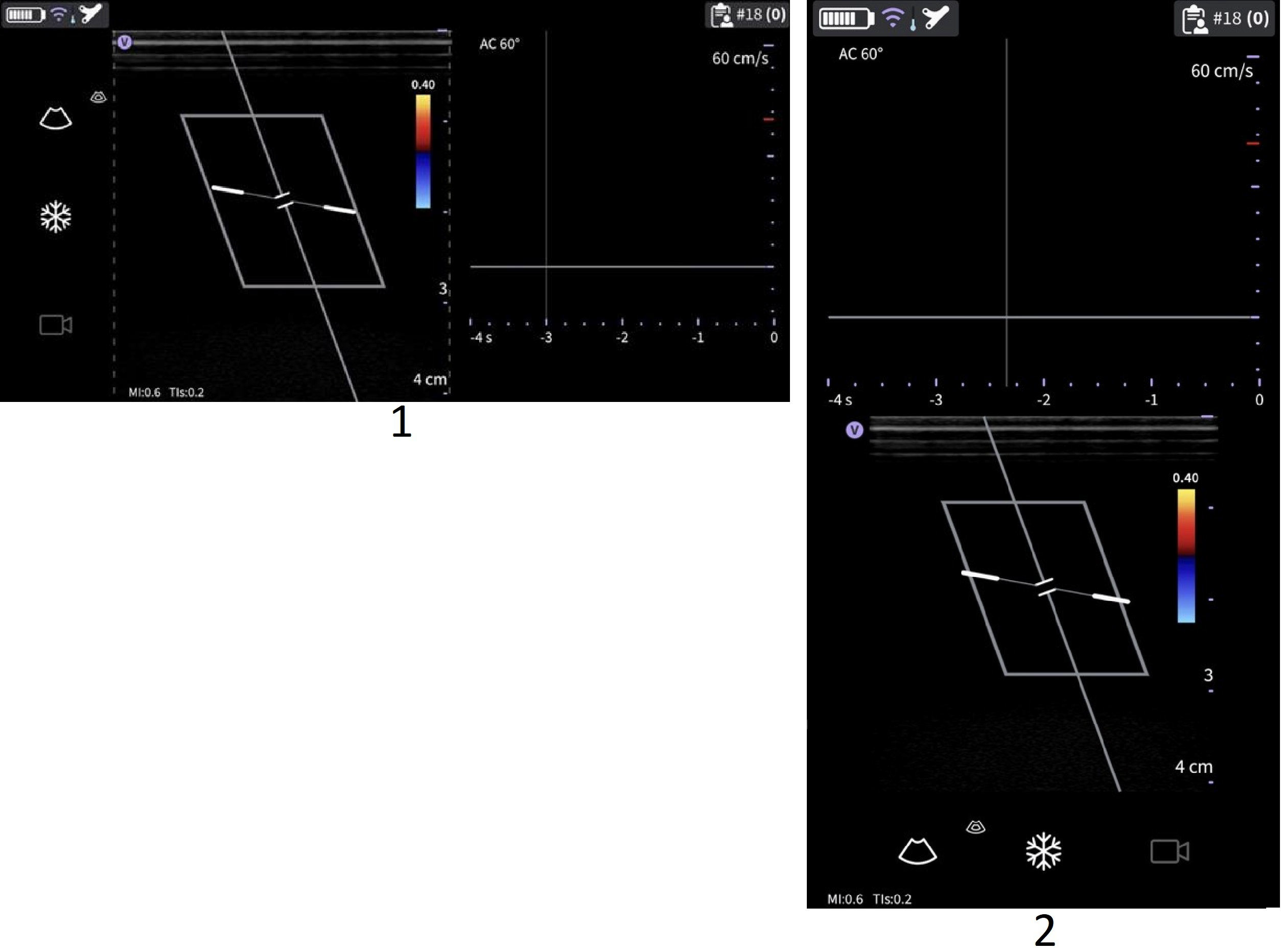 PW layout
1. PW Landscape
2. PW Portrait
NOTE
If selecting to use landscape when the display device (tablet) is being 7.3 inch (diagonal) or larger, the over/under layout (as in portrait) will be used instead of the side/side layout indicated above
Disclaimer: The information herein is not intended to replace the product’s User Manual. Please consult the User Manual for comprehensive information and cautionary guidance about the product’s operation and use.