The Barcode scanner feature in the Vscan Air app enables users to capture patient identification information by scanning patient barcodes using the device’s rear camera.
The scanned barcode data is automatically used to perform a Modality Worklist (MWL) query against the configured MWL server.
Barcodes are scanned from:
• Patient wristbands
• Patient ID stickers
• Requisition forms
This functionality eliminates manual data entry, streamlines clinical workflows, and reduces the risk of demographic data entry errors in accordance with clinical data safety practices.
Accessing the barcode scan functionality
Preconditions
The following conditions must be met before barcode scanner is available in the Vscan Air app:
• A MWL server is configured in the Vscan Air app.
• Camera permission is granted to the Vscan Air app.
• The device is equipped with a rear camera.
Scanning a patient barcode
Follow these steps to scan a patient barcode using the Vscan Air app:
1. Sign in to the Vscan Air app.
2. Open the right‑side panel by sliding from the screen edge.
3. Select the Worklist option in the top‑right corner.
4. On the Worklist screen, tap barcode scanner icon in the top‑left corner.
5. If prompted, allow camera access.
6. The rear camera opens automatically.
7. Align the patient barcode within the camera view to scan.
8. After a successful scan, the Vscan Air app uses the barcode data to query the configured MWL server.
9. The retrieved patient information appears in the lower section of the Worklist screen.
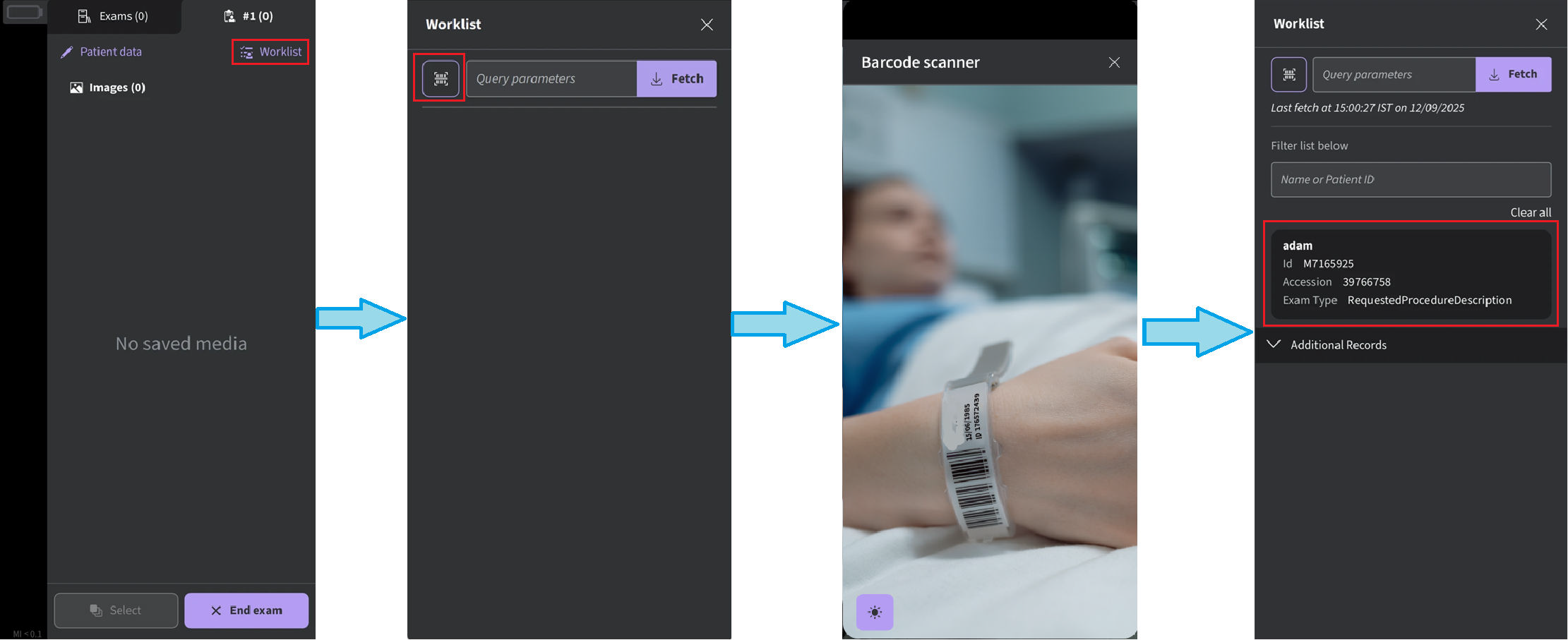
Barcode scanner workflow
When only a single Wi‑Fi connection is available and the current exam contains unsaved patient data, the user receives the following message before the MWL query is performed:
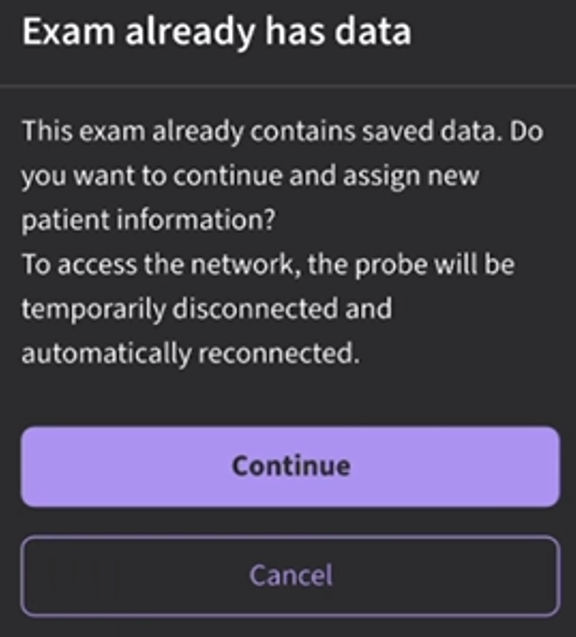 Exam already has data
Additional information
• The barcode scanner camera screen includes a Torch (Flashlight) option for low-light environments. This option is available only if the device supports a flashlight.
• If the MWL server is not configured, the Barcode Scanner option remains disabled.
• Barcode scanner is unavailable in Guest mode.
• If the MyRemoteShare feature of the Vscan Air app is using the rear camera:
• Barcode scanner cannot be initiated.
• A notification informs the user.
• If another application (for example, the system camera) is using the rear camera:
• Barcode scanning does not start.
• An on‑screen notification is displayed.
• If the barcode cannot be read or is scanned incorrectly:
• The user is informed of the unsuccessful scan.
• If the scanned barcode is successfully read but the data is not DICOM compliant:
• No MWL query is performed.
• The user is notified of the invalid barcode format.
Safety considerations
• Verify that the retrieved patient information matches the intended patient before linking it to the exam or proceeding with scanning.
• Barcode scanner assists in patient identification but does not replace standard verification protocols.
• Ensure barcodes are printed clearly and free of damage to support accurate scanning.
Barcode formats supported by Vscan Air
Supported Barcode formats (1D)
Barcode type 1D | Supported in Android (ML Kit) | Supported in iOS (Vision) |
Codabar | Yes | Yes |
Code 39 | Yes | Yes |
Code39Checksum | No | Yes |
Code39FullASCII | No | Yes |
Code39FullASCIIChecksum | No | Yes |
Code 93 | Yes | Yes |
Code93i | No | Yes |
Code 128 | Yes | Yes |
EAN-8 | Yes | Yes |
EAN-13 | Yes | Yes |
ITF | Yes | Yes |
UPC-A | Yes | No |
UPC-E | Yes | Yes |
I2of5 | No | Yes |
I2of5Checksum | No | Yes |
MSIPlessey | No | Yes |
GS1DataBar | No | Yes |
GS1DataBarExpanded | No | Yes |
GS1DataBarLimited | No | Yes |
Supported Barcode formats (2D)
Barcode type 2D | Supported in Android (ML Kit) | Supported in iOS (Vision) |
Aztec | Yes | Yes |
Data Matrix | Yes | Yes |
PDF417 | Yes | Yes |
QR Code | Yes | Yes |
MicroPDF417 | No | Yes |
MicroQR | No | Yes |
Disclaimer: The information herein is not intended to replace the product’s User Manual. Please consult the User Manual for comprehensive information and cautionary guidance about the product’s operation and use.