Intended use
AutoAS is a software application that is intended to assist medical professionals in the assessment of moderate/severe aortic stenosis (AS). The software uses an artificial intelligence (AI) algorithm to process previously acquired two-dimensional transthoracic echocardiography (2D-TTE) images to provide a suggestion of moderate/severe aortic stenosis along with an associated confidence metric that can be a diagnostic aid to a physician in a point of care or similar setting in determining if further evaluation is needed, including whether a full echocardiogram (2D, Doppler) needs to be performed.
For the full Intended use/Indications for use, warnings, labelling, and other support information, refer to the AutoAS Operator's Manual.
NOTE
• AutoAS is indicated for use with adult patients.
• AutoAS is available in the gallery only if it is purchased. The algorithm to process stored data supports data stored when using the Cardiac preset or the Cardiac Guidance tool available with the sector array transducer on the Vscan Air SL probe.
• AutoAS is subject to government regulation and may not be available in all countries. Contact your local GE HealthCare representative for details.
• When using the sector transducer Cardiac preset, configure Clip duration to at least 2 seconds
Accessing the AutoAS User Manual
To access the electronic AutoAS user manual in the Vscan Air app:
1. Tap the Menu icon in the top left corner of the screen.
2. Tap Help → User Manual (AutoAS).
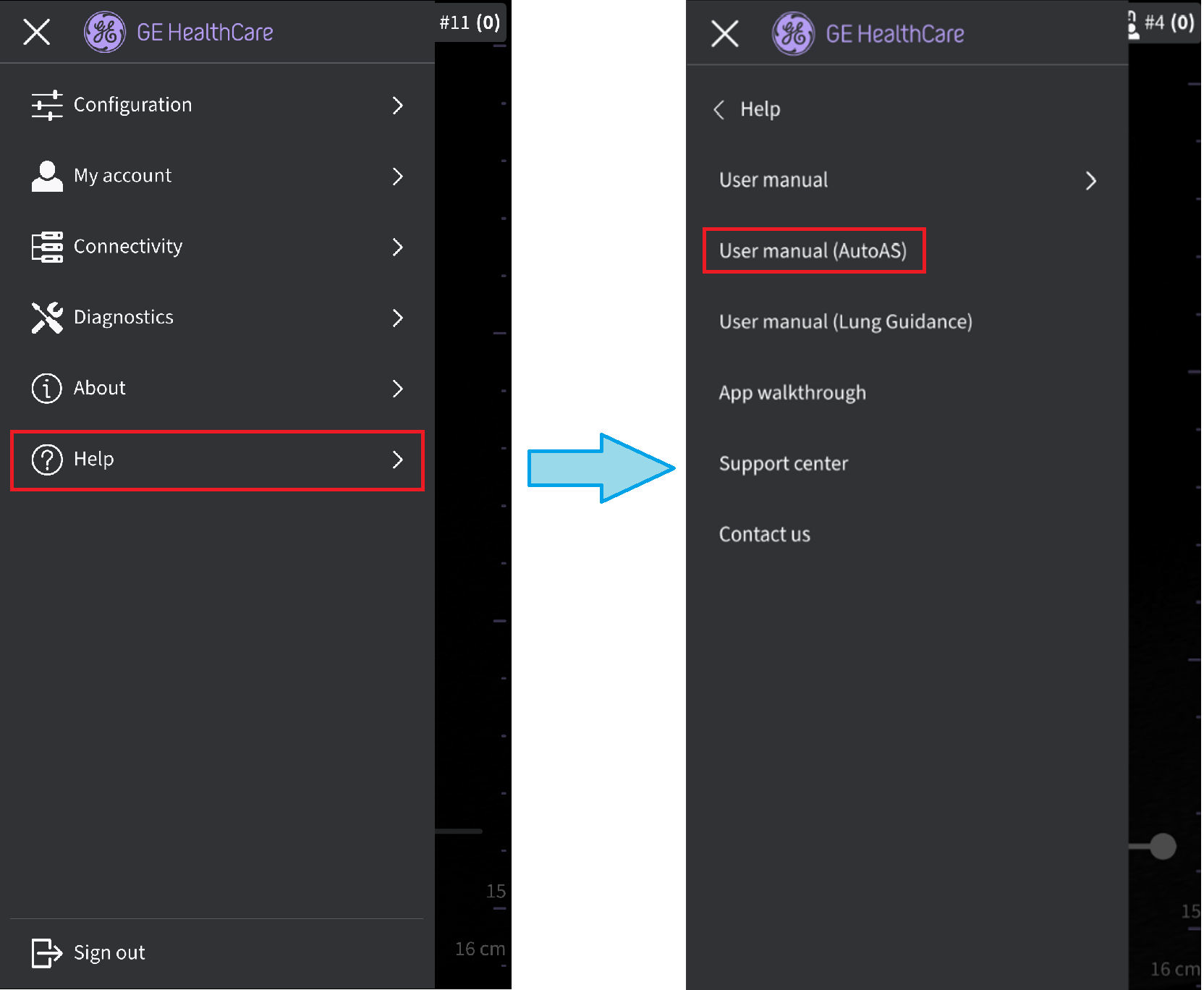
Accessing AutoAS User Manual
Accessing AutoAS tool
The AutoAS tool is available in the gallery. Supported views include PLAX, PSAX‑AV, and AP5. After activation, AutoAS scans all captured clips and automatically selects the best set of compatible clips for analysis. The users can select multiple clips in the gallery and tap AutoAS tool to run the analysis on the selected clips. The tool requires a minimum of two distinct supported views.
To use the AutoAS tool:
1. Open the gallery by swiping the screen from right to left.
2. Tap AutoAS to scan the gallery.
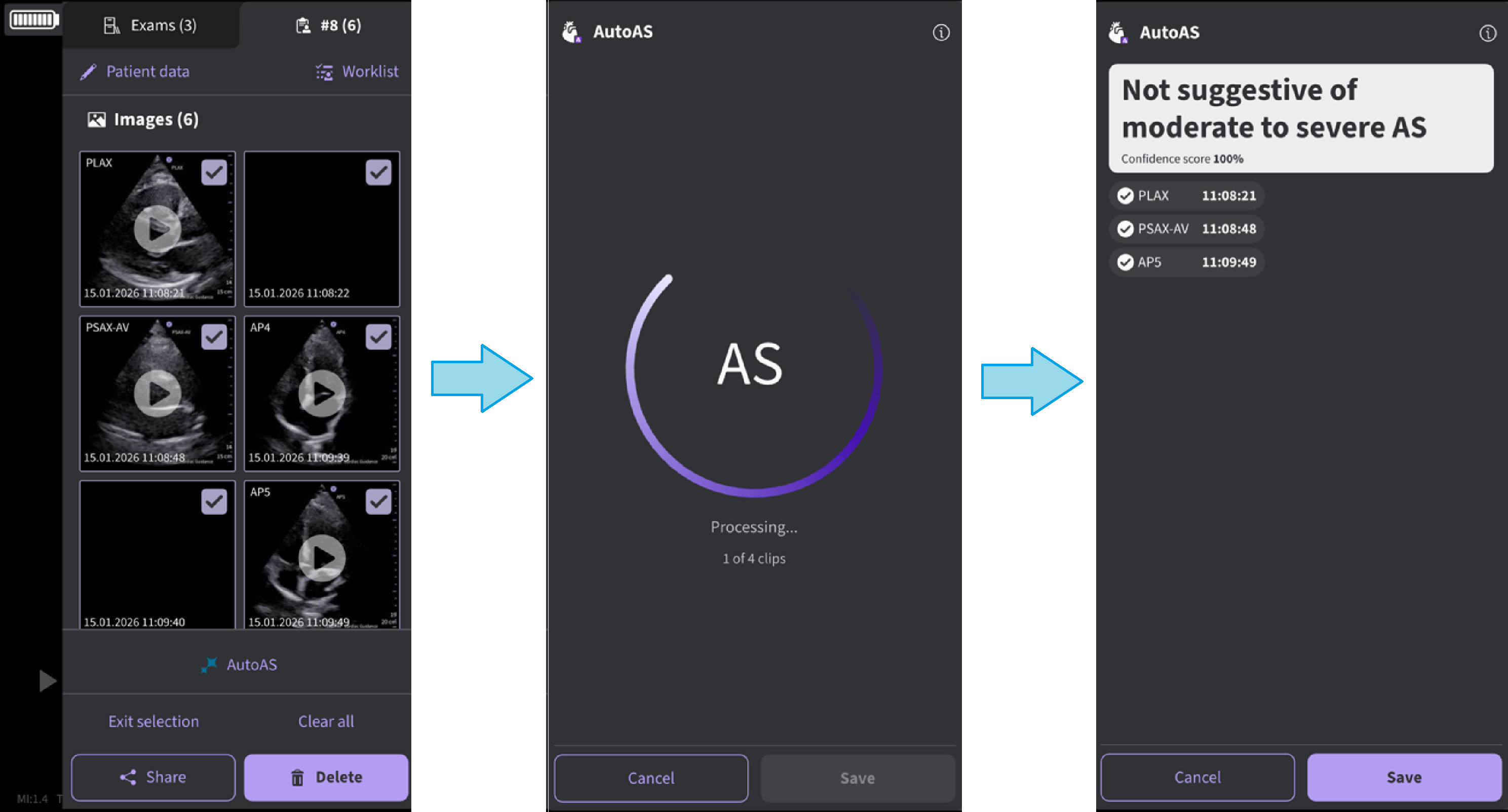
Using AutoAS tool
NOTE
The tool generates a report only when all required views are available.
Disclaimer: The information herein is not intended to replace the product’s User Manual. Please consult the User Manual for comprehensive information and cautionary guidance about the product’s operation and use.