Learn about the Left and Right panel display features of the Vscan Air App.
Left Panel
Swipe left to right or tap close to the battery and preset icon in the left top corner of the screen to access Presets and Menu.
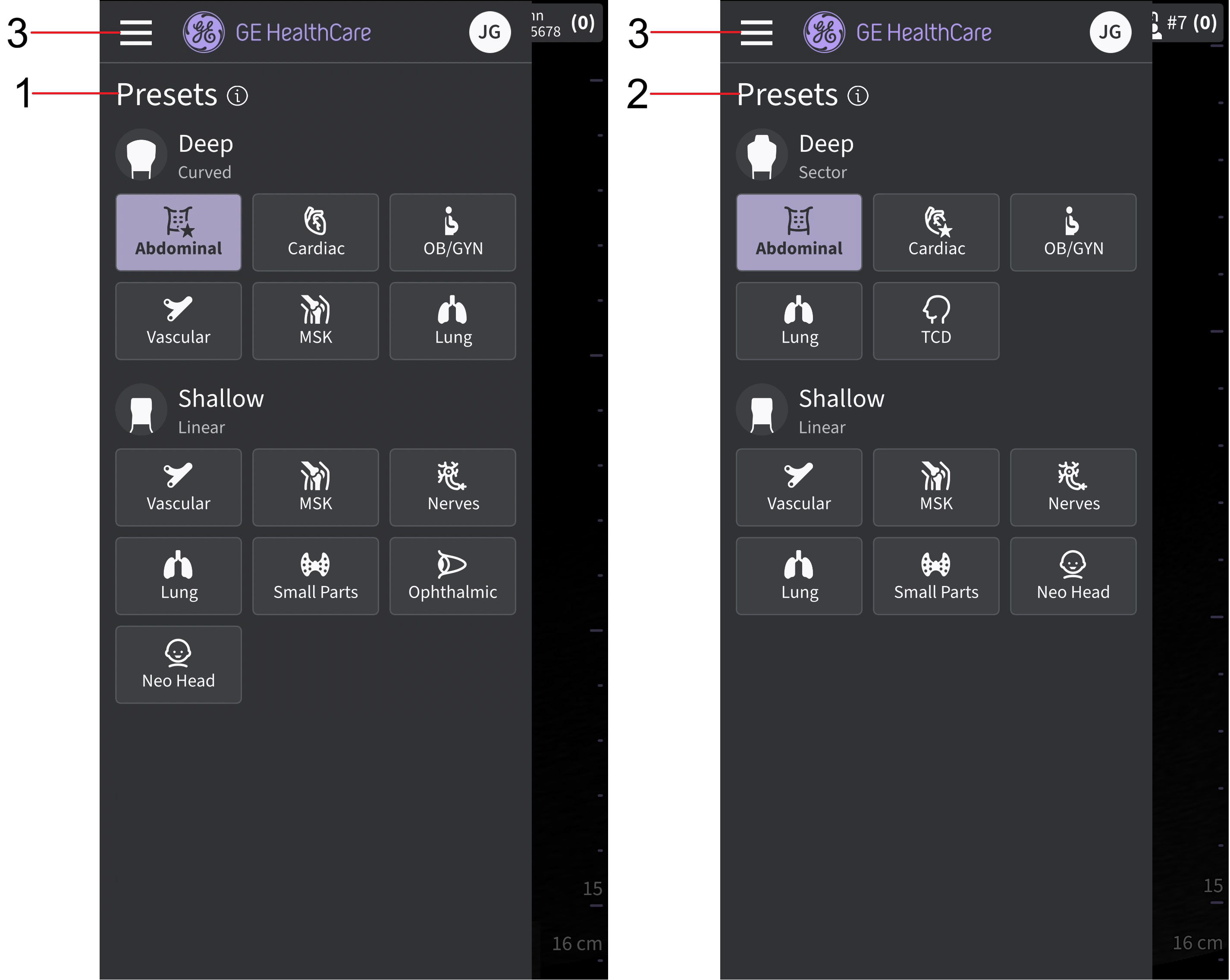
Left panel
1. Vscan Air CL Presets
2. Vscan Air SL Presets
3. Menu
See ‘Probe and Presets’ for more information.
Right Panel
Swipe right to left or tap on the Exams icon in the upper‑right corner, to access the current exam, end the current examination, or review previously saved exams.
NOTE : Opening either the left or right panel will make any live scanning mode enter its freezing state. This applies to all modes: B-, Color-, MM- and PW-mode
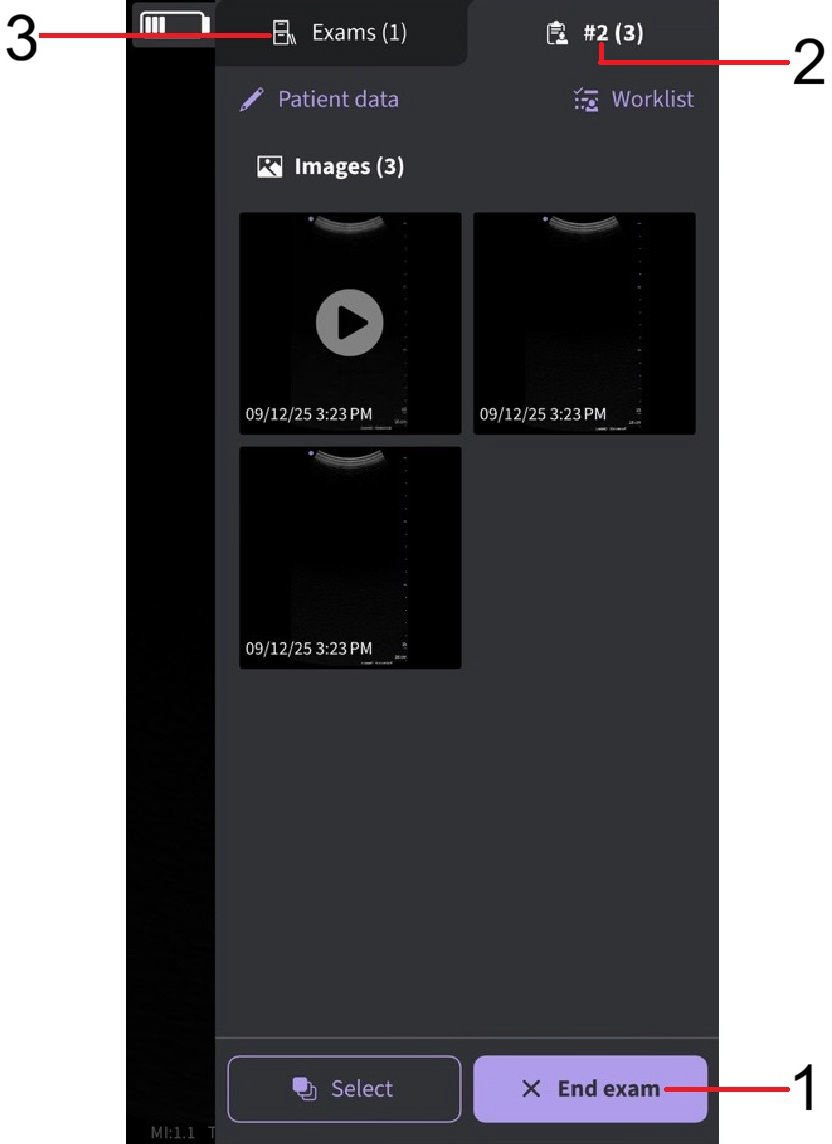
Right Panel
- Click End exam to end the current examination.
- Current exam
- Previous exams
- A new exam is created every time a user ends the previous exam by selecting End exam on the right panel.
- The default preset will be selected when a new exam is created.
- Current exam, the current exam number displays with the number of medias stored in brackets.
- Exams - Displays a list of previously saved exams that can be selected to access stored images and videos.
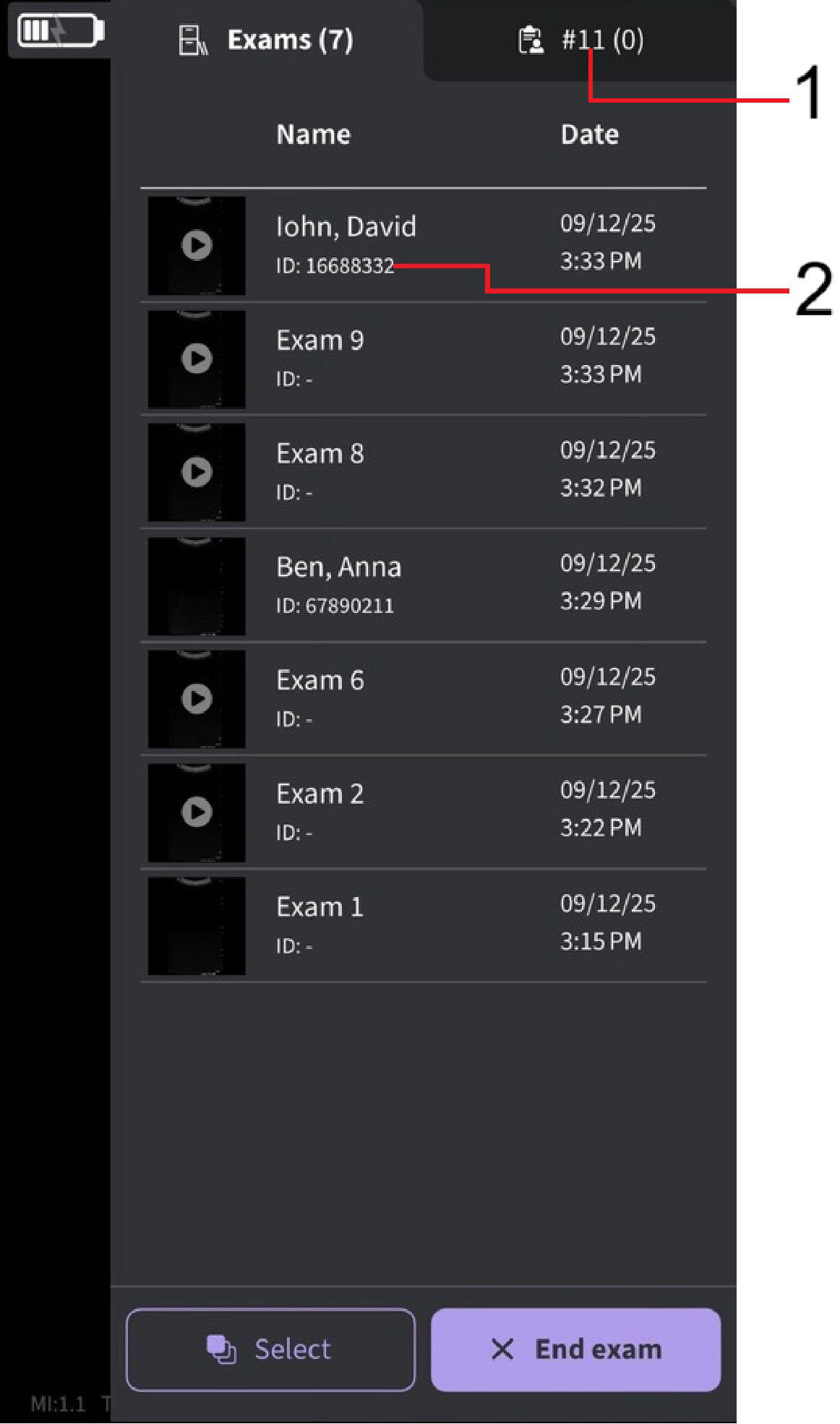 List of saved exams
1. Current exam number 2. Patient ID
Disclaimer: The information herein is not intended to replace the product’s User Manual. Please consult the User Manual for comprehensive information and cautionary guidance about the product’s operation and use.