Learn how to set up Data Access PIN and Biometric Authentication for Quick Data Access
Add Data Access PIN
Exam and patient information can be protected by enabling a Data access PIN. Biometric authentication will, if additionally enabled, replace the need to enter the data access PIN.
The use of a Data access PIN can be enabled when registering the Vscan Air app (Refer First time registration) or alternatively after registration via Menu → Configuration → Security → Data access PIN.
NOTE: If uninstalling the Vscan Air app from the display device, the app data, including all exam data including the images and videos will be deleted.

NOTE: If unregistering the Vscan Air app from the display all exam data including the images and videos will be deleted.

NOTE: On an Android device it is possible to go into settings and clear data for an app. If selecting to do so, all app related data including exam data holding the images and videos will be deleted.
Setting the Data Access PIN
A data access PIN can be configured to authorize access to exam data which may contain sensitive patient information. The data access PIN can be configured after having registered the Vscan Air App. Follow the procedure below to set a data access PIN.
1. Press Menu → Configuration → Security → Data access PIN.
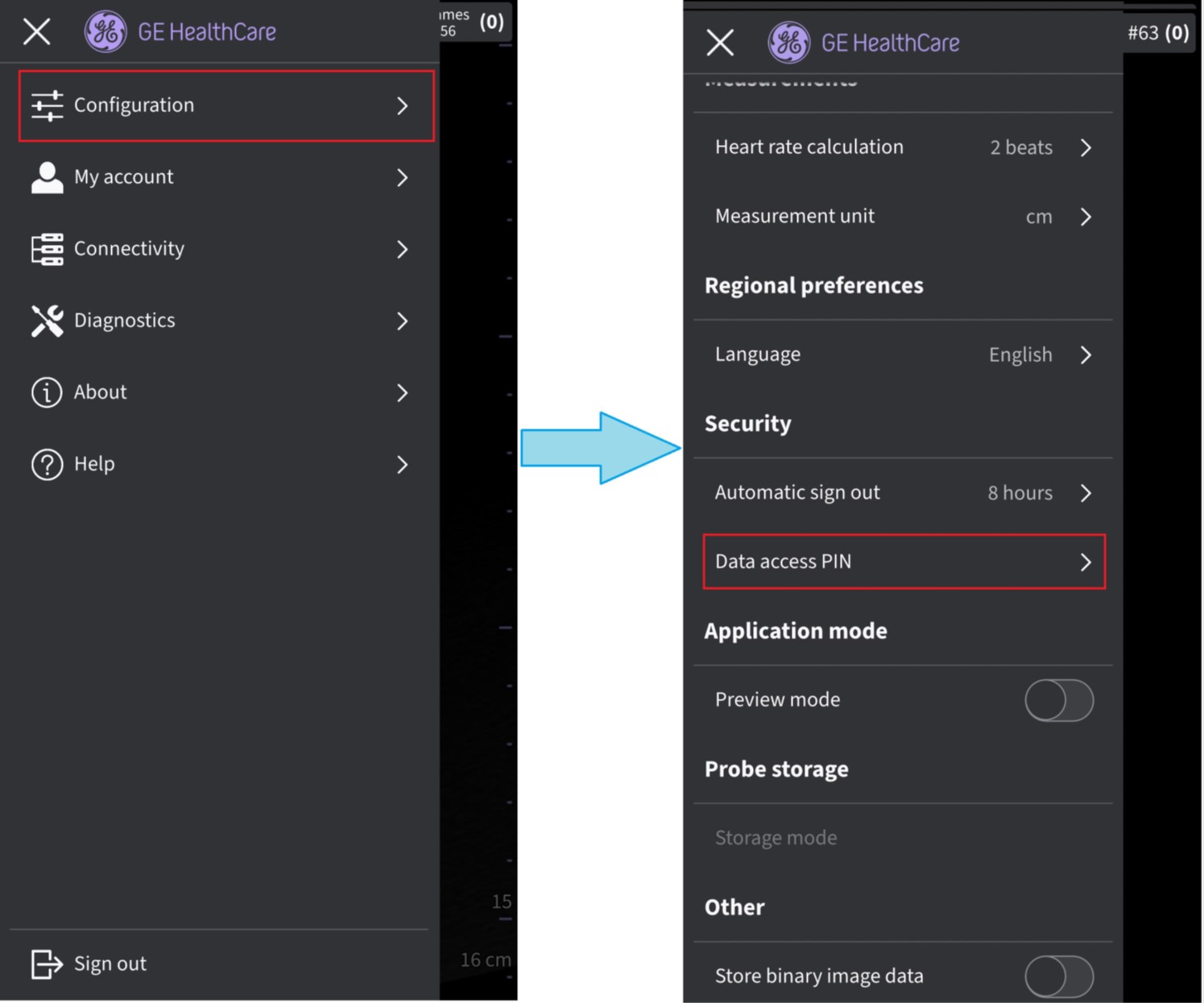
Data Access PIN
2. Enable Ask for data access PIN button on the Data access PIN screen.
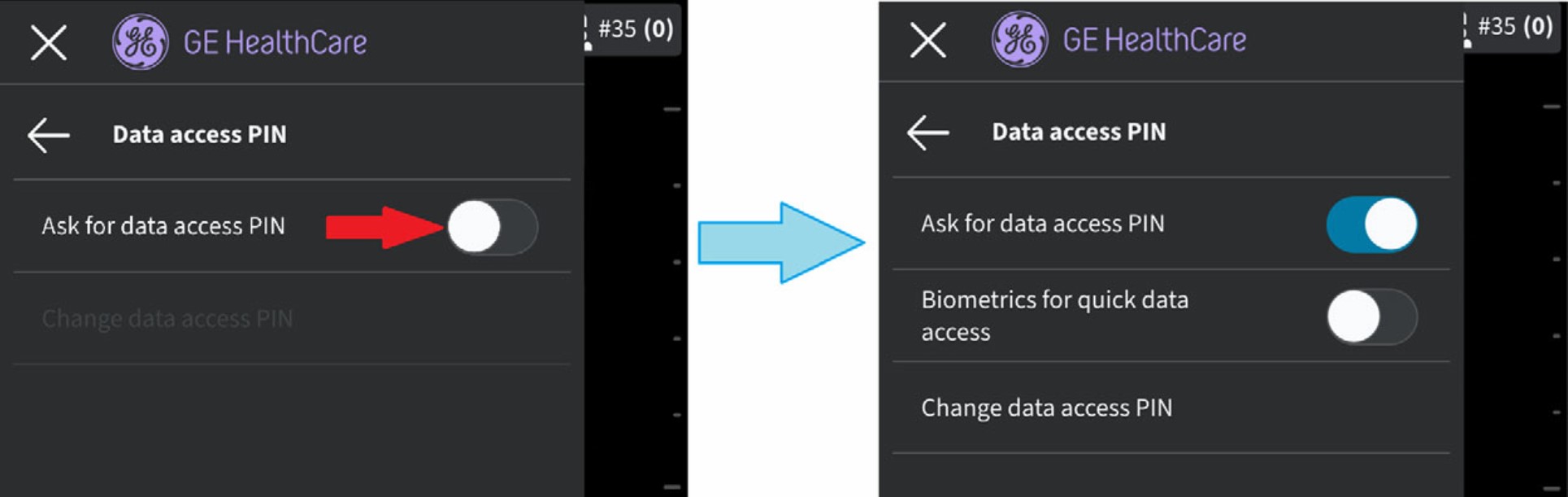
Enable Ask for Data Access PIN
3. Enter a new 6 digit PIN in the field on the “Set up data access PIN” screen and Press Next button.
 Enter data access PIN
NOTE: Please make sure to use a strong PIN and avoid using PIN codes that are easy to guess.NOTE: If entering an incorrect PIN 10 times in a row all exam data including the images and videos will be deleted.4. Re-enter the PIN on the Confirm data access PIN screen and press Save. After successful set up of data access PIN, application takes you to the Security screen.
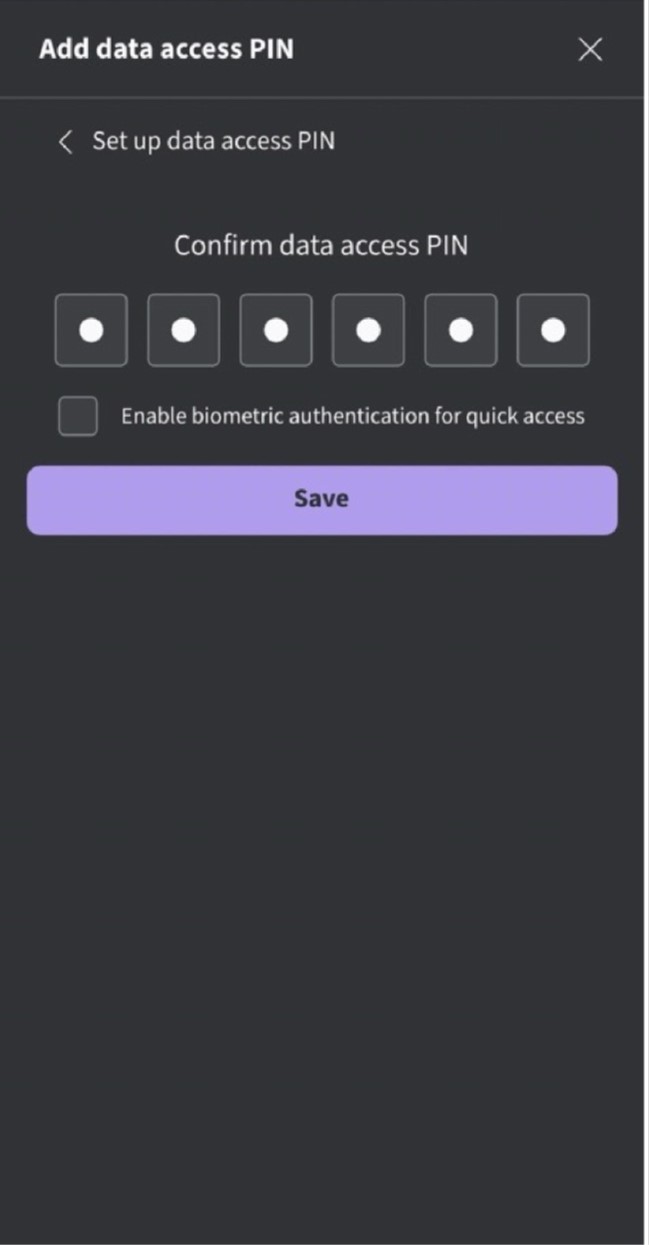
Confirm data access PIN
Biometric authentication for Quick Data Access
To enable biometric authentication, follow the procedure below
1. Press Menu → Configuration → Security: Data access PIN.
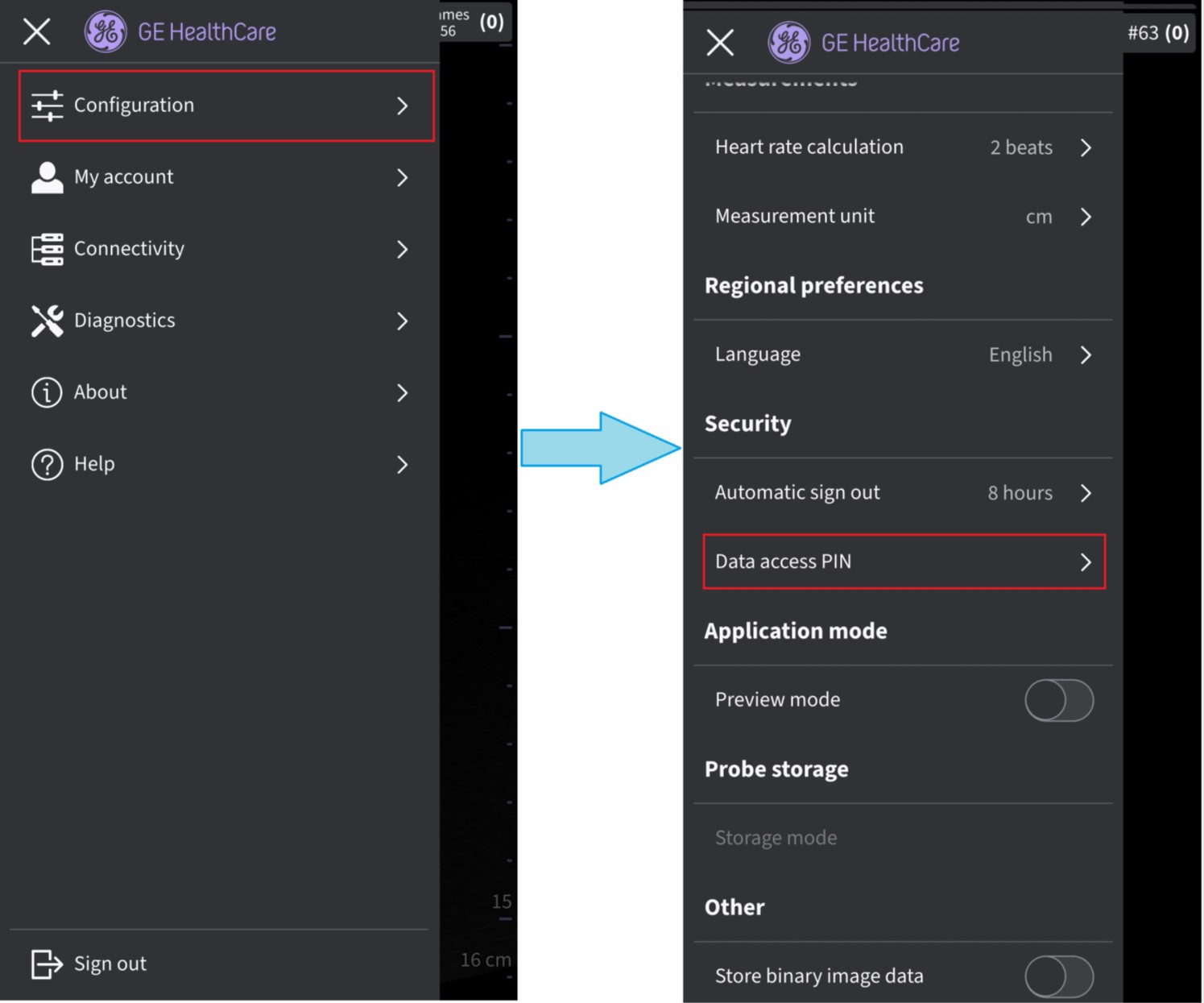
Data Access PIN
2. Enable Biometrics for quick data access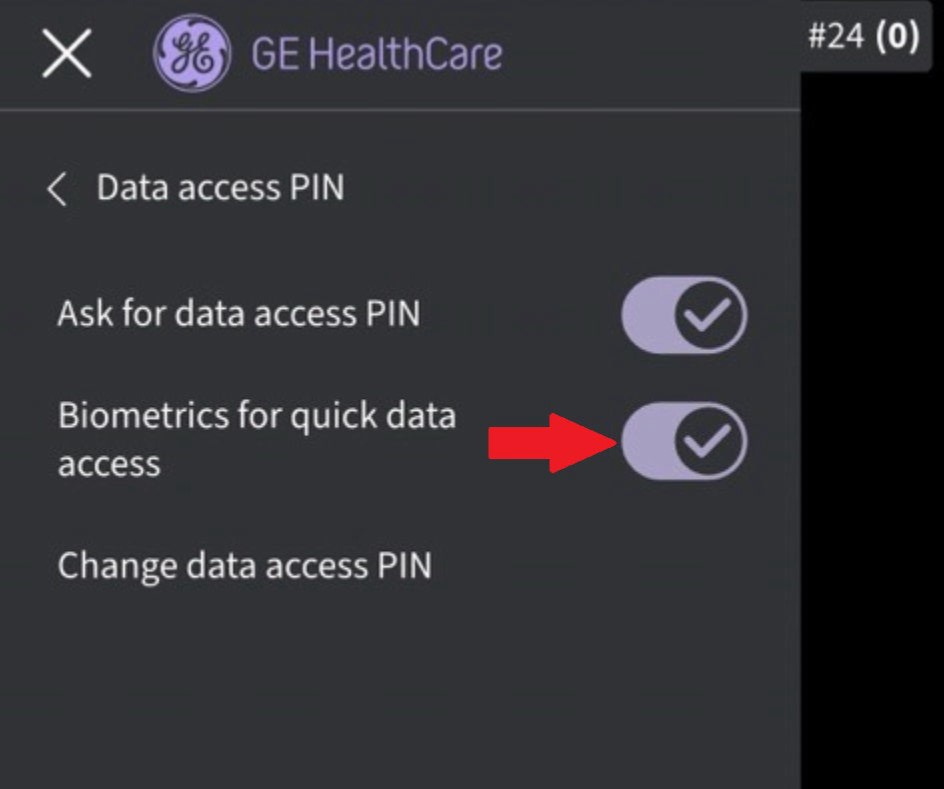
Enable Biometrics
NOTE: Before enabling biometric authentication in the Vscan Air application, make sure you have activated fingerprint unlock or face recognition unlock in your display device. Failure to do so may pop-up the following warning message while enabling biometric authentication in the Vscan Air application.
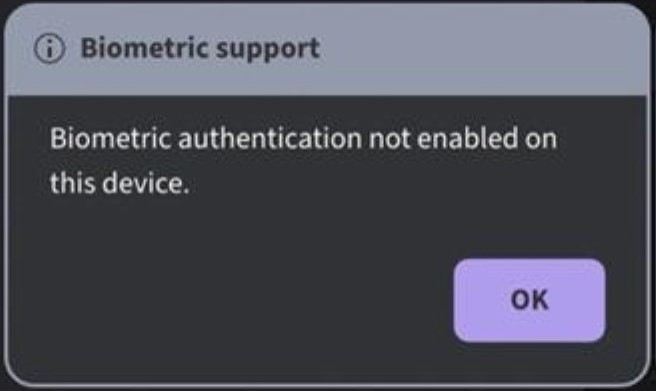
Biometric Authentication Error
Disclaimer: The information herein is not intended to replace the product’s User Manual. Please consult the User Manual for comprehensive information and cautionary guidance about the product’s operation and use.