M-mode (Motion mode) provides a display format and measurement capability that represents tissue motion occurring over time. Data is acquired along one direction indicated by the M-mode cursor.
It is used to determine patterns of motion for objects within the ultrasound beam. The most common use is for viewing motion patterns of the heart.
Using M-Mode
Using M-mode might proceed as follows:
1. Select the preset and probe to be used.
2. Select a good B-mode image. Survey the anatomy and place the area of interest near the center of the B-mode image.
3. Press icon to access entry to M-mode and tap M-mode. M-mode is then active with the cursor appearing on the frozen B-mode image
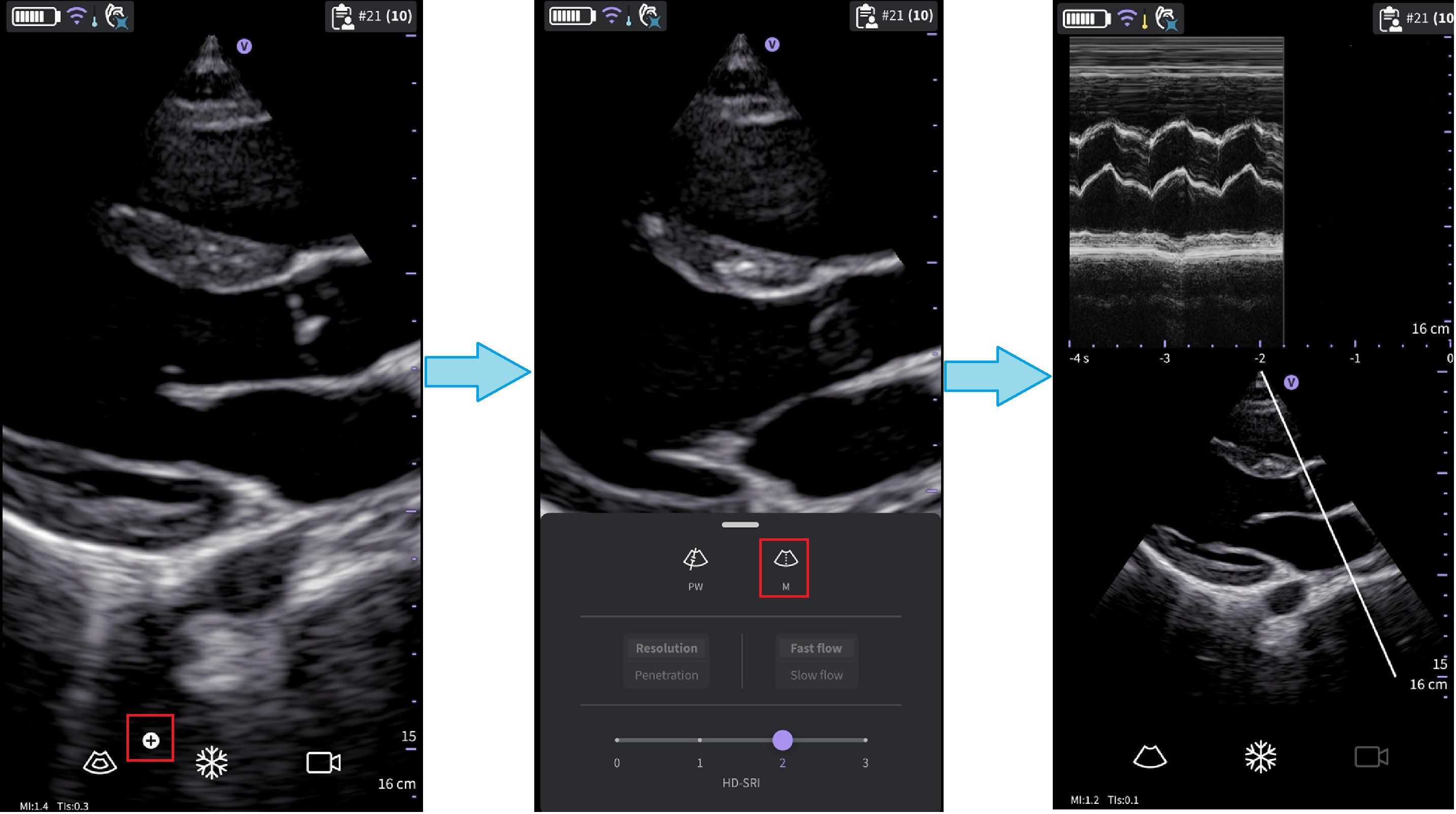 M-mode activation
4. To optimize the M-mode cursor position on the B-mode image touch anywhere in the B-mode display area to activate positioning of the M-mode cursor.
5. Adjust the sweep speed and gain as needed.
6. Press Freeze to freeze the M-mode.
7. Tap Store to save image to image gallery.
8. Press Freeze to continue imaging.
9. To exit M-mode, press the  icon to exit M-mode and enter B-mode.
M-mode Display & Controls
M Cursor
To position the M-mode cursor, touch the M cursor with your finger and drag it right or left to reach proper position.
Gain
M-mode gain increases or decreases the amount of echo information displayed in an image. It may have the effect of brightening or darkening the image if sufficient echo information is generated.
To increase or decrease gain swipe your finger left/right in the M-mode display area.
NOTE
Changing the M-mode gain while in live M-mode and frozen B-mode does not affect the B-mode image gain
Sweep Speed
Sweep speed changes the speed at which the timeline is swept.
To increase or decrease sweep speed swipe your finger left/right on or close to the on-time scale ruler. Swipe at least half a centimeter to initiate Sweep speed adjustments. The display updates Sweep speed after adjusting.
Screen layout M-mode
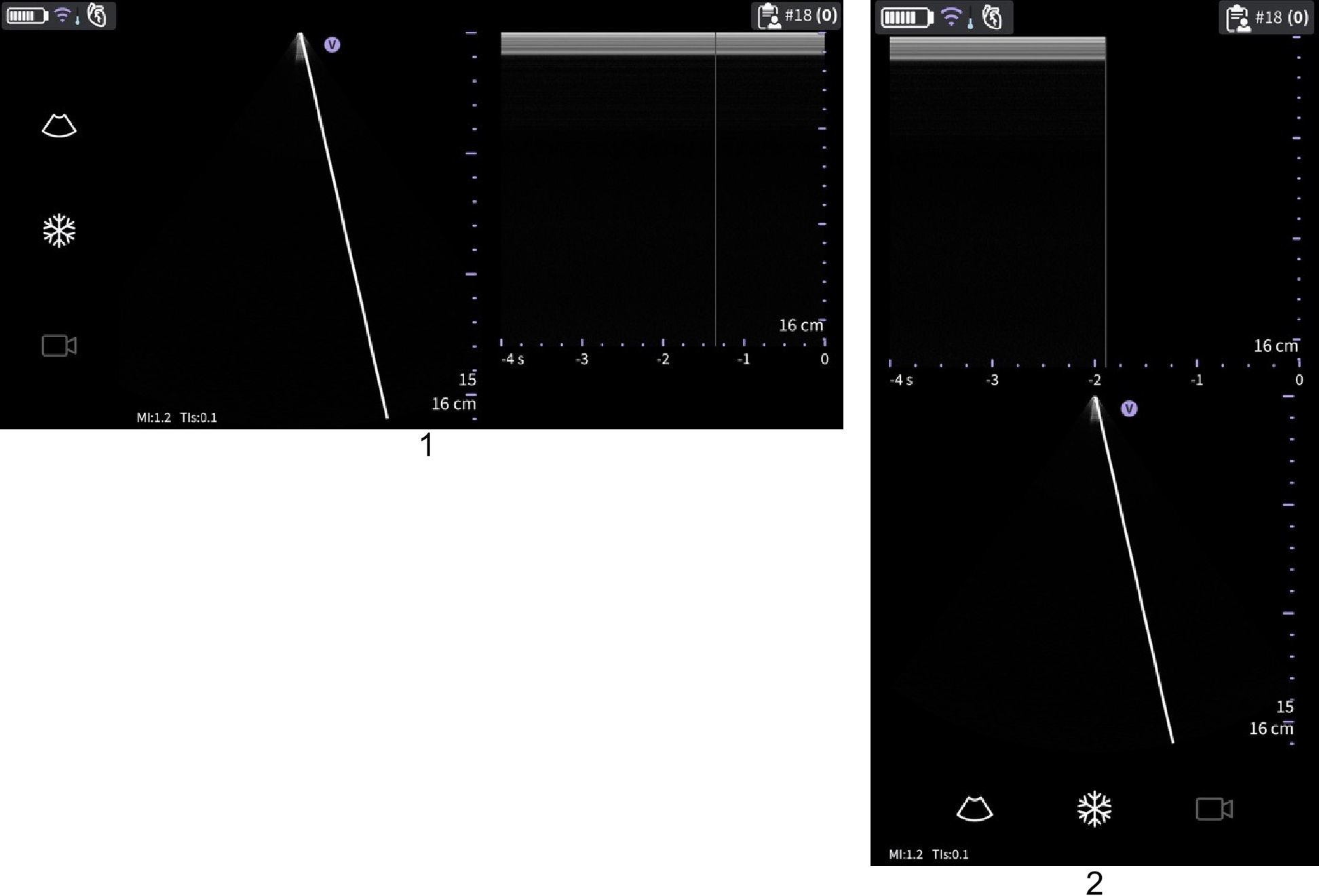 M-mode layout
1. M-mode Landscape
2. M-mode Portrait
NOTE : If selecting to use landscape when the display device (tablet) is being 7.3 inch (diagonal) or larger, the over/under layout (as in portrait) will be used instead of the side/side layout indicated aboveDisclaimer: The information herein is not intended to replace the product’s User Manual. Please consult the User Manual for comprehensive information and cautionary guidance about the product’s operation and use.