This section explains creating a new examination and ending an examination
A new exam can be created in two ways:
- Automatically - A new exam will be created every time the Vscan Air probe pairs successfully with the Vscan Air app and also every time the Vscan Air App is started.
- Manually - A new exam is created every time a user ends the previous exam by selecting End exam on the right panel.
- Swipe from right to left or tap the 'icon' on the right upper corner to bring out the right panel.
- Press End exam in the lower-right corner of the screen to end the current exam and prepare the system for starting a new exam or opening another exam for review.
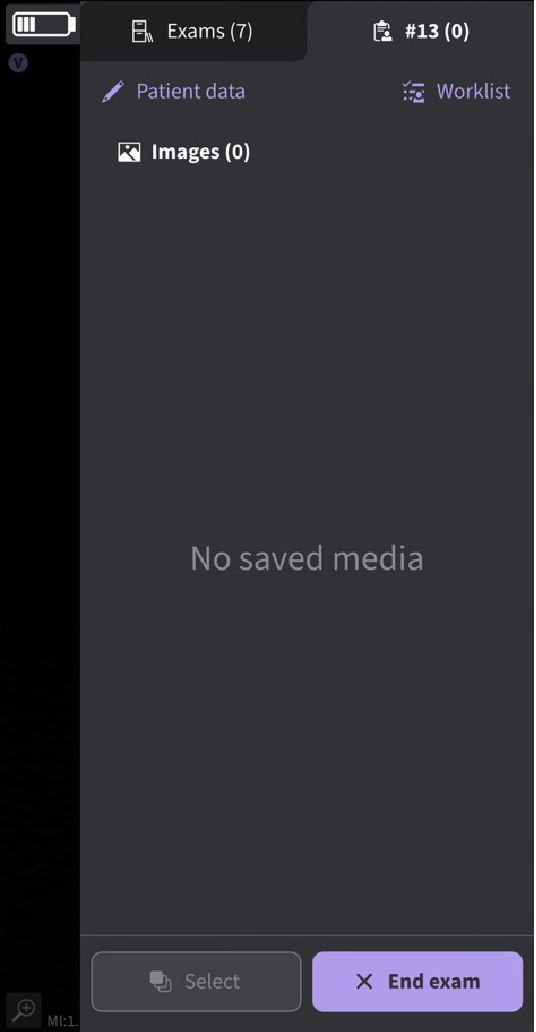
End exam
NOTE:
• A new exam gets created every time a Vscan Air probe connects with the app.
• An exam will get saved when an image or video is stored for that exam.
• The maximum number of stored exams is limited to <500. The Vscan Air app will inform the user to export and/or delete exams as needed once the number of stored exams is 480 or higher.
WARNING:
Create a new exam before starting the examination of a new patient to minimize the risk of mixing images from different patients
Ending an Examination
An examination can be ended at any time by selecting End exam from the right panel.
• Swipe from right to left or tap the 'icon' on the upper-right corner to bring out the right panel.
• Press End exam in the lower-right corner of the screen to end the current exam and prepare the system for starting a new exam or opening another exam for review.
Disclaimer: The information herein is not intended to replace the product’s User Manual. Please consult the User Manual for comprehensive information and cautionary guidance about the product’s operation and use.