To send MPPS events from the Vscan Air app to a configured MPPS server for an exam, follow the procedure below.
1. If not already done by your BioMed or IT support, you will need to have your Modality Worklist Server and MPPS Server added and set as a favorite. See Configure Modality Performed Procedure Step (MPPS) server
2. Add the patient details to the exam from Modality Worklist Server. See Assign patient data from Modality Worklist Server to the current exam.
3. Once the above conditions are met for saving the exam images, you will see the items being added to the Queue.
4. You can see the MPPS messages getting updated in the queue at the bottom indicating the number of items which will be automatically exported.
Expand the queue to see the pending items in the MPPS queue and the user can retry to send these messages or delete the same if not required.
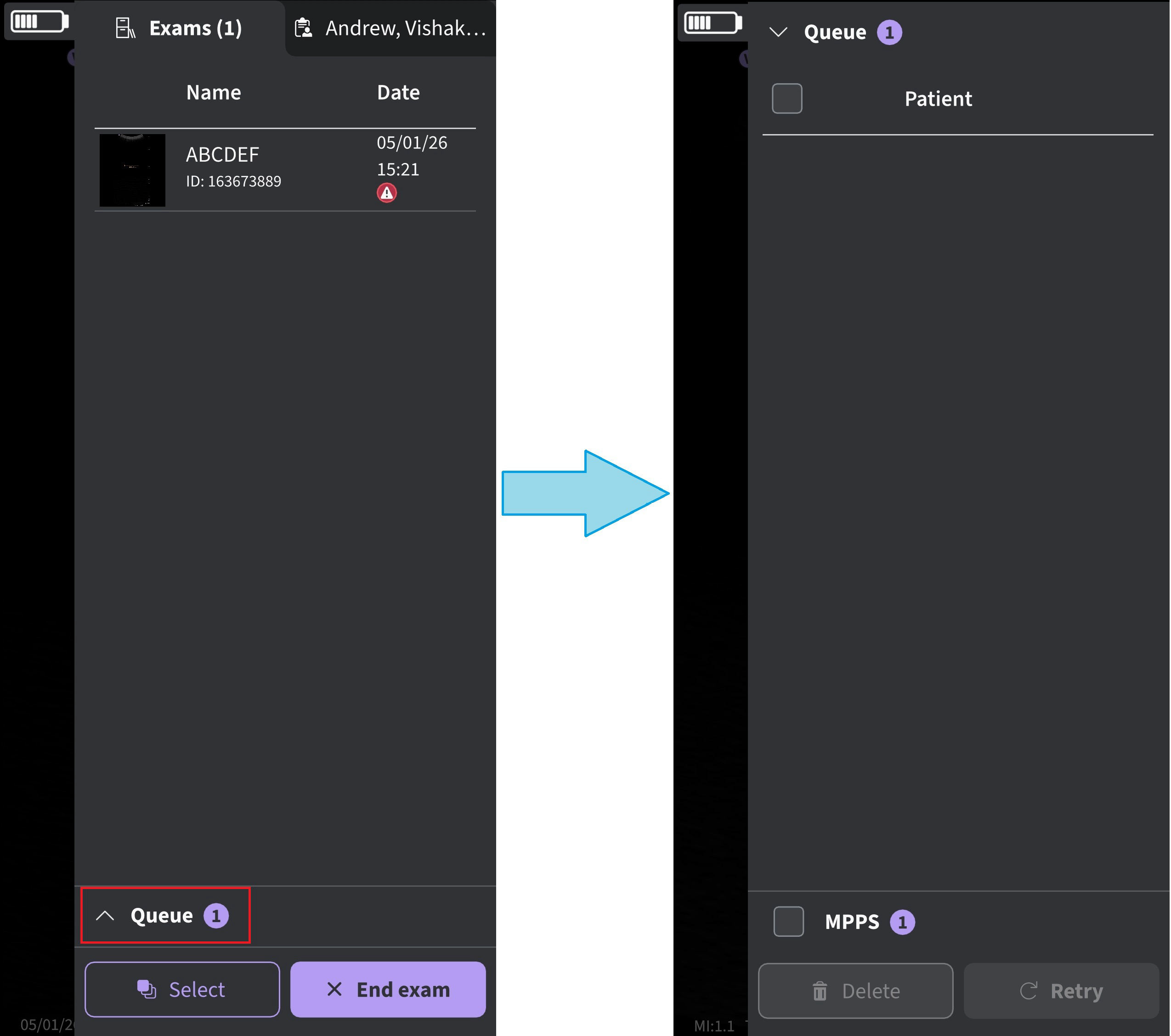 Item in queue
NOTE
When the first image of an exam is stored, the exam status is updated to ‘Started’ and sent to the MPPS Server. When "End exam" is clicked, the current exam is treated as complete and 'Completed' exam status is sent to MPPS Server. If a network connection is not available, the exam status information is maintained in queue for further actions.
Depending on the display device in use, you may need to disconnect the probe in order to connect to the network and then clear the queue.
Disclaimer: The information herein is not intended to replace the product’s User Manual. Please consult the User Manual for comprehensive information and cautionary guidance about the product’s operation and use.