- The Vscan Air is regarded an imaging acquisition device and not an image storage device or image archive.
- The maximum number of stored exams is limited to <500. The Vscan Air app will inform the user to export and/or delete exams as needed once the number of stored exams is 480 or higher.
- The user should make sure to export images, videos (loops) or exams to an external storage device via the share function or the export to DICOM functionality available in the Vscan Air app.
- Disclaimer: When sharing data from the Vscan Air app, data can be shared to other apps including anonymized images and movies/loops.
- Use the Share function on the display device to share data.
NOTE
Exporting data to a server from Vscan Air requires a Wi-Fi connection.
Share individual images/videos
1. Swipe from right to left (or) Tap the Exams icon in the top right corner of the screen. A list of stored images or videos for the current exam display.
2. Select the images/videos to share.
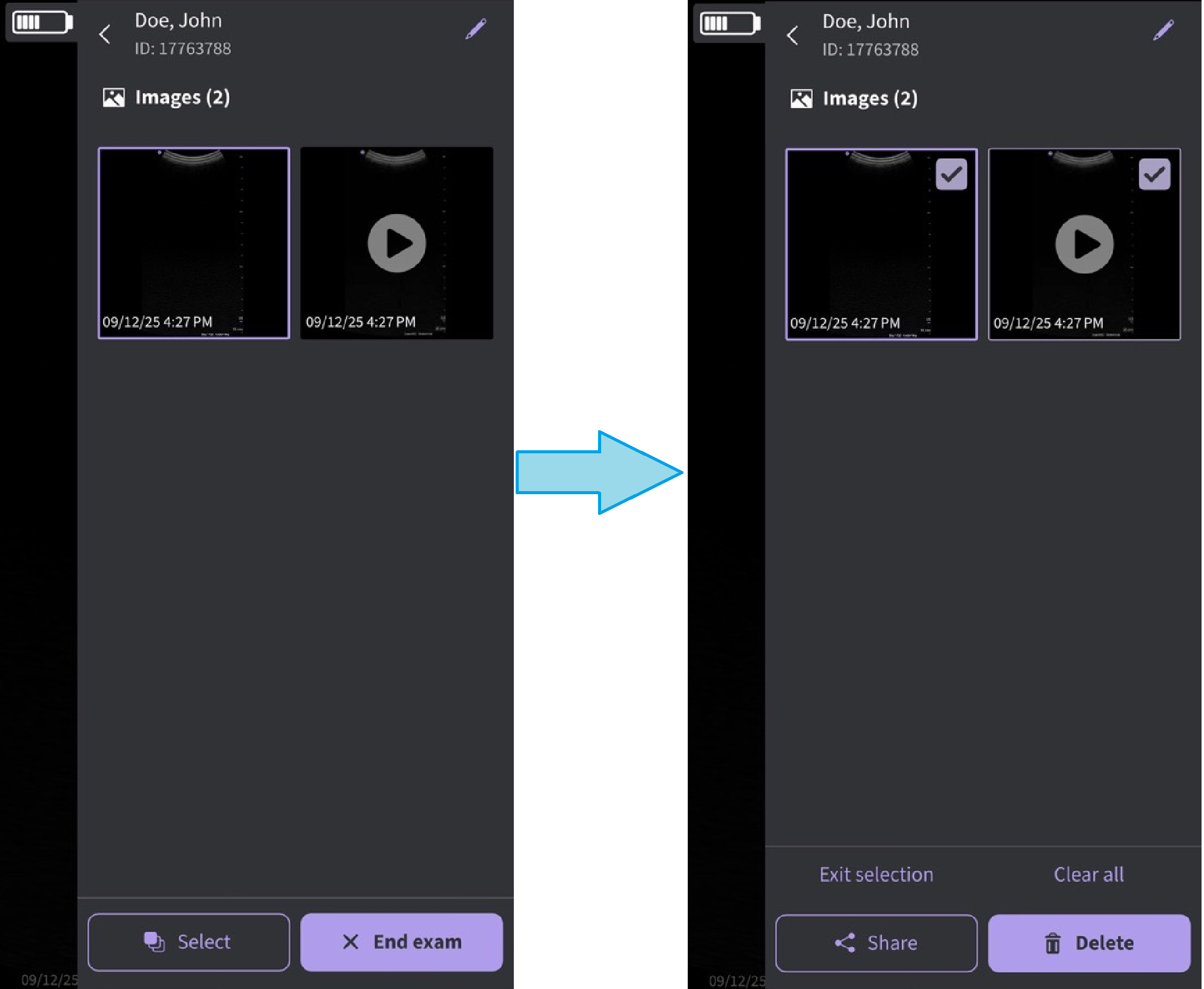 Share images/videos - current exam
3. Press Share followed by Share (with other apps).
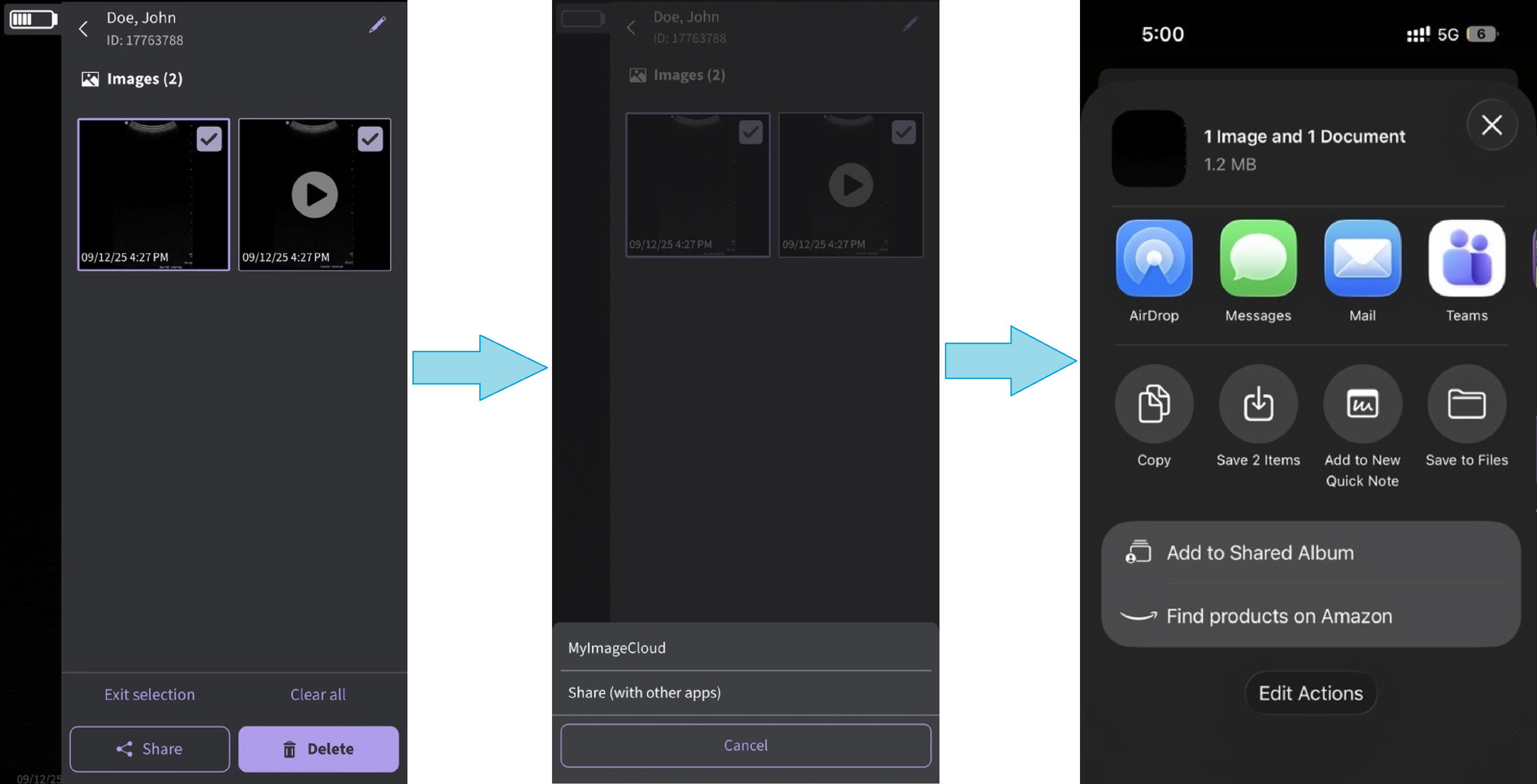
Share with other apps
Share all images/videos from an exam
In the same way as illustrated in the Share individual images/videos section it is also possible to select and share Exams.
1. Select the Exams tab on the right panel.
2. Select the desired exam.
3. Press Select.
4. Press Select All (or) Press Clear all to clear the selection.
5. Press Share icon.
6. Choose the Share function on your display device to share the Exams.
Share exams
1. Select the Exams tab on the right panel.
2. Select the desired single/multiple Exam/Exams from the Exams list.
3. Press Share icon.
4. Choose the Share function on your display device to share the entire single/multiple Exams
Disclaimer: The information herein is not intended to replace the product’s User Manual. Please consult the User Manual for comprehensive information and cautionary guidance about the product’s operation and use.