Accessing the Vscan Air CL Auto bladder volume tool
1. Open the Presets menu.
2. Tap Auto Bladder Volume.
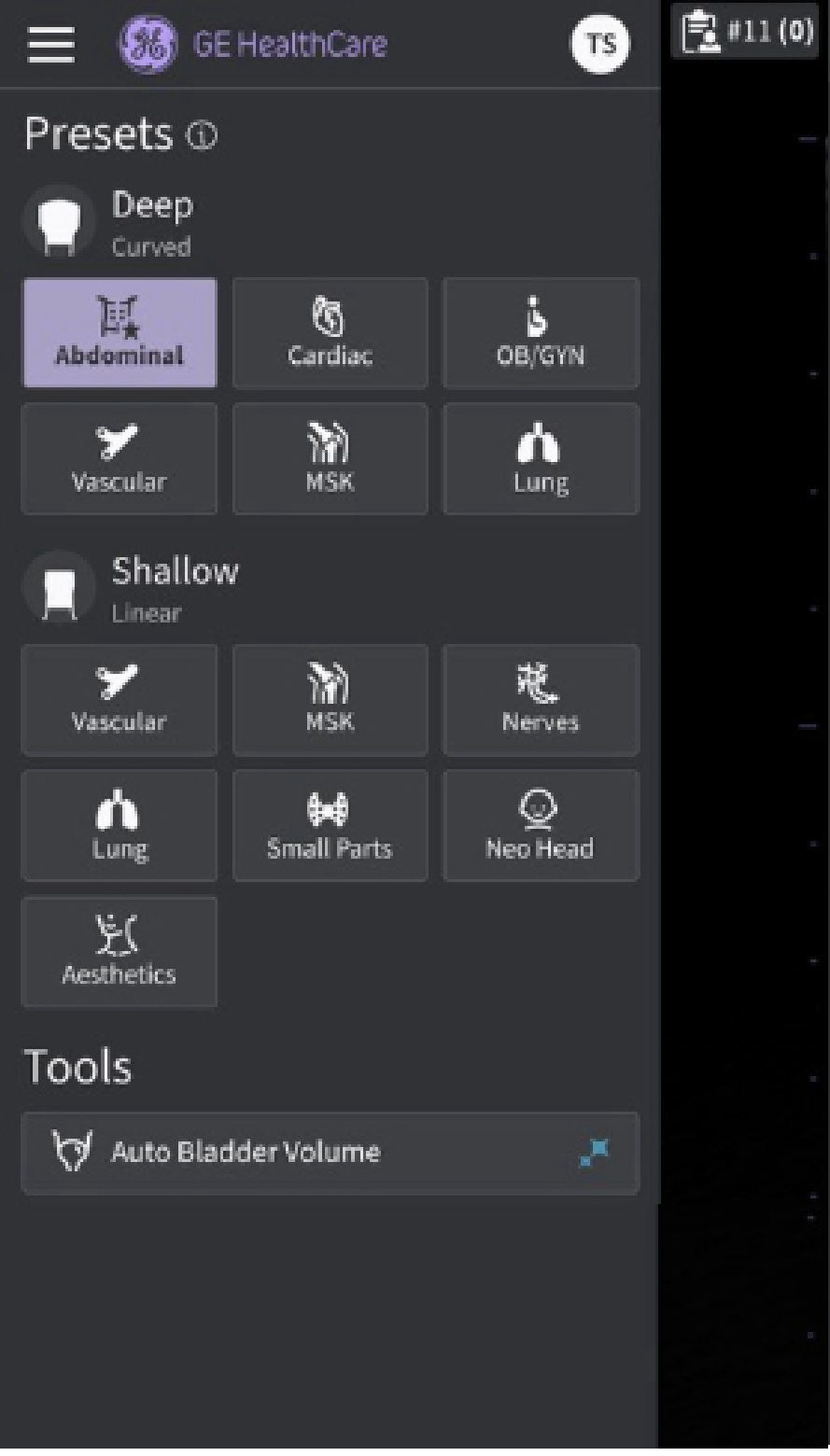
Presets and Tools screen with Auto Bladder Volume enabled
Step 1: Scan the bladder in a Transverse view.
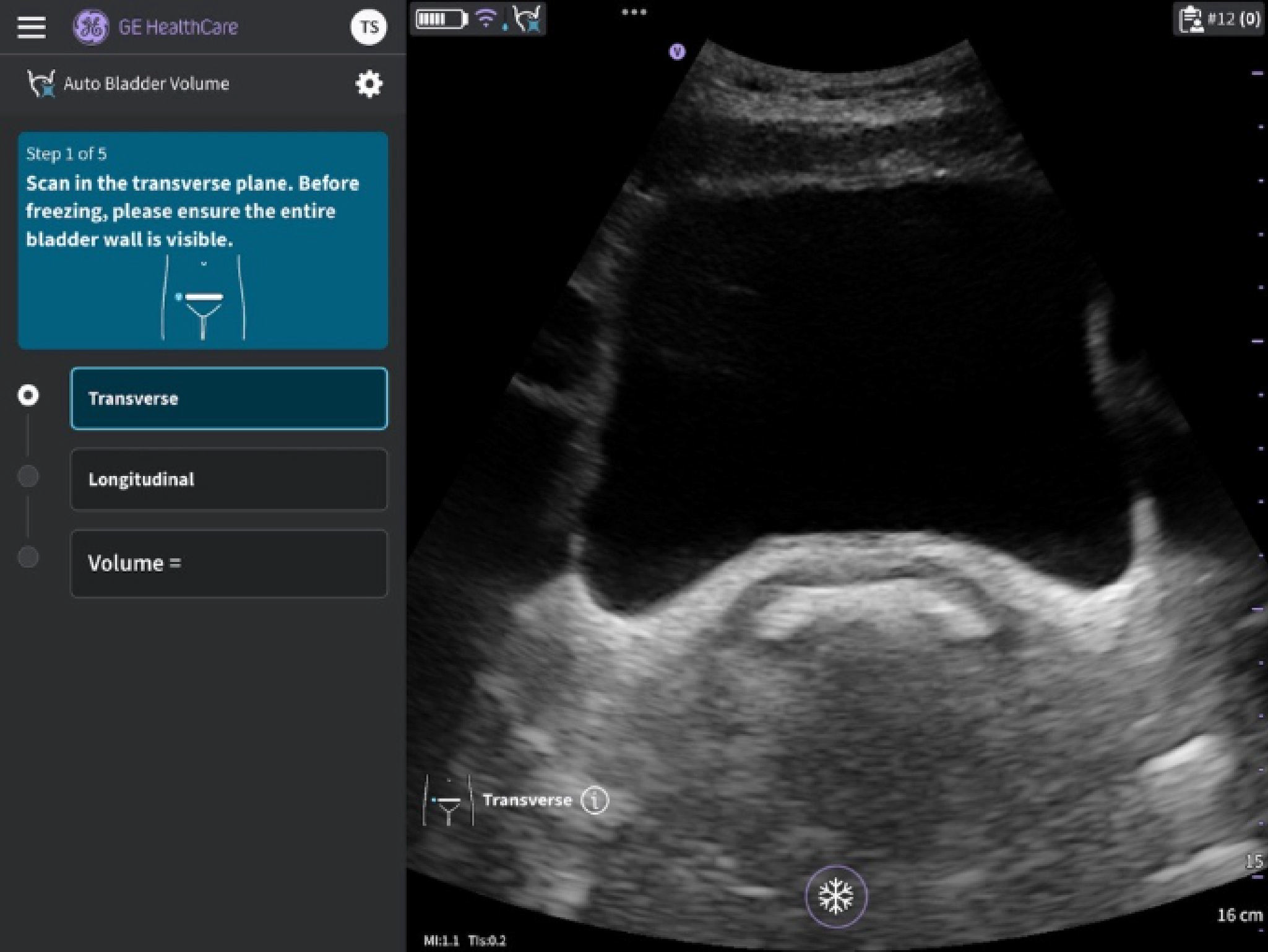 Scan the bladder in a transverse view (CL probe)
Step 2: Adjust measurements if needed and store results.
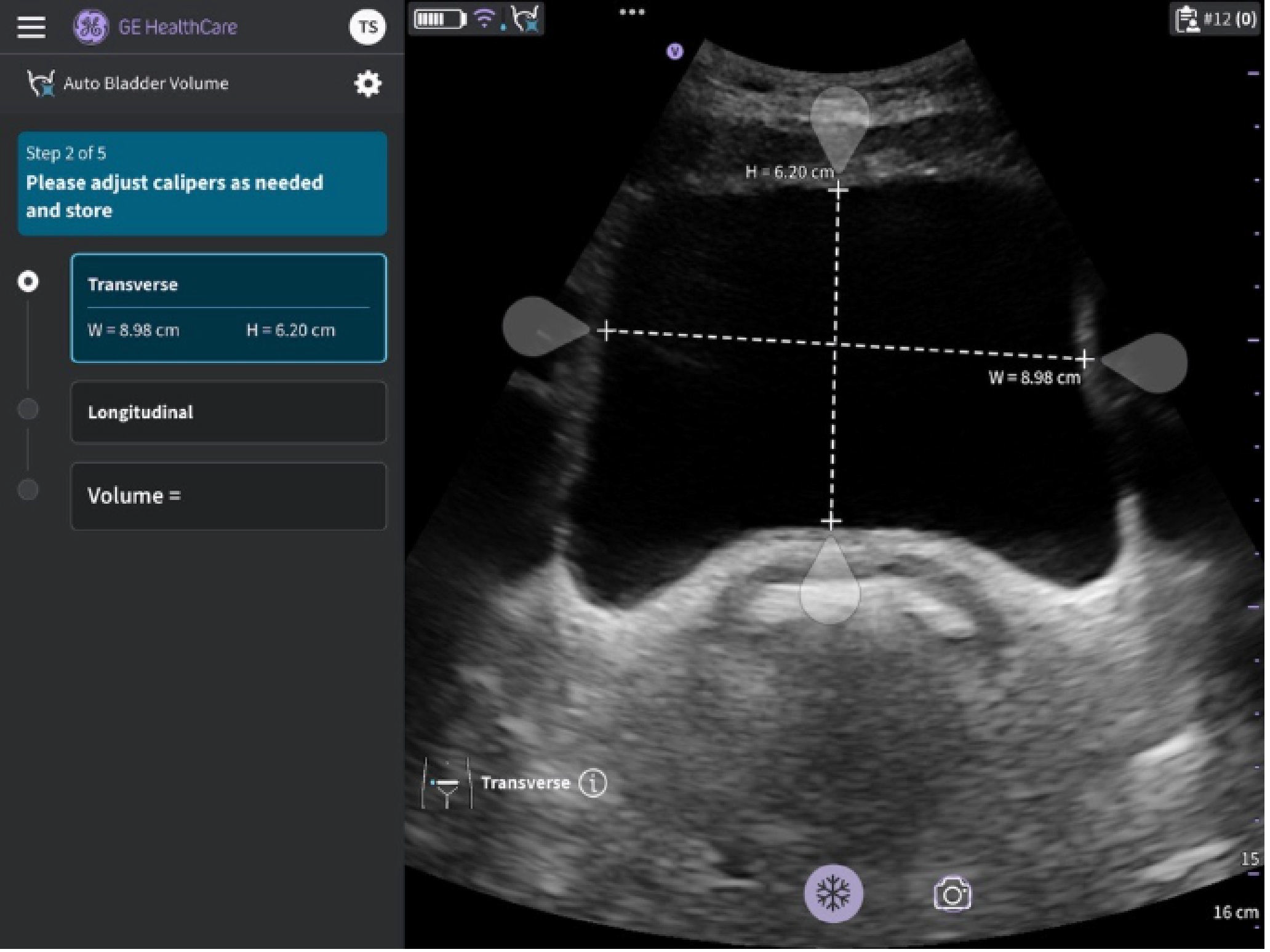
Adjust calipers and store results (CL probe)
Step 3: Scan the bladder in a Longitudinal view.
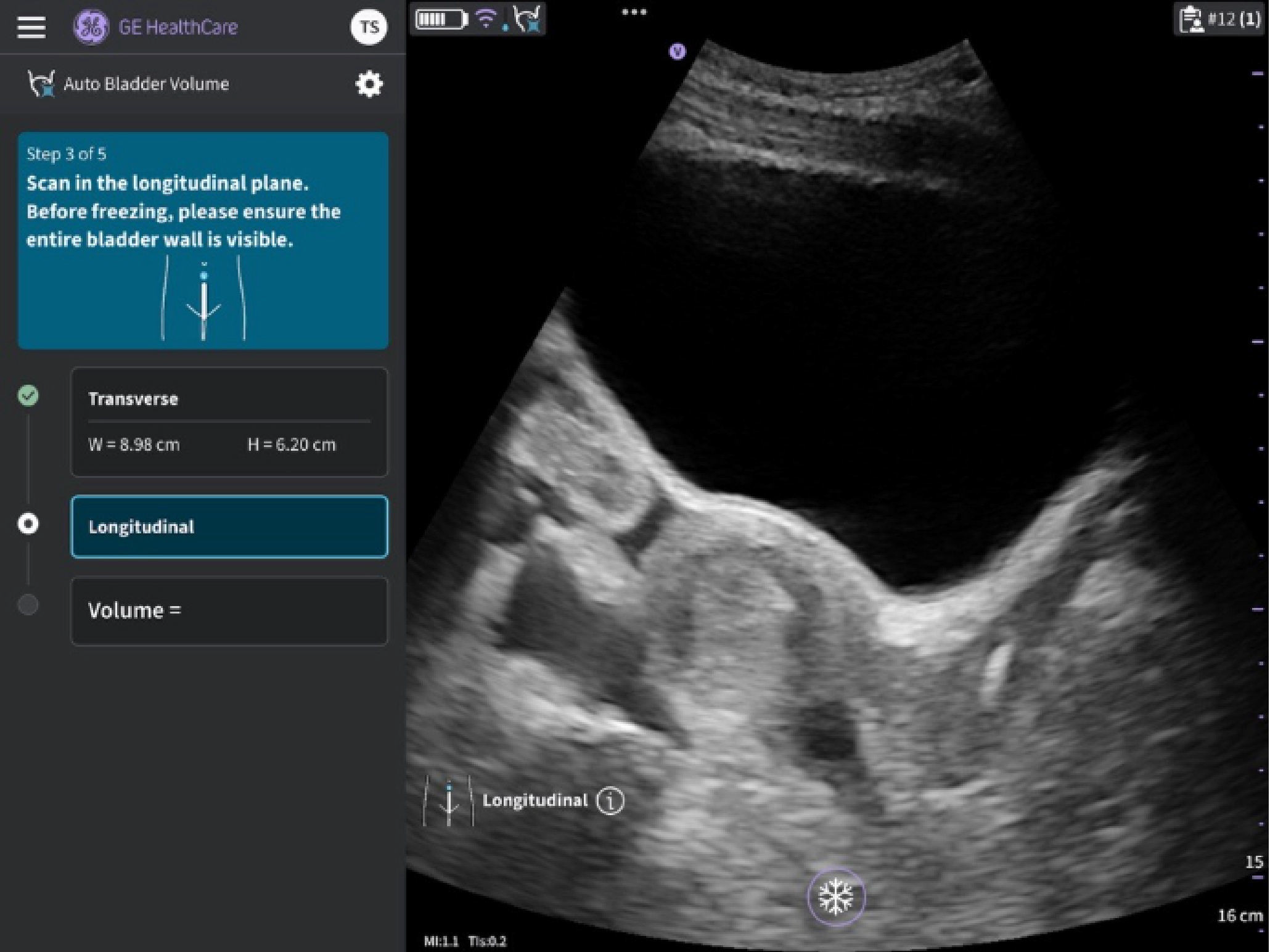
Scan the bladder in a longitudinal view (CL probe)
Step 4: Adjust measurement if needed and store result.
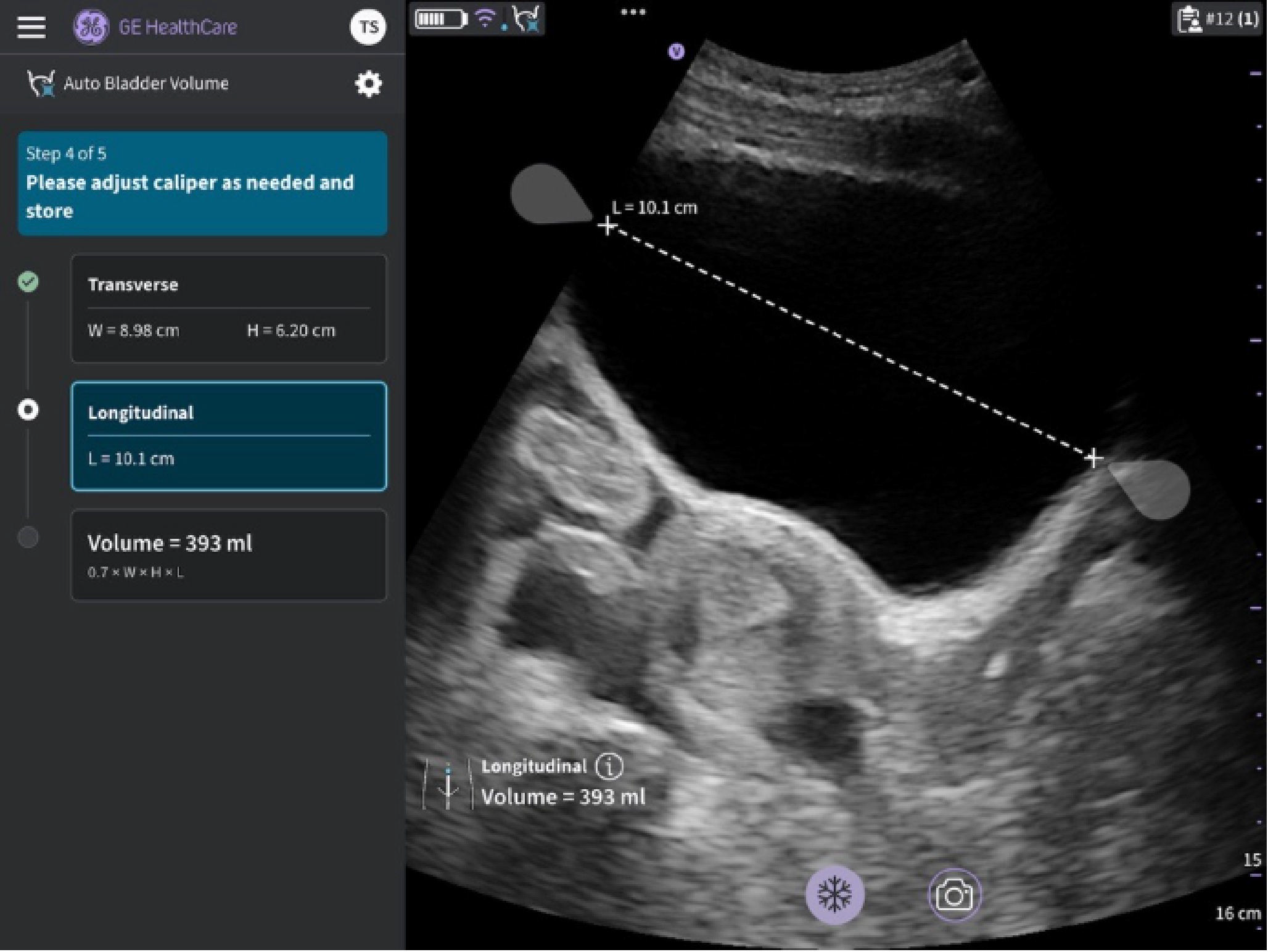 Adjust caliper and store result (CL probe)
Step 5: Review result.
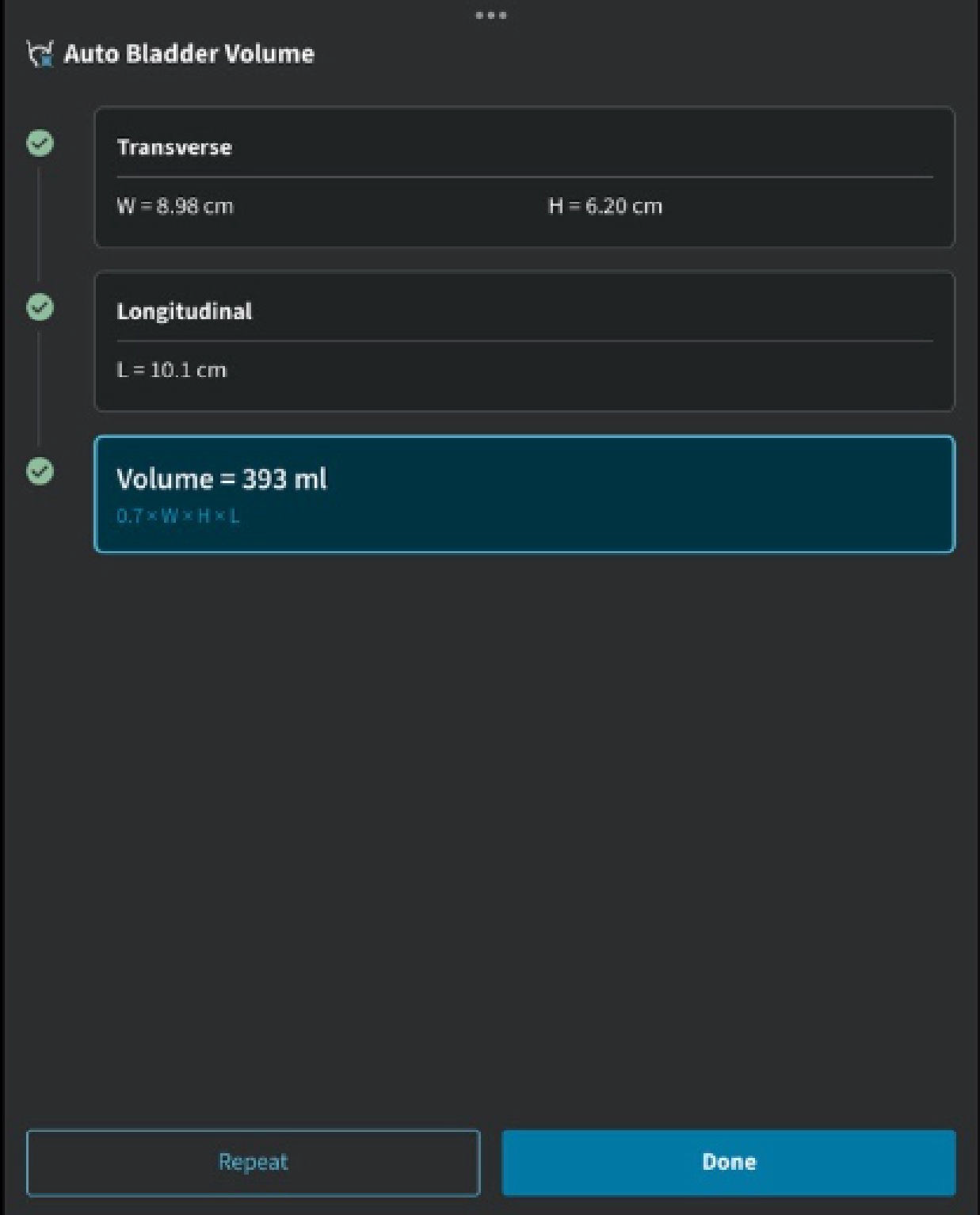
Summary of results (CL probe)
On the results summary page the user is given the option to finish the protocol by selecting Done, or in the case of wanting to repeat measurements one more time there is the option to select to Repeat the protocol steps to acquire another set of measurements.
If the deep learning algorithm fails to automatically place calipers the user will be informed to manually adjust the calipers or to re-scan the view.
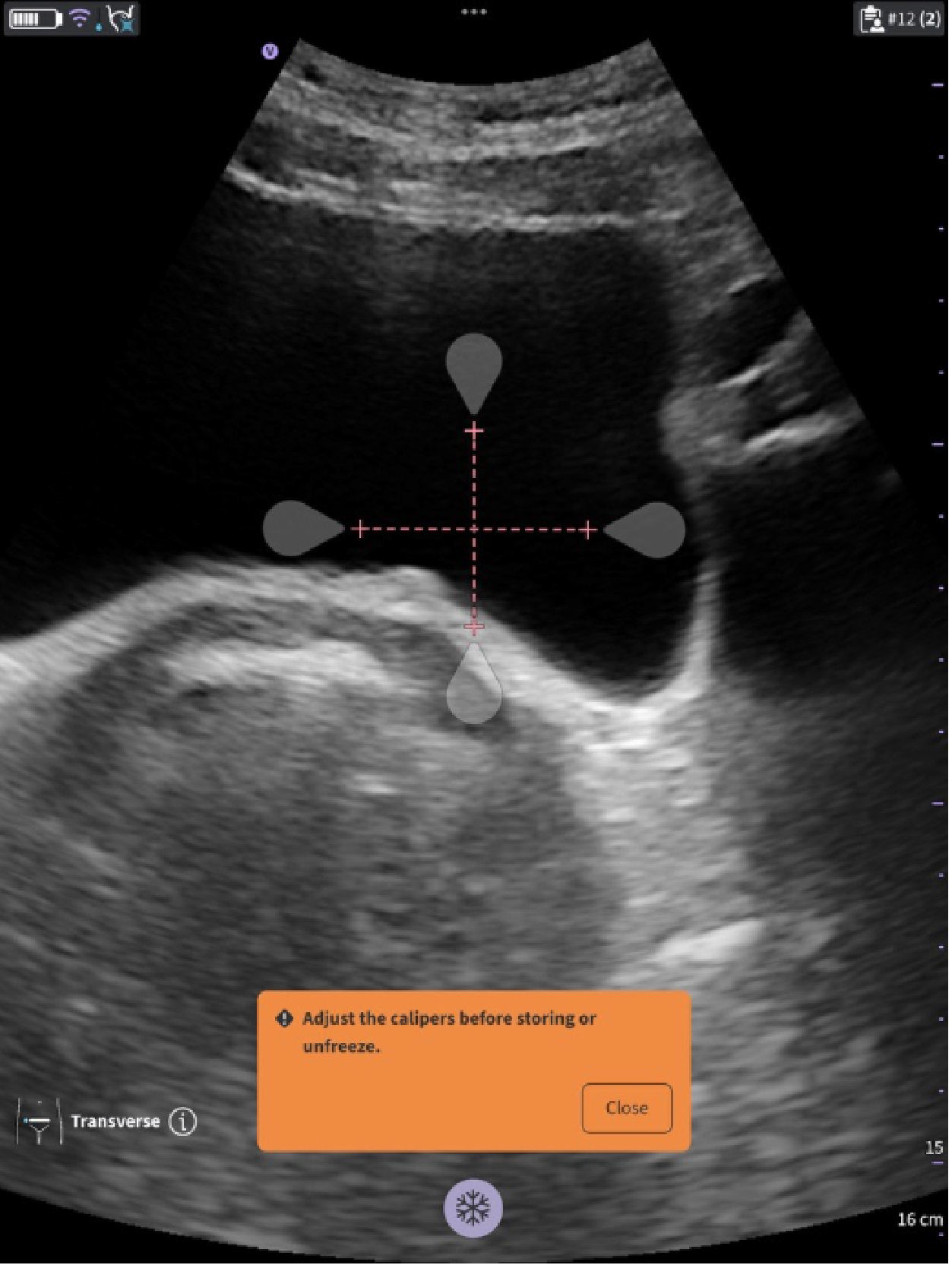
Adjust calipers or repeat scanned view
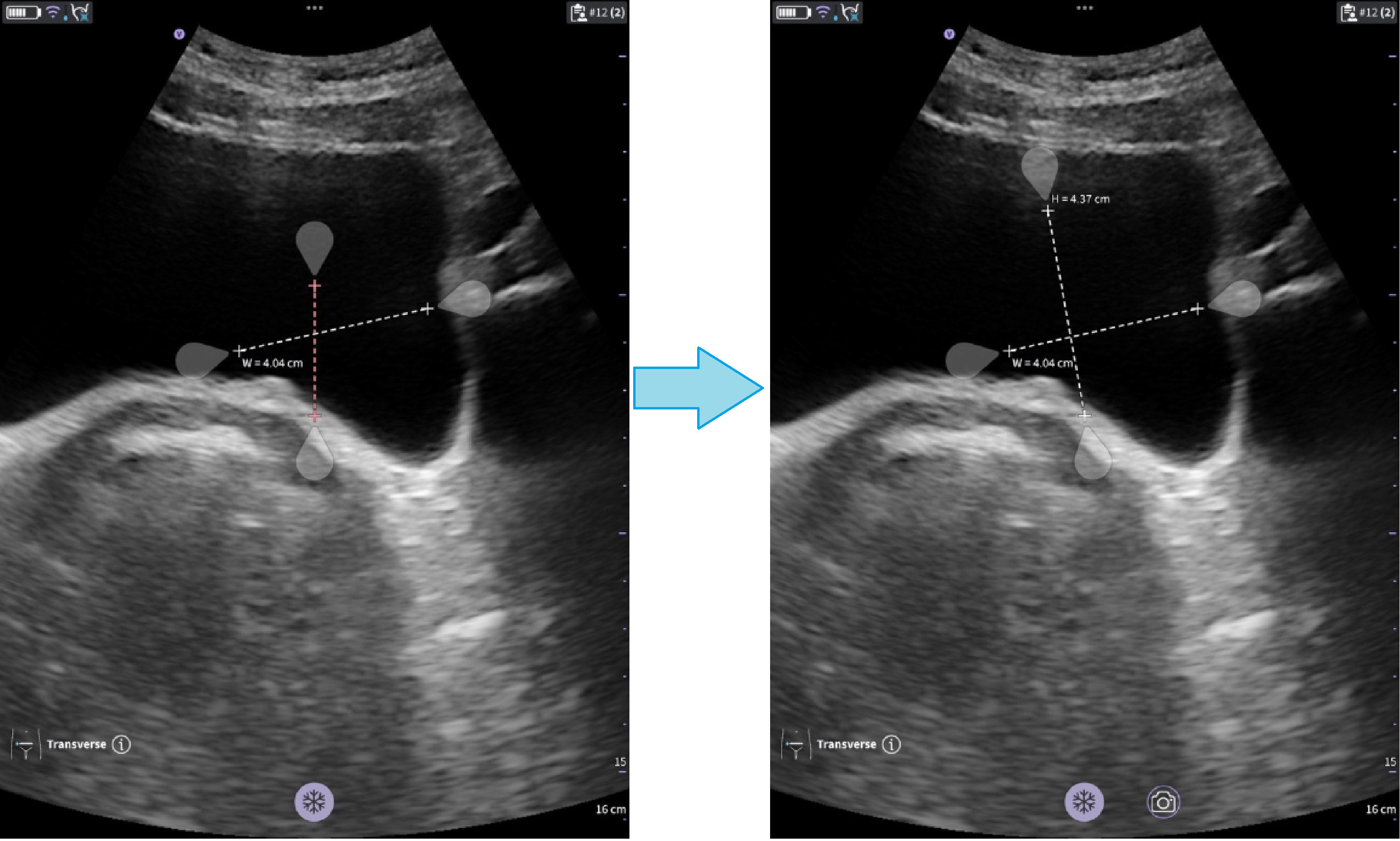 Store button available after caliper adjustments
NOTE
The Store button is enabled once the calipers have been adjusted.
Disclaimer: The information herein is not intended to replace the product’s User Manual. Please consult the User Manual for comprehensive information and cautionary guidance about the product’s operation and use.