Learn how to access and use Configuration options like - Centerline marker, Focus marker, TGC control, Doppler Audio, Cardiac Flip L/R, Auto freeze time, Clip duration, Probe button action, Heart rate calculation, measurement unit, Language, Automatic sign out, Data Access PIN, Preview mode, Probe storage, and Store binary image data
To adjust configuration settings, tap the Menu icon in the left upper corner of the screen, then select Configuration via the left panel menu.
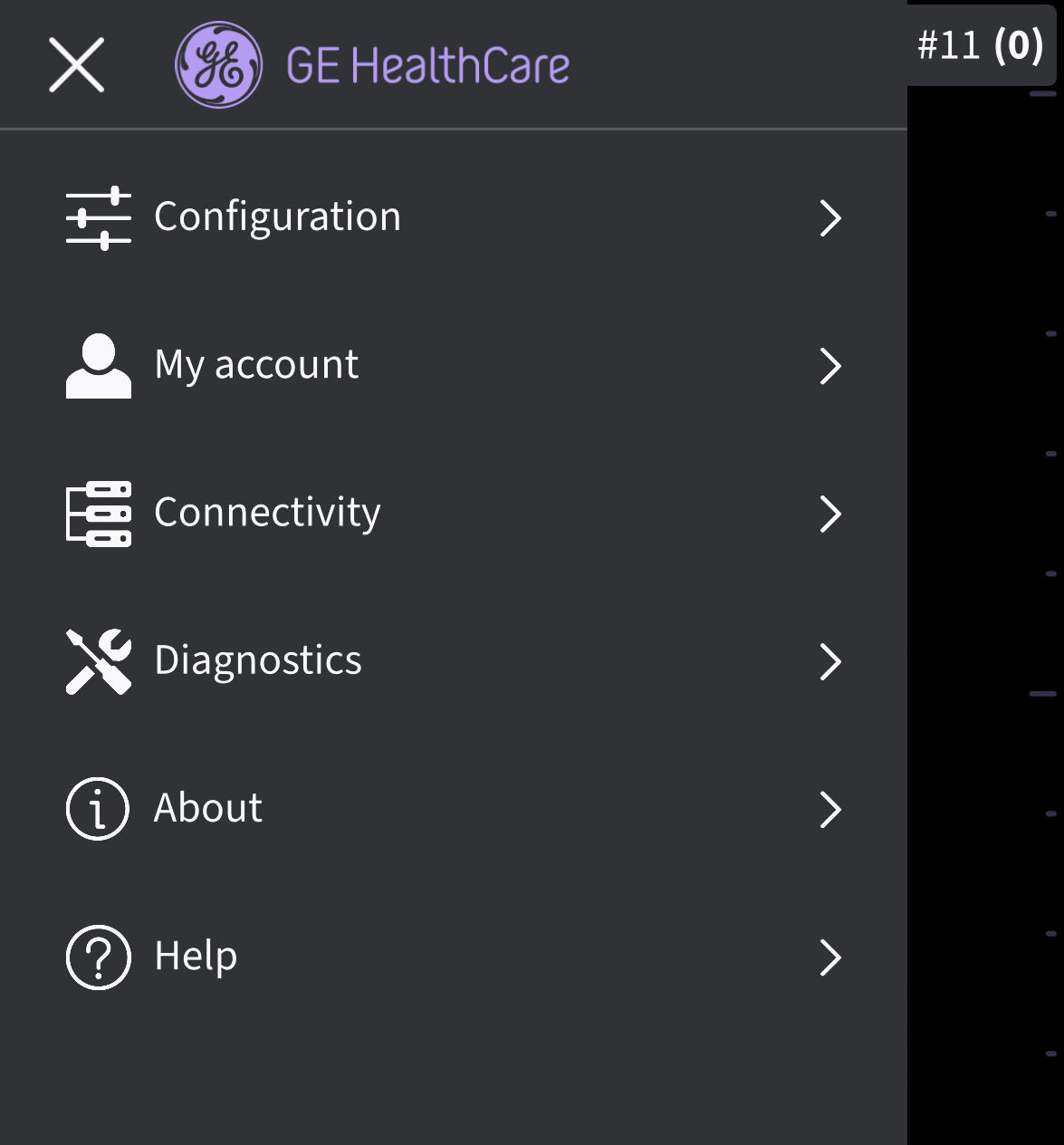
Configuration displays the following sections: Scan, Measurements, Regional preferences, Security, Application mode, Probe storage, and Other.
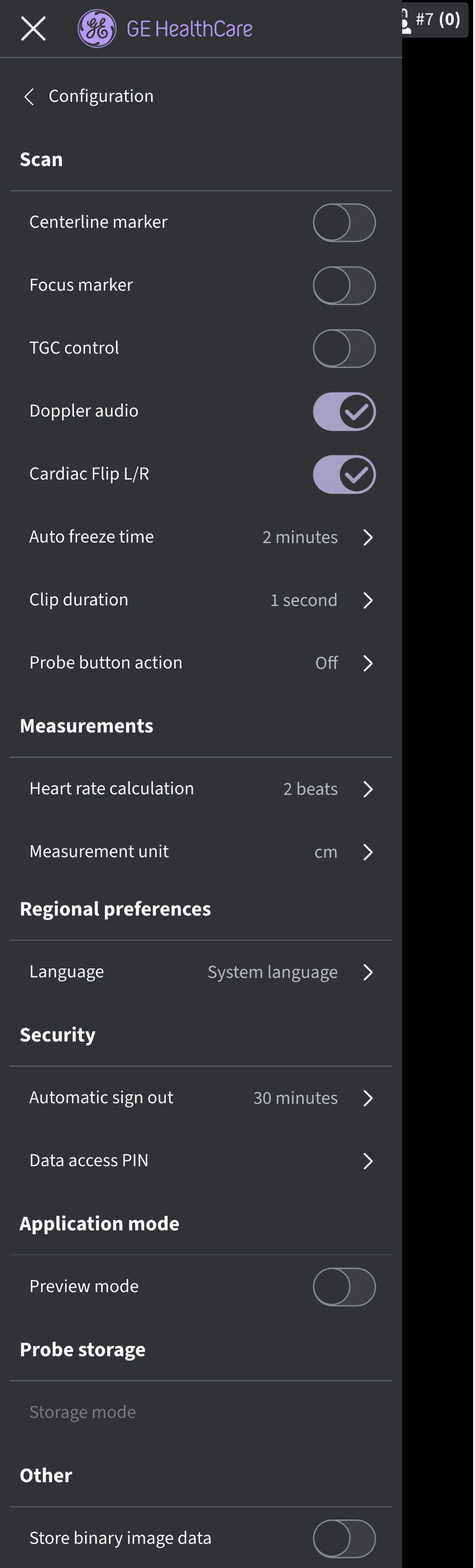
Configuration
A. Scan
1. Centerline Marker (Refer "Configuration" image above) - Tap the ON/OFF toggle switch to turn ON or OFF the Centerline Marker. When turned ON, Vscan Air app displays the Centerline Marker during black and white(B-mode) and color mode. Centerline is also displayed in Freeze and on recalled images and videos.
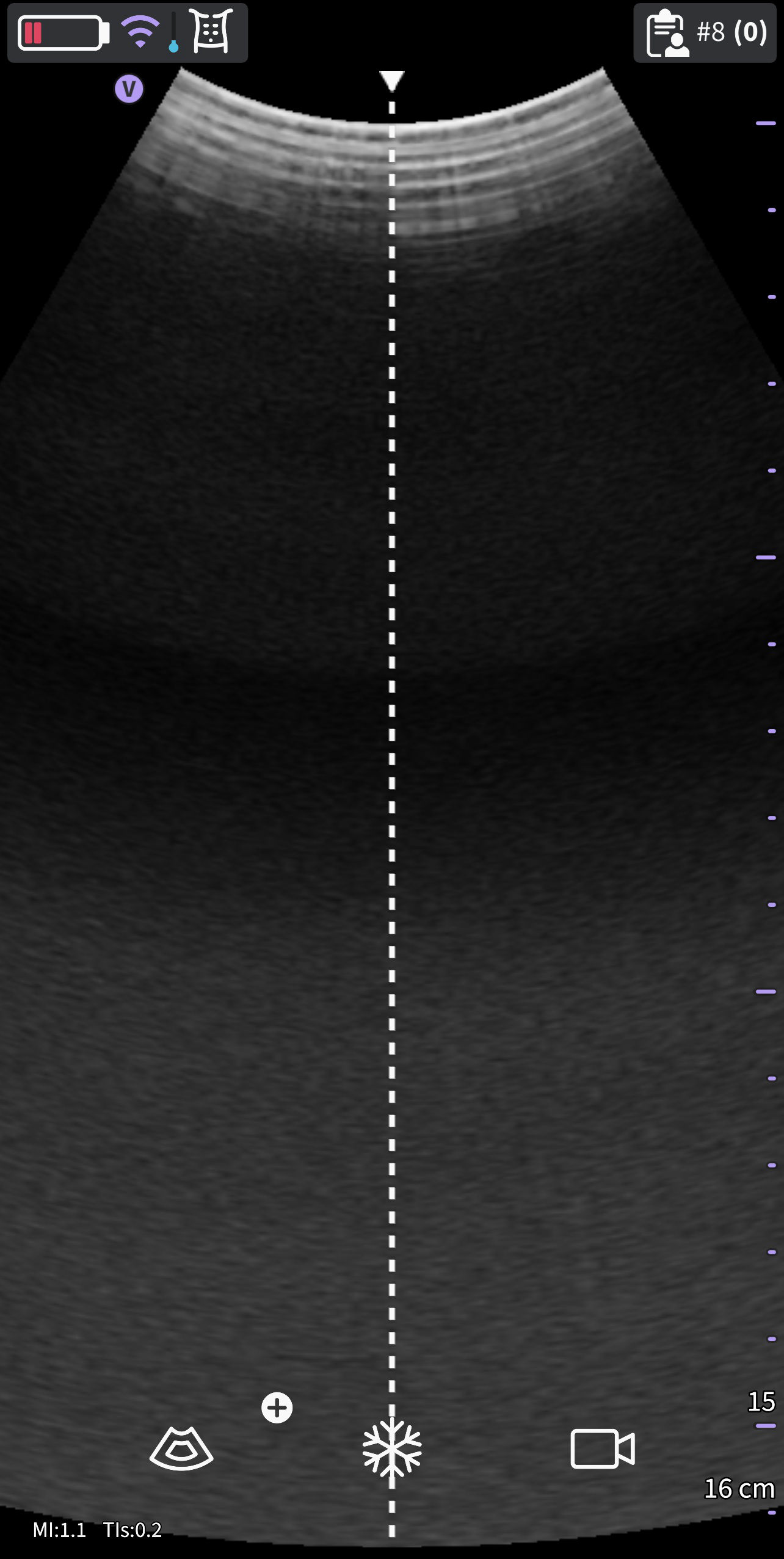
Centerline marker
NOTE: Configure the display device with an adequate 'screen-save' timeout. Configure the app with an adequate ‘auto freeze’ timeout in case of performing guidance procedures where no user interface interactions are expected during the course of the procedure2. Focus Marker (Refer "Configuration" image above) - Tap the ON/OFF toggle switch to turn ON or OFF the Focus Marker. When turned ON, Vscan Air app displays the focus marker in black and white (B-mode), color mode, in Freeze and replay.
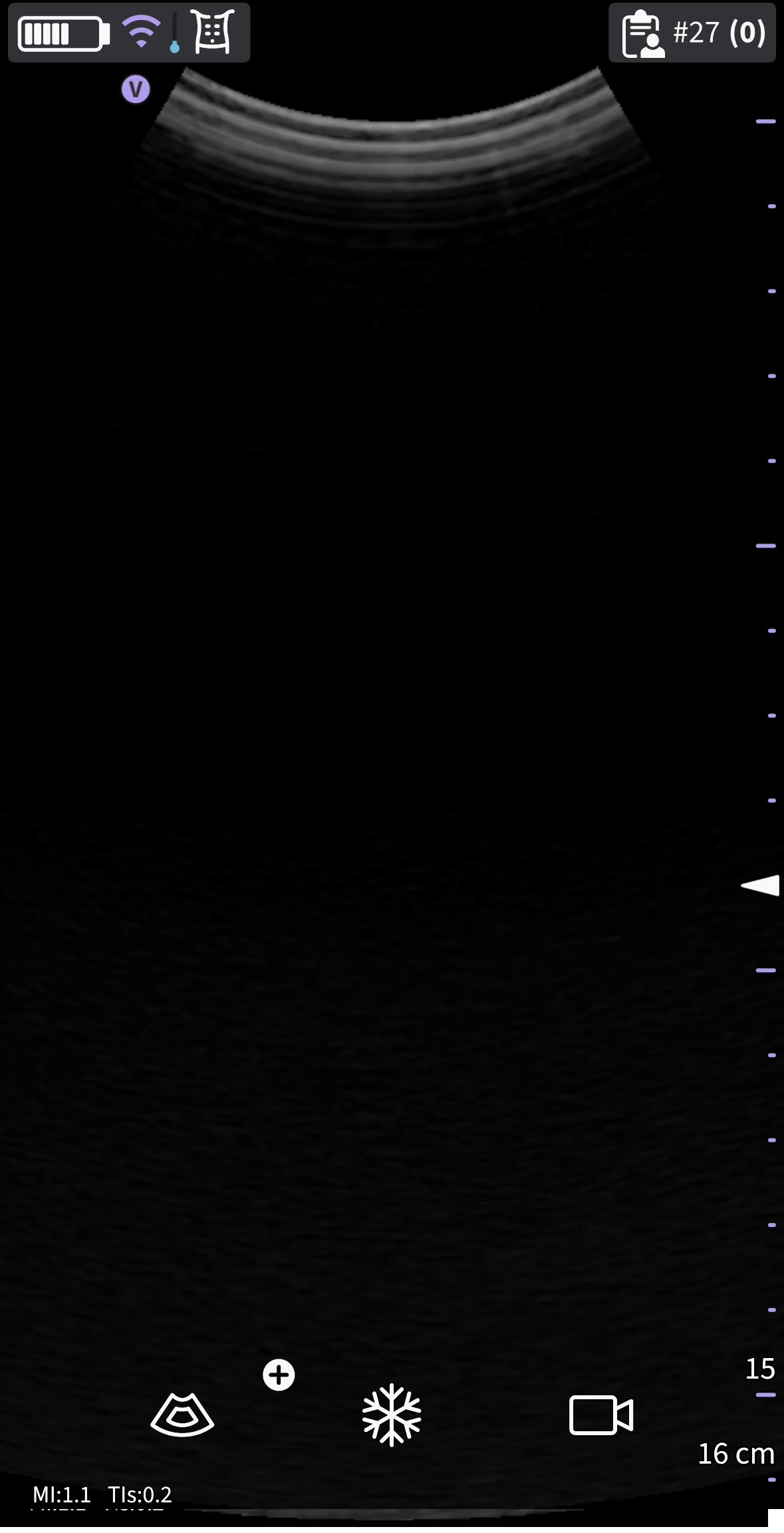
Focus marker
3. Time Gain Compensation (TGC) Control (Refer "Configuration" image above) - Tap the ON/OFF toggle switch to turn ON or OFF TGC controls. When TGC is ON, you can adjust the black and white (B-mode) image via the TGC controls on the scan screen.
NOTE:
For adjustment up to 6 TGC controls are available in portrait and landscape layouts.
The active gain control is disabled as long as the TGC controls are active.
4. Doppler audio (Refer "Configuration" image above) - Tap the ON/OFF toggle switch to turn ON or OFF Doppler audio. Doppler audio output is enabled when installing the Vscan Air app. The Doppler signal is heard through the display device audio output. Adjust volume of display device to adjust the Doppler audio.
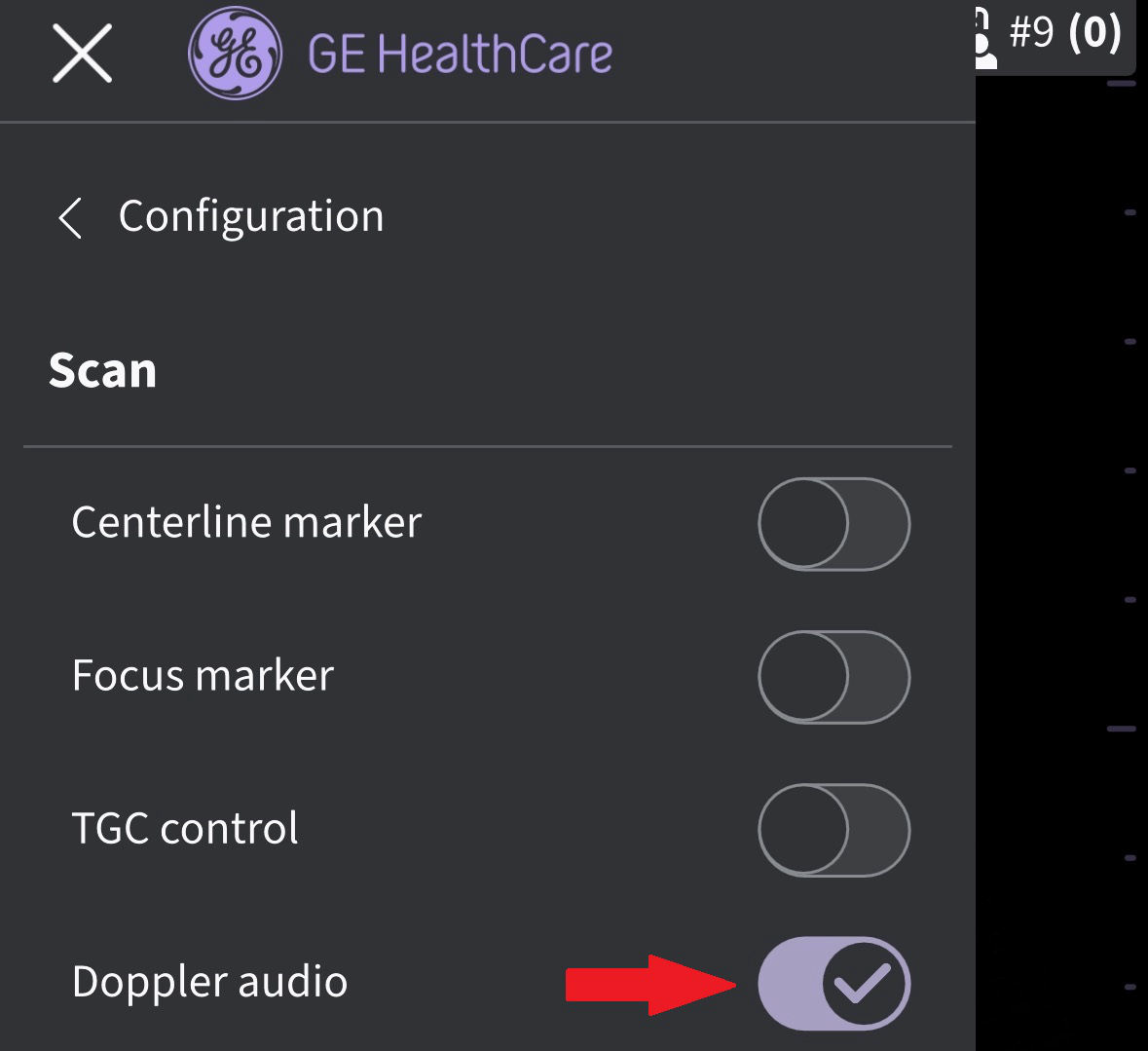
Doppler Audio
NOTE : If there is no audio output check that Doppler audio is enabled via the Vscan Air app configuration settings, check the display device audio settings and make sure that the audio volume is set sufficiently high. If using an iPhone, please also make sure that the iPhone Ring/Silent switch is set to Ring to enable doppler audio.
5. Cardiac Flip L/R (Refer "Configuration" image above) - Setting the Cardiac Flip L/R option true, will flip the cardiac image and orientation marker horizontally to right and vice versa. The Cardiac Flip Left Right option will have impact only when the Cardiac preset is selected.
NOTE: Cardiac Flip L/R is enabled when installing the Vscan Air app. The image orientation marker will then when using Cardiac presets be present on the right side of the screen.
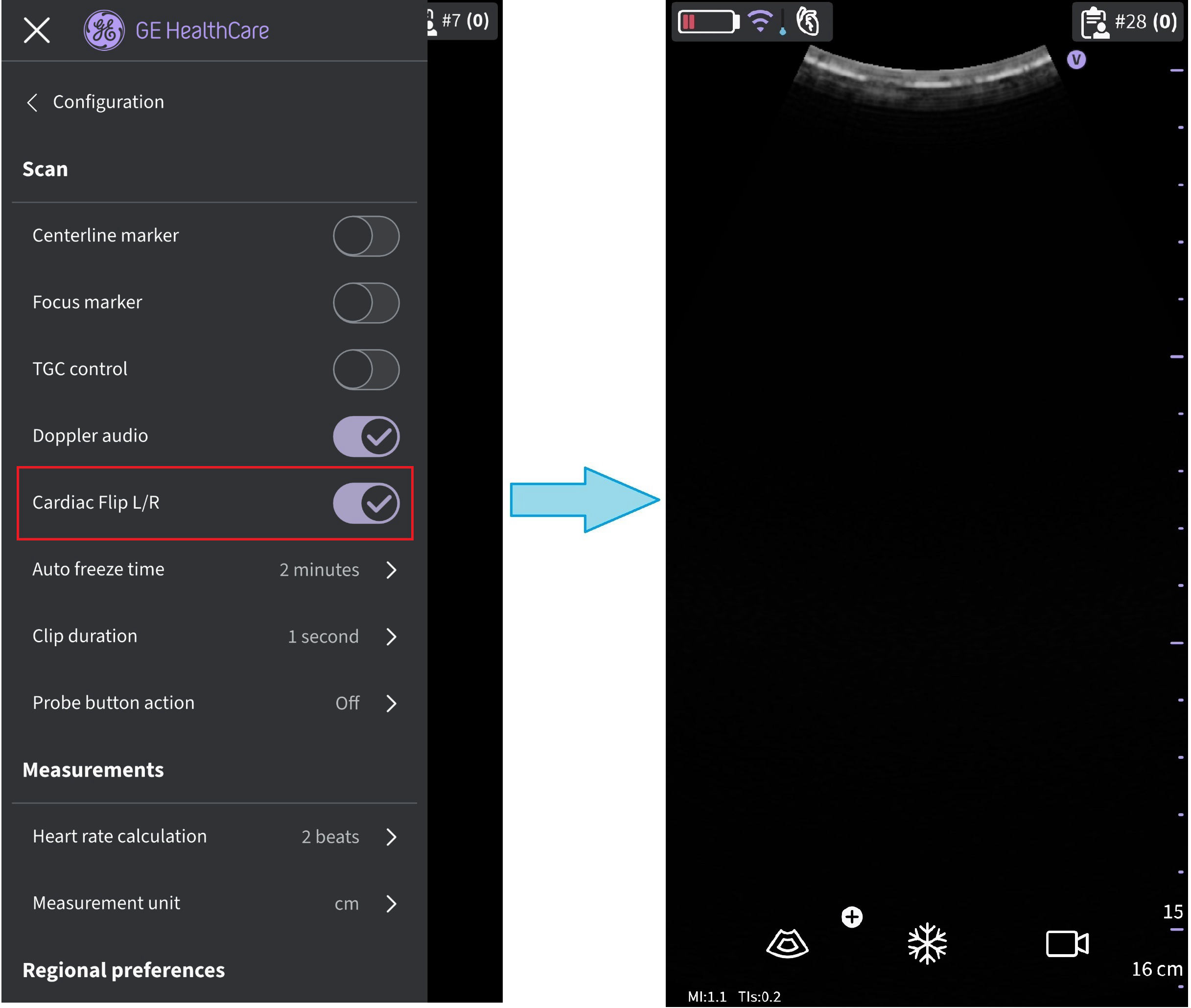
CLA-Cardiac (flip)
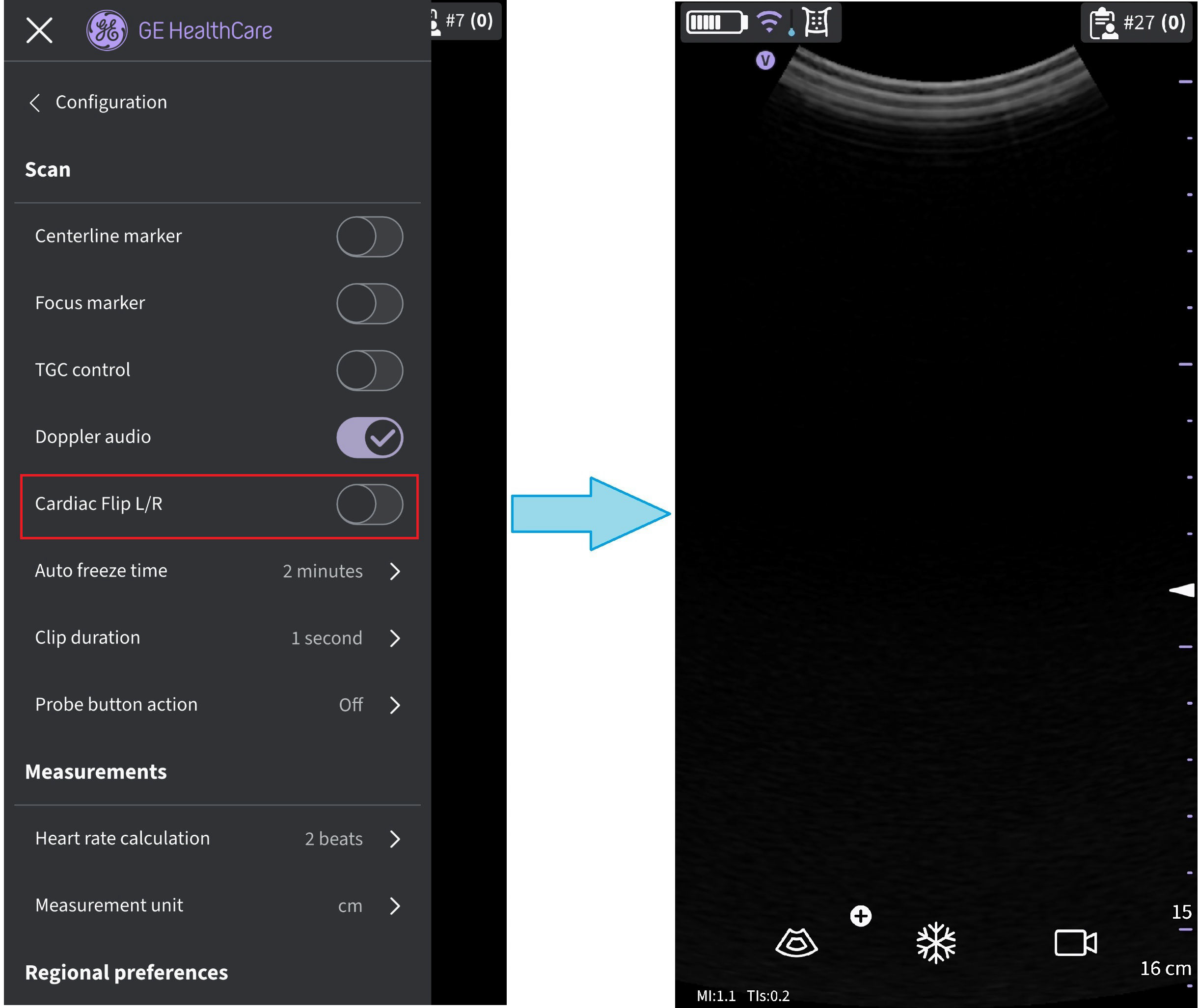 CLA-Cardiac (no flip)
6. Auto Freeze Time (Refer "Configuration" image above) -
- Press Auto Freeze Time
- Tap on the desired value to set the auto freeze time. This sets the time after which the system enters Freeze mode when not in use.
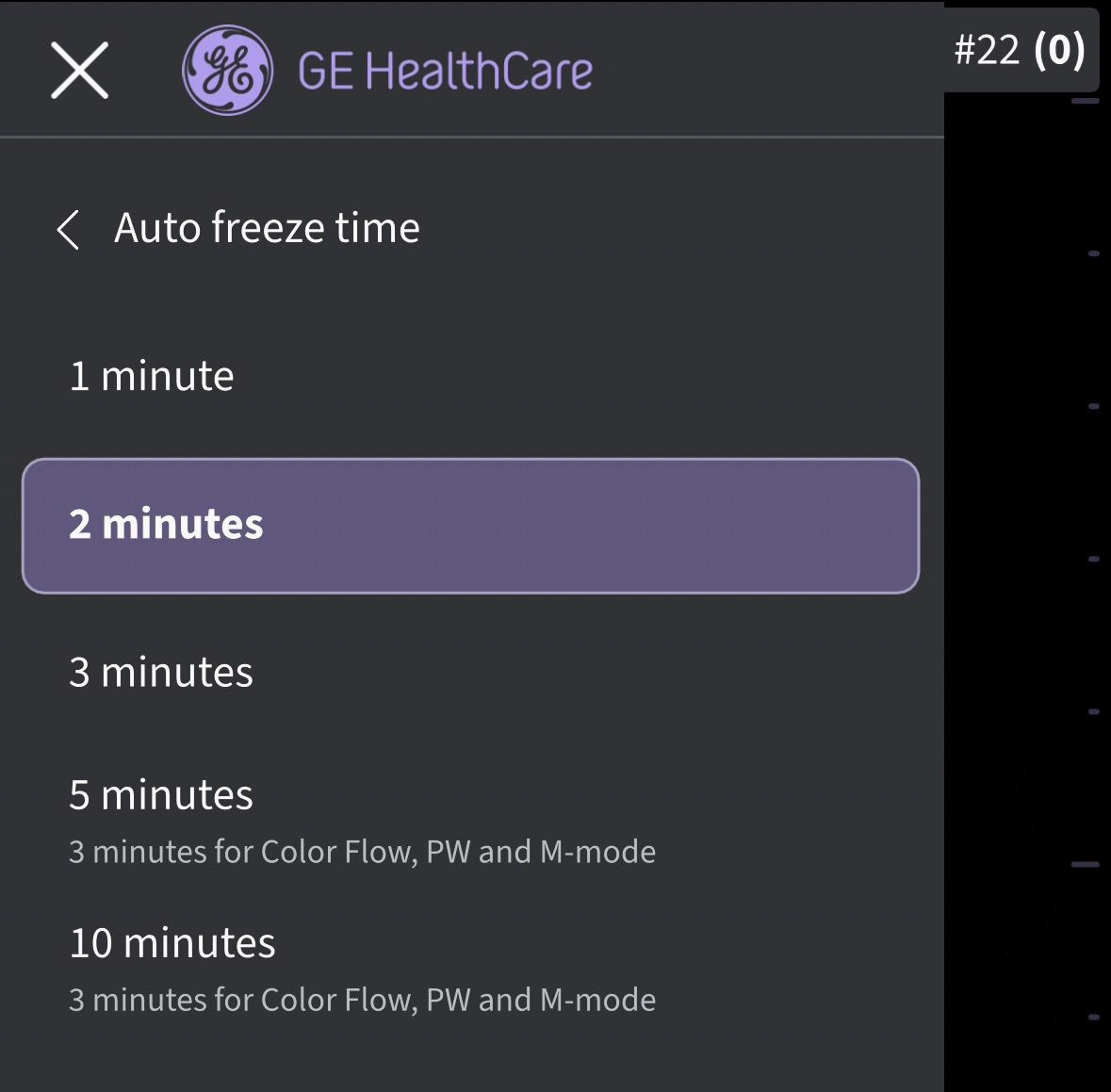
Auto freeze time
NOTE: Configure the display device with an adequate 'screen-save' timeout and 'auto freeze' timeout in the case of performing guidance procedures where there is no user interface interaction over the course of the procedure7. Clip Duration (Refer "Configuration" image above) -
- Press Clip duration - The video duration is related to the number of seconds of scan data that is available in the buffer after freezing the image.
- Tap on the desired value to set the buffer size.
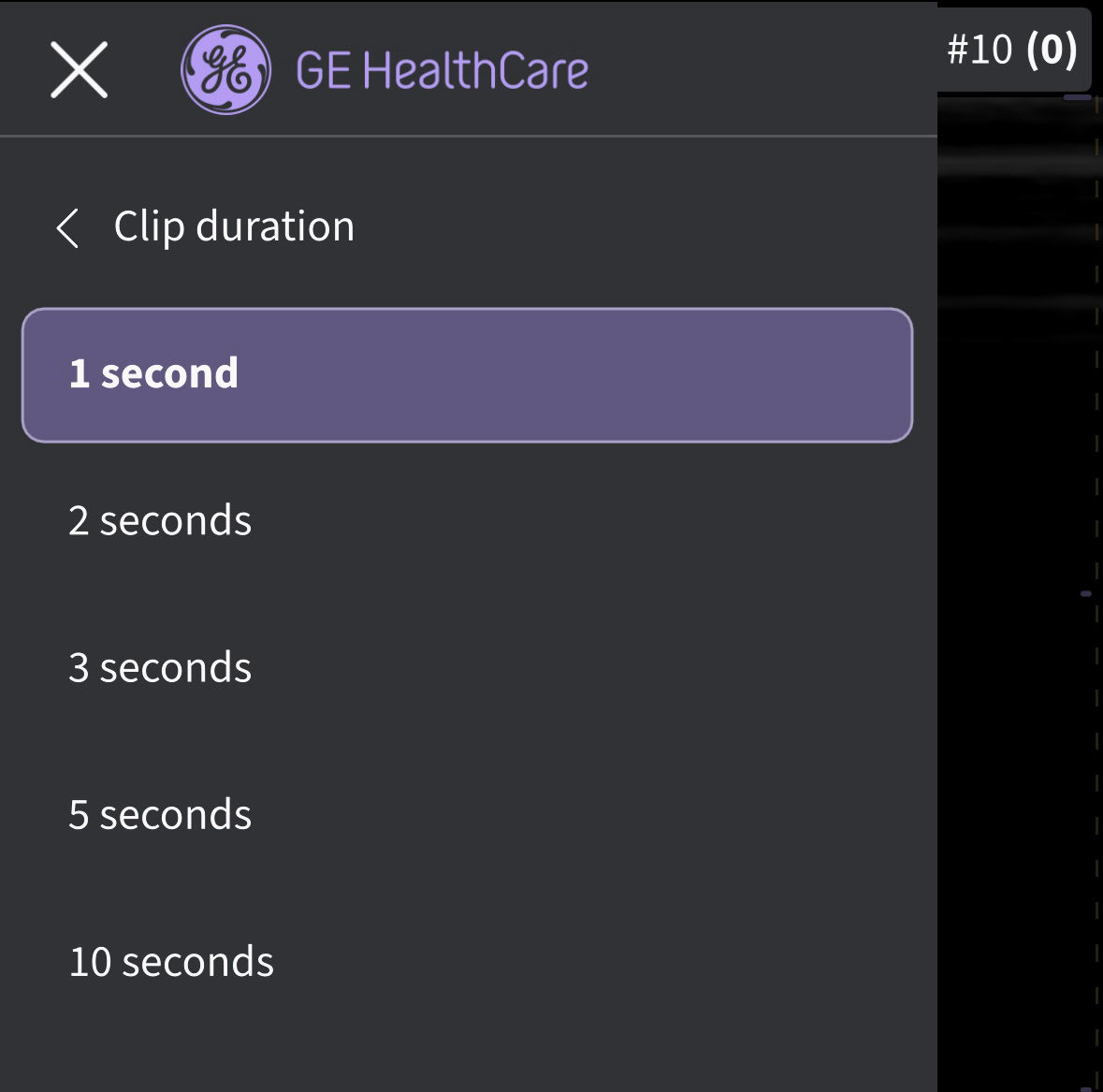
Video duration
8. Probe Button Action (Refer "Configuration" image above) -
- Press Probe Button Action.
- Tap to choose either Freeze or Save with probe button press. Choose 'Off‘ to configure no action with the button press.
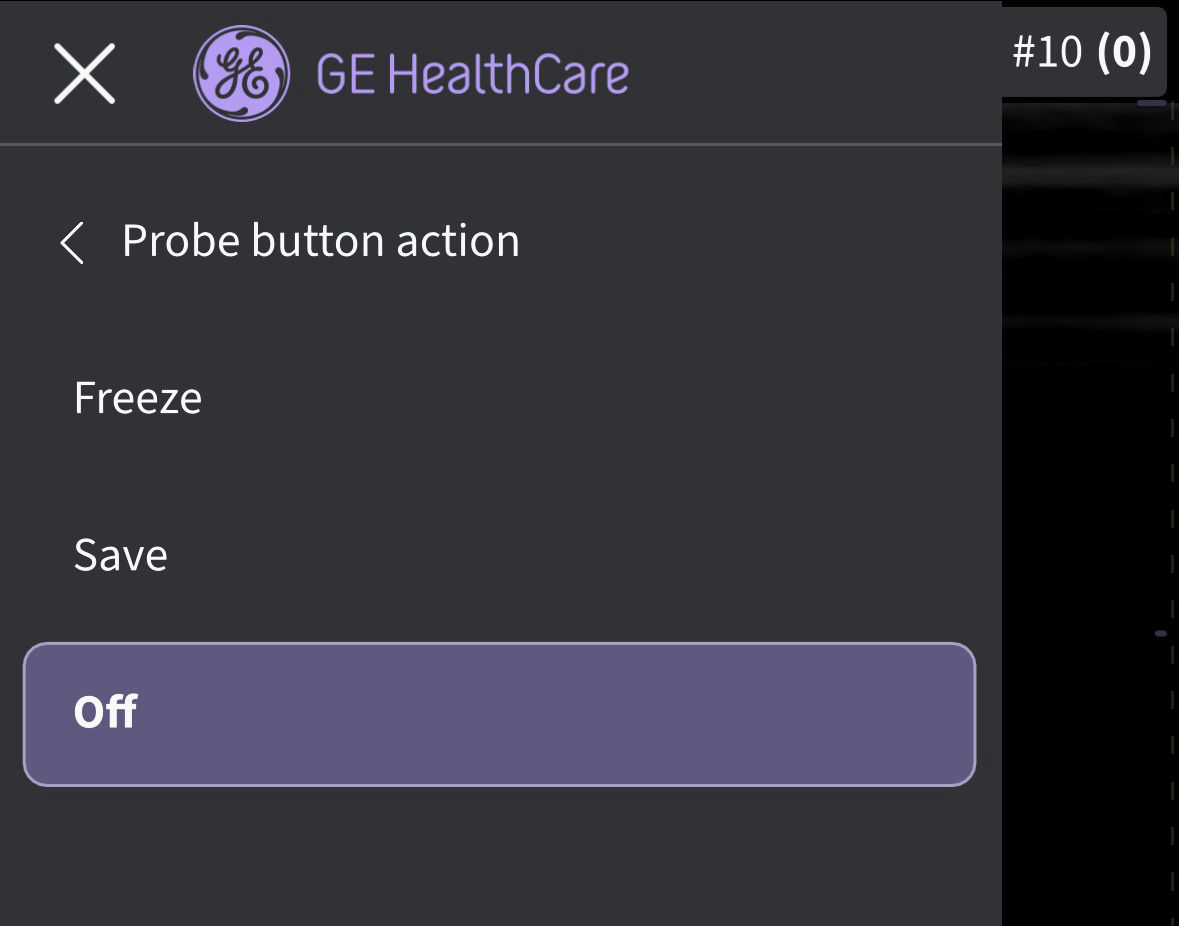
Probe button action
B. Measurements
1. Heart rate calculation (Refer "Configuration" image above) - For Heart rate calculation in PW and M-mode, select the number of beats (1, 2, 3 beats) from the Configuration menu.
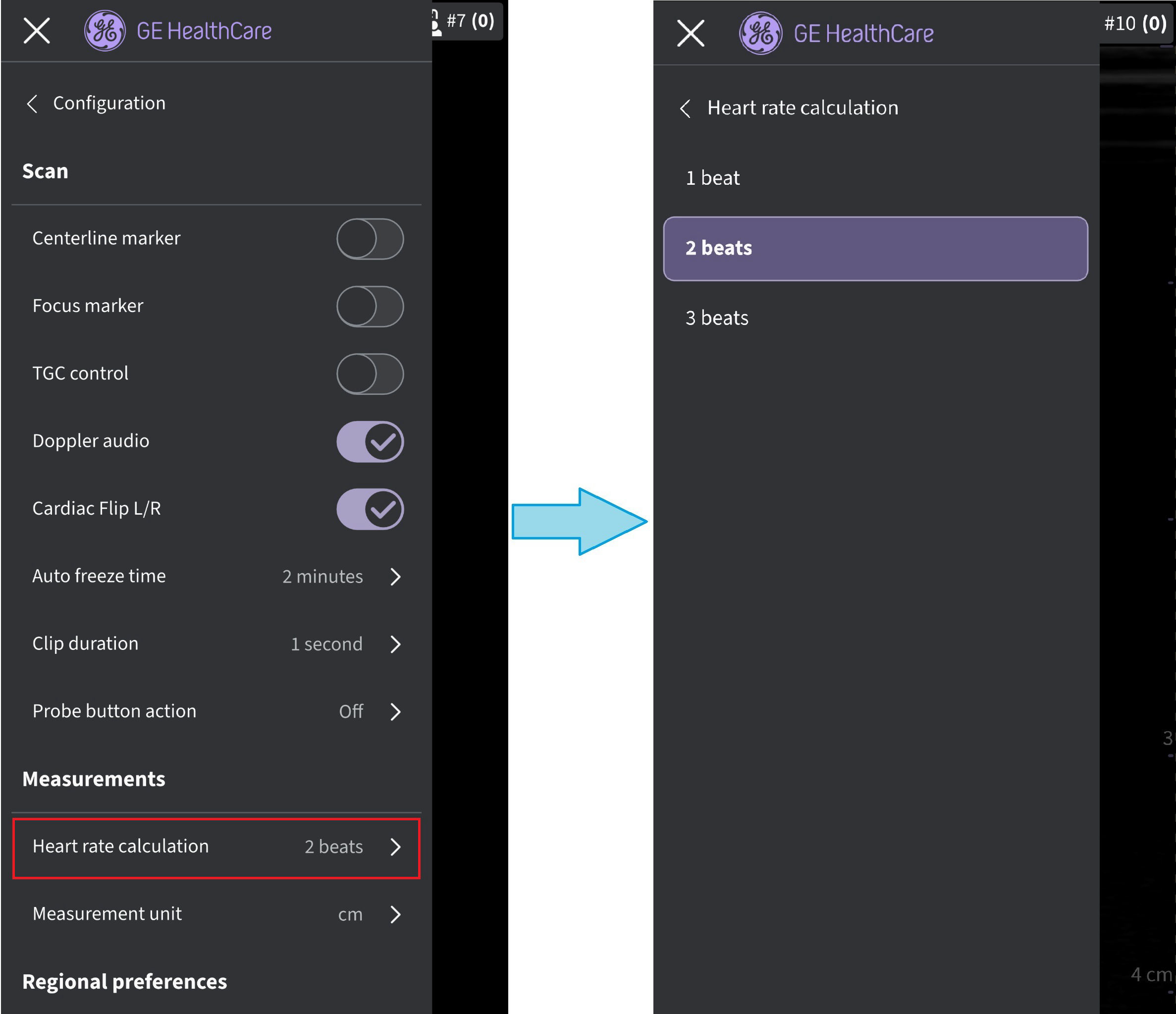
Heart rate calculation
2. Measurement unit (Refer "Configuration" image above) - Tap to choose either cm or mm.
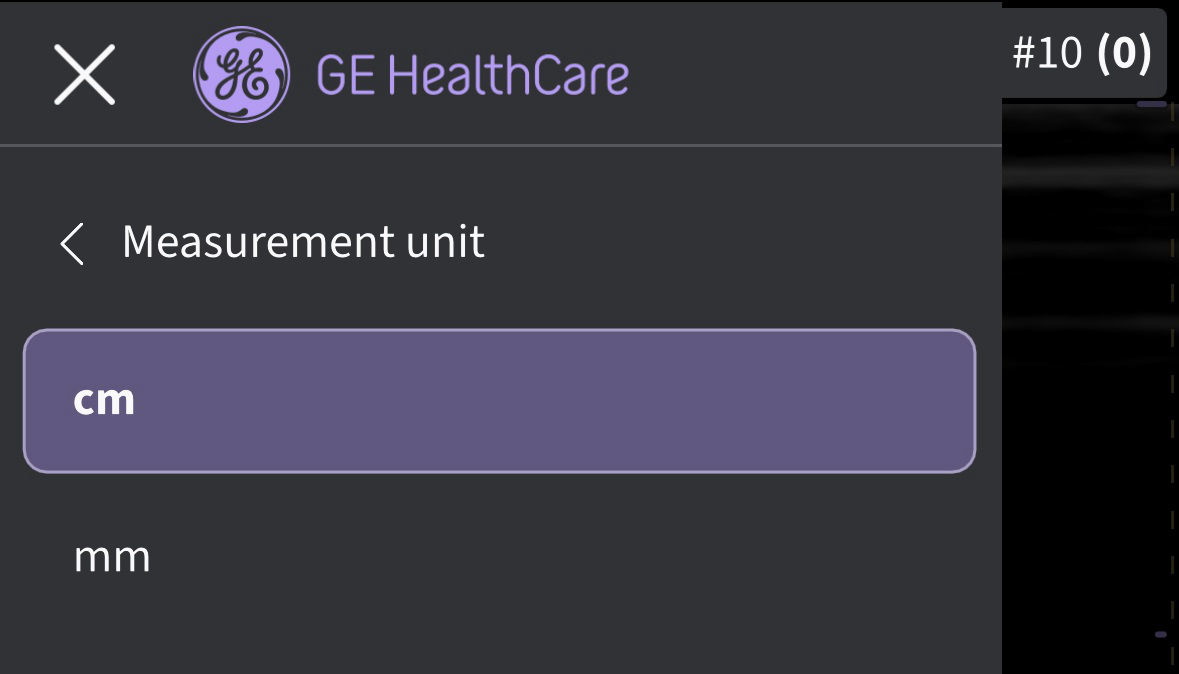
Measurement unit
C. Regional preferences
Language (Refer "Configuration" image above) - Choose the desired language
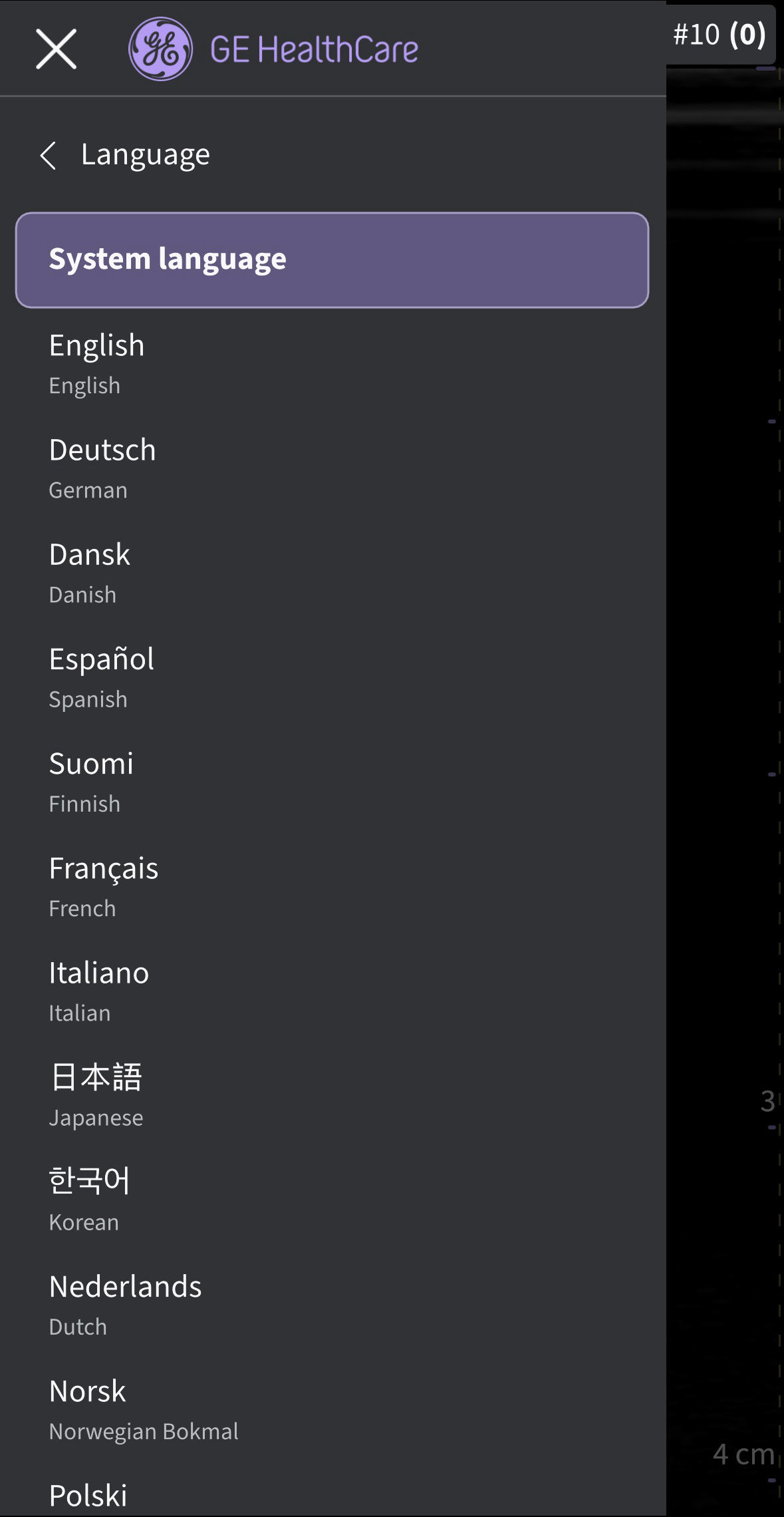 Language
NOTE: Vscan Air App defaults to English if the current language setting on the mobile device is not supported by the Vscan Air appD. Security
1. Automatic sign out (Refer "Configuration" image above)
The automatic sign out setting gives user an option to control the duration of the signed in session.
To change the automatic sign out setting, navigate to Menu → Configuration → Security: Automatic sign out.
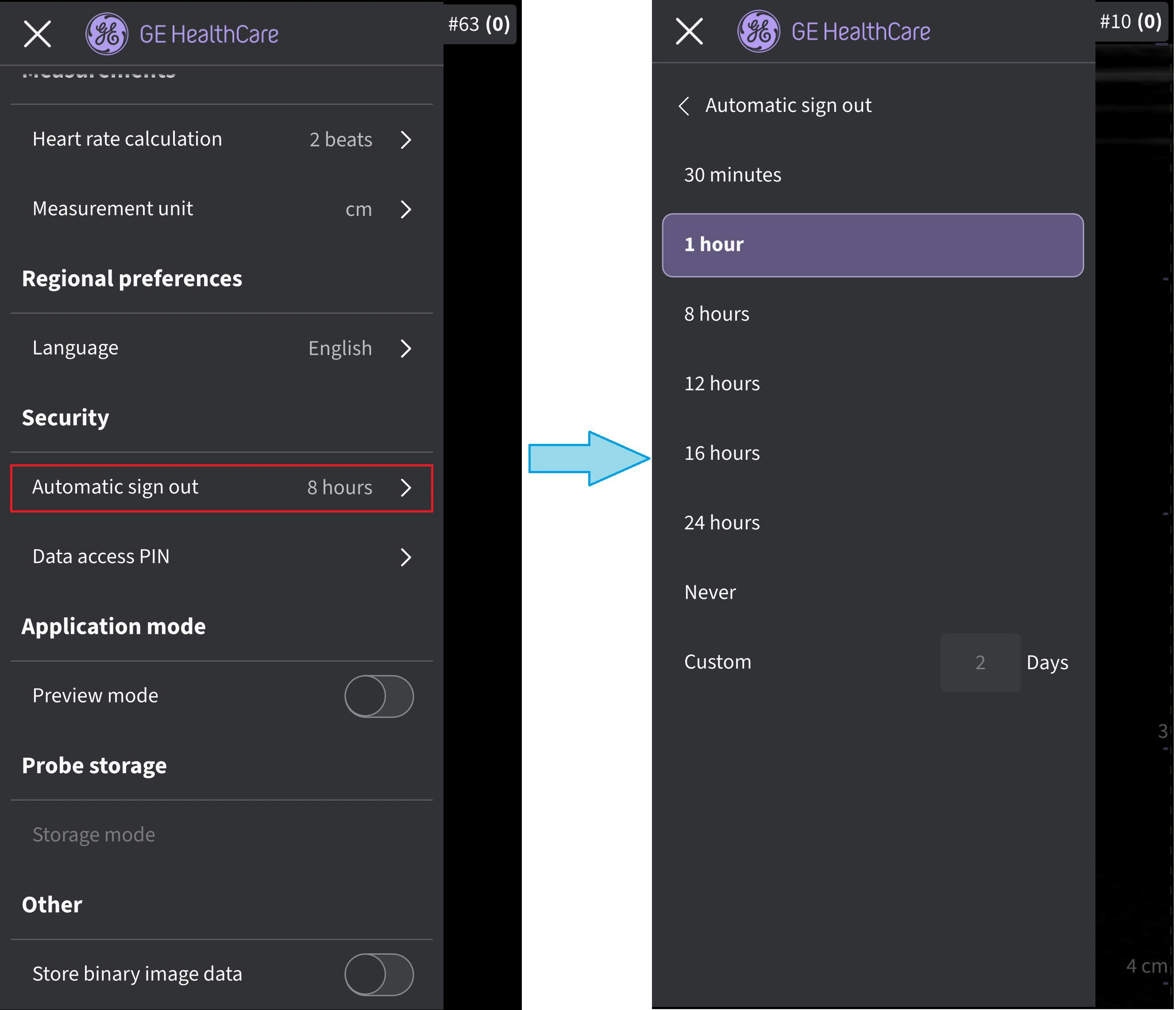 Automatic sign out
The app will maintain the user session for the set duration unless the user explicitly signs out
NOTE
The automatic sign out timer does not activate while the app is in use.
2. Data access PIN (Refer "Configuration" image above) - Choose for protecting exam and patient
information
E. Application Mode
Preview mode (Refer "Configuration" image above) - Tap the ON/OFF toggle switch to turn ON or OFF the preview mode. Press OK to use the preview mode.
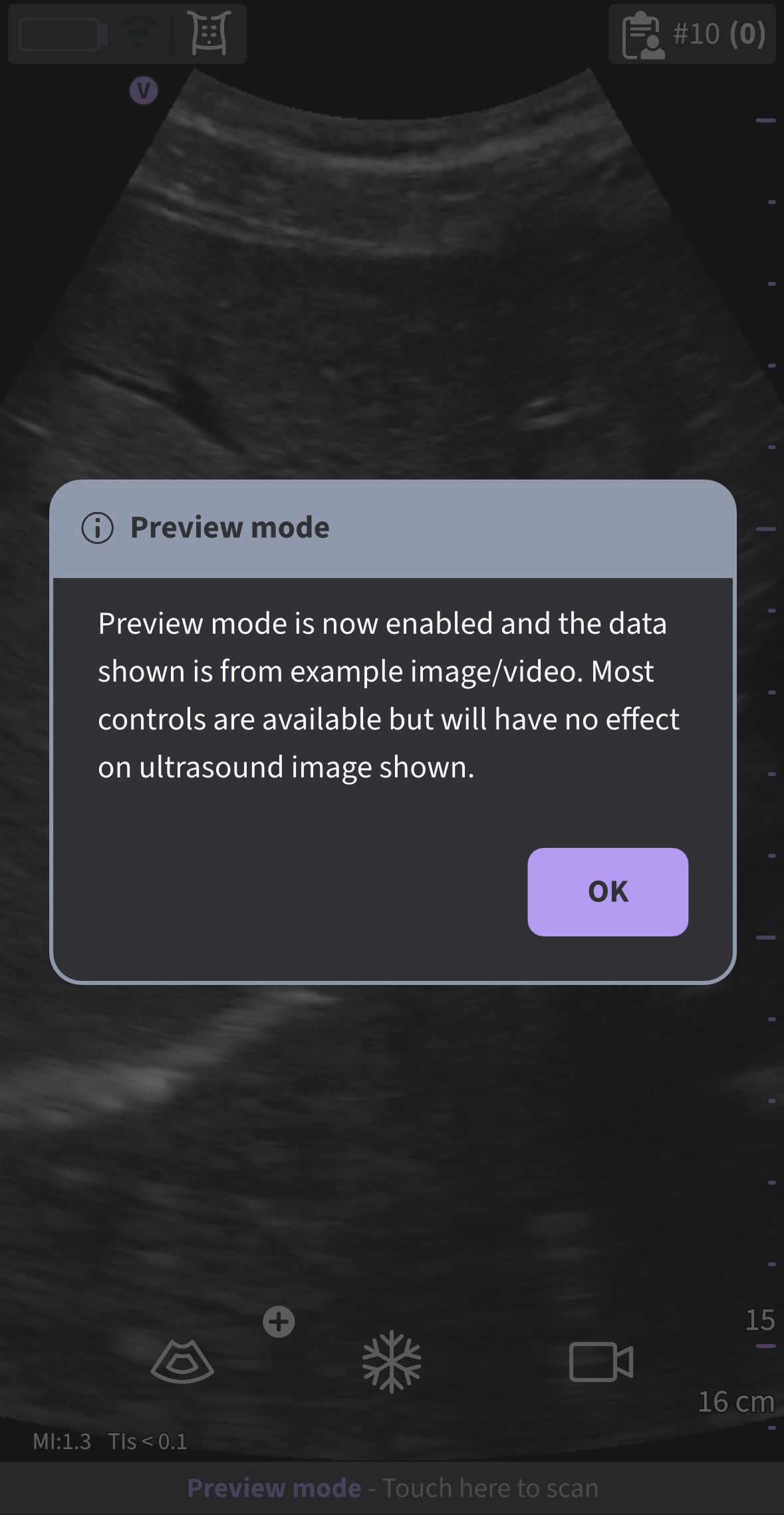 Preview mode pop-up
F. Probe Storage
Storage mode - Storing the Vscan Air Probe (Refer "Configuration" image above)
If there is a need to store a Vscan Air probe for a short or long period, it is recommended to utilize ‘Storage mode’ available via the Vscan Air app Menu. ‘Storage Mode’ allows the user to keep a probe stored for up to 36 months without significant probe battery degradation. If the probe must be available on short notice, it can easily be removed from ‘Storage mode’ by placing it onto a Vscan Air charger.
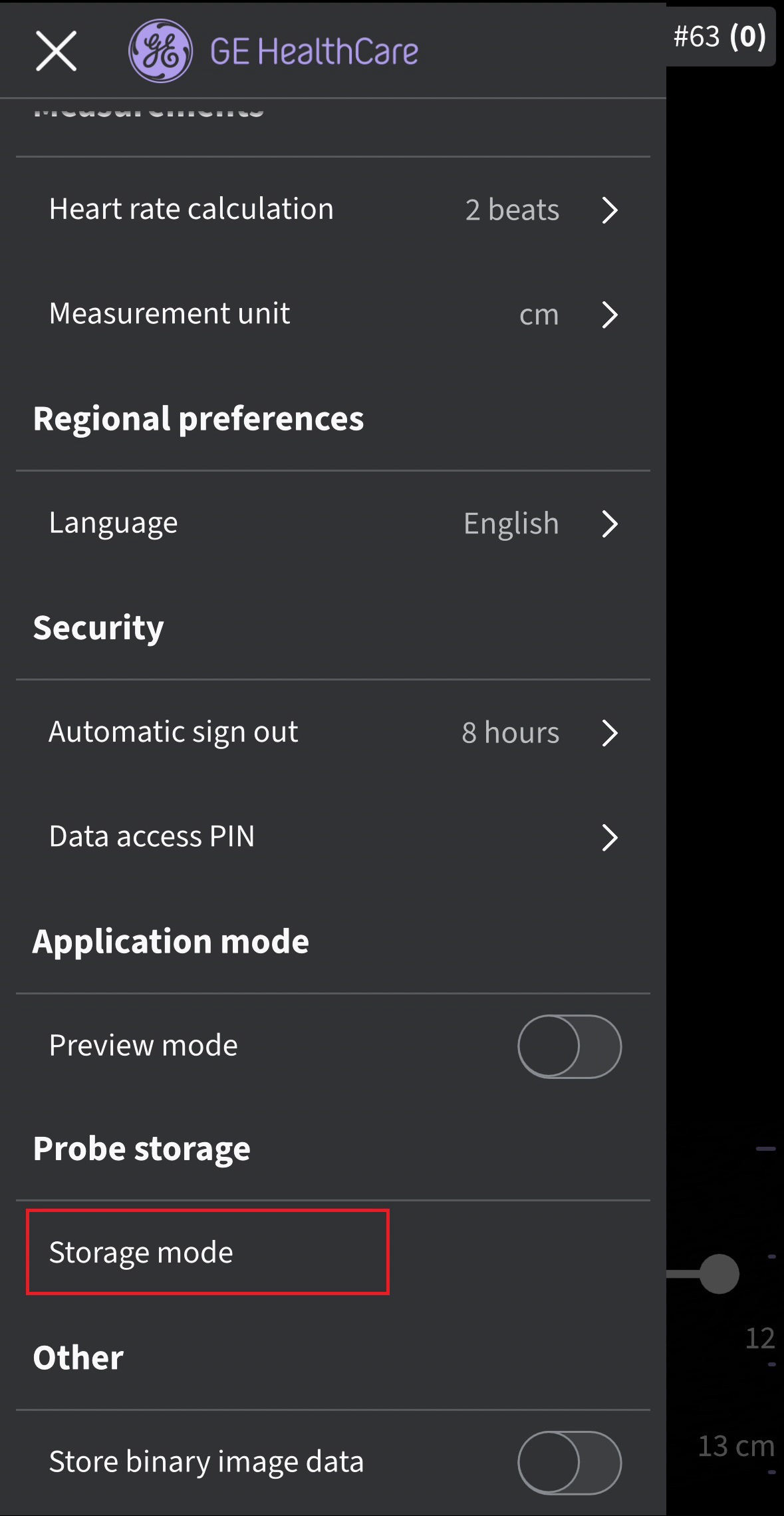
Storage Mode
NOTE
A probe needs to be connected to the Vscan Air app to select Storage mode
G. Other
Store Binary Image Data (Refer "Configuration" image above)
- Tap the ON/OFF toggle switch to turn ON or OFF the binary image data. When turned ON, a pop-up message displays - “Binary image data storage is now enabled and unprocessed data will be stored together with video clips. This uses some additional storage space. Binary image data is useful for research and development in collaboration with GE HealthCare
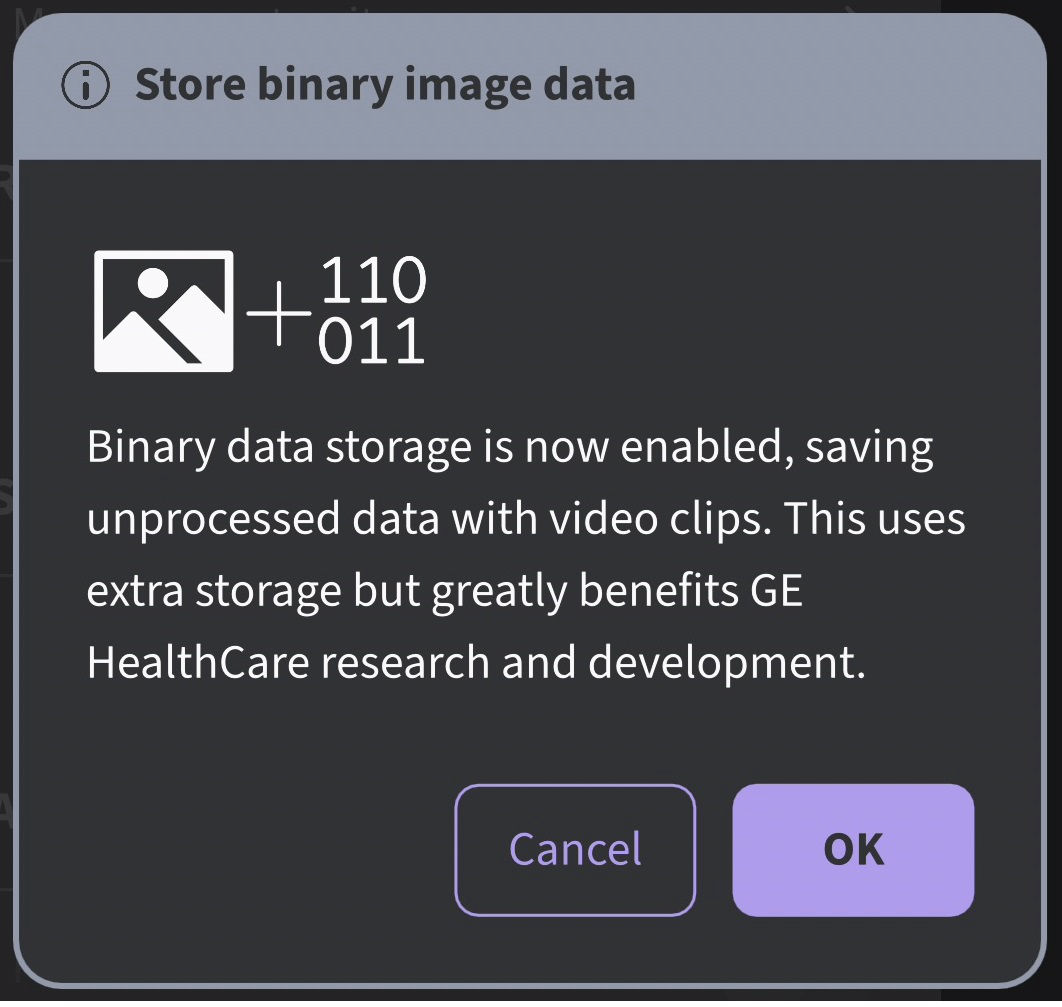
Store Binary image data pop-up
Press OK to confirm to configure the device with binary image data store functionality.
NOTE
‘Save to files' is an option when selecting Share and 'Store binary image data' is active.
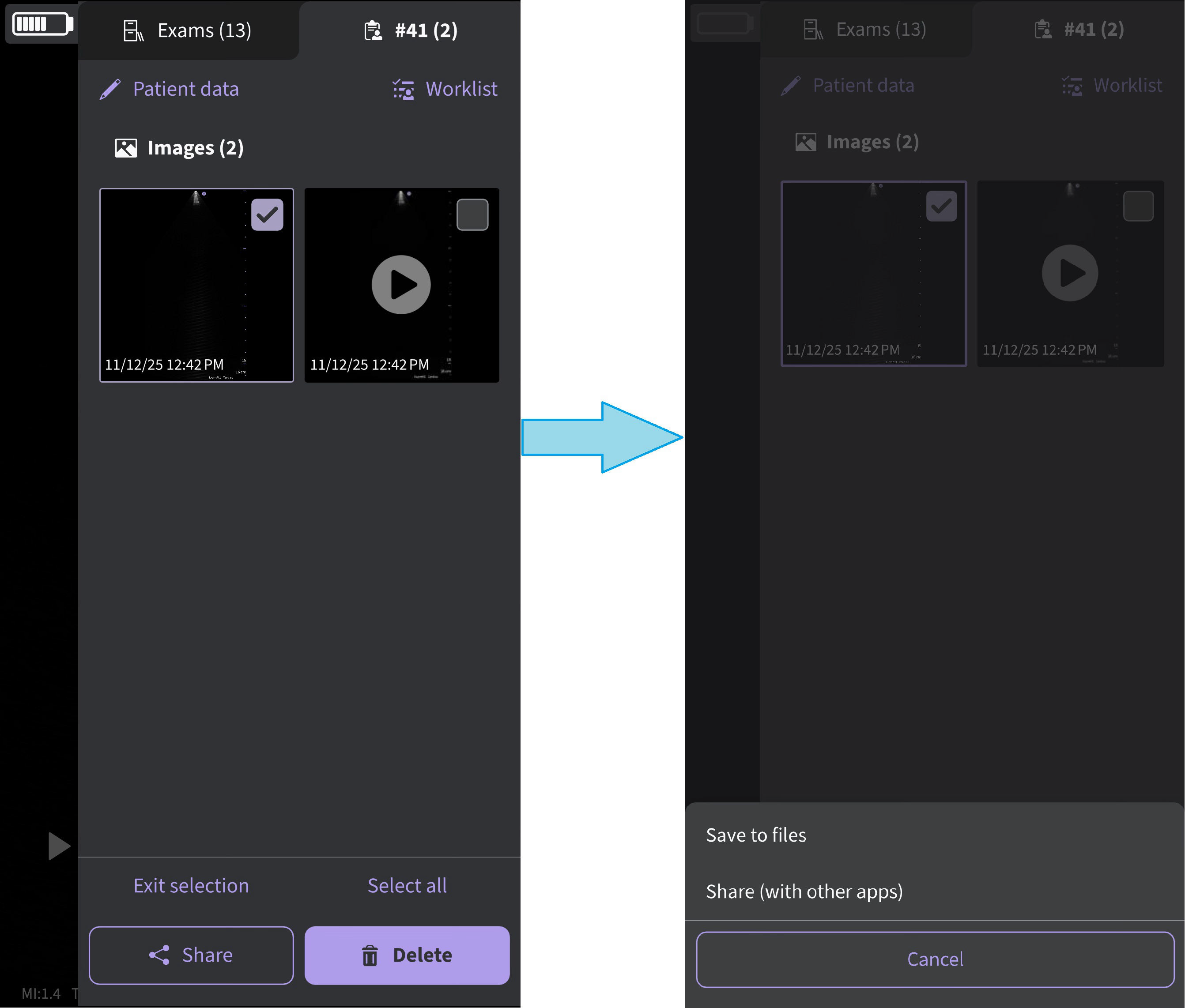
Local data storage available via "Save to files"
Disclaimer: The information herein is not intended to replace the product’s User Manual. Please consult the User Manual for comprehensive information and cautionary guidance about the product’s operation and use.