Learn how to charge the Vscan Air Probe using Vscan Air wireless charger (or) Anker Wireless Charging Pad. Vscan Air charging status using LED indications.
How to charge the Vscan Air Probes
1. Plug one end of the USB cable into the wireless charger and the other into the AC adapter.
.
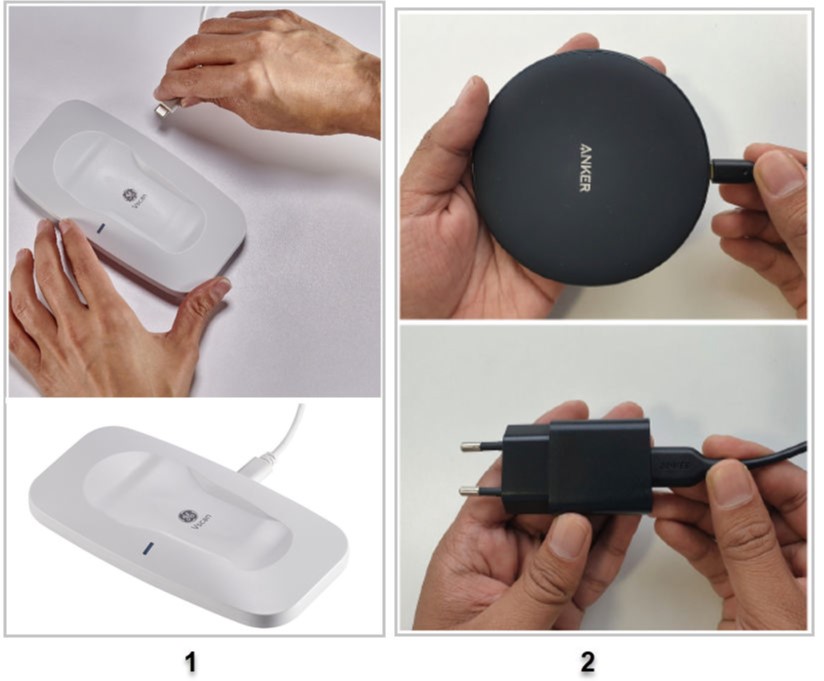 1. Vscan Air wireless charger
2. Anker wireless charger
2. Connect the AC adapter into the wall outlet.
3. Place the Vscan Air probe on the wireless charger with the GE logo up.
NOTE:
* The Vscan Air wireless charger LED light will be solid blue for 3 seconds and then turn off when connecting the charger to power.
* The Vscan Air wireless charger LED light will be solid blue when actively charging a device.
4. The Vscan Air probe LEDs lights up and the probe starts charging
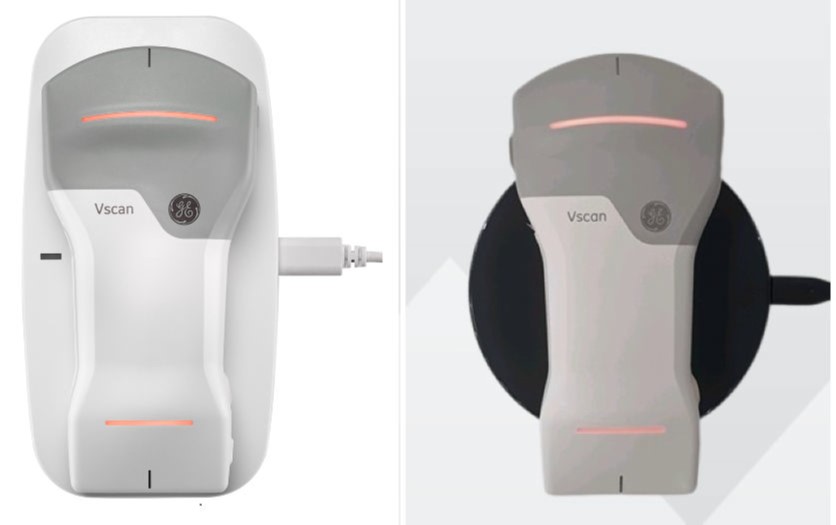
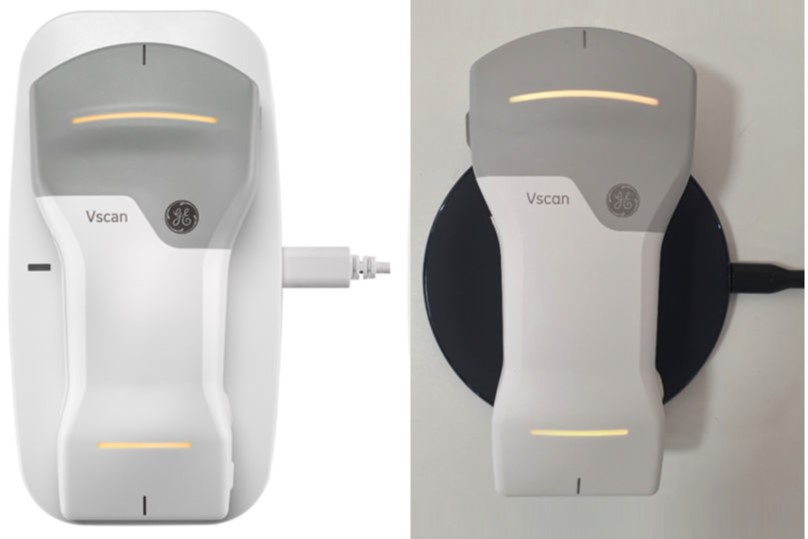
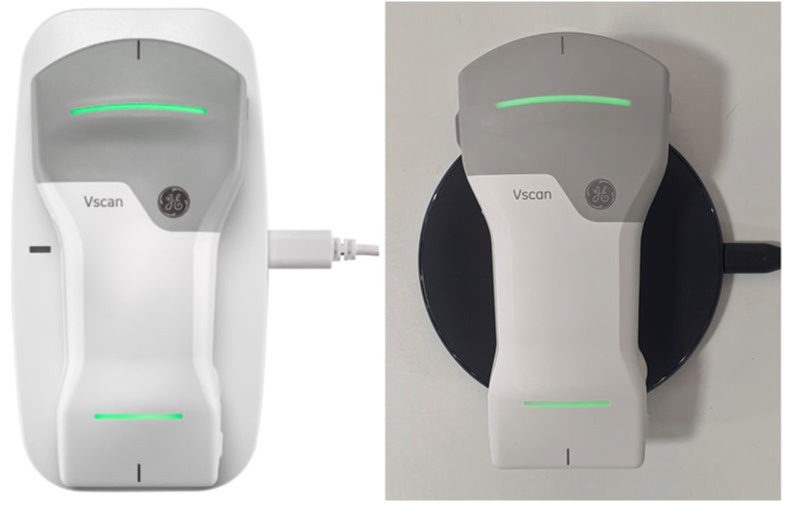
5. Vscan Air probe gets wirelessly charged. The LEDs will light in an orange/red toned yellow color whenever charge is less than 8% and probe needs a higher charge level to allow starting. Yellow light on both LEDs indicates the Vscan Air CL is charging with capacity in the range 8-90%. Green light on both LEDs indicates the Vscan Air probe is fully charged 90-100% (see Vscan Air CL / SL LED Indication).
NOTE:
The Smart Connect feature allows the Vscan Air probe to stay powered, connected and charging when on the wireless charger. The battery icon will indicate the battery charge level. Be aware that charging time (when charging from 10-90%) will increase by approximately 5 minutes from the times specified in Battery Specification when utilizing the Smart Connect feature.
NOTE: If the Vscan Air probe is powered off when the probe is placed onto the wireless charger it will start charging. Charging time is listed in Battery SpecificationNOTE: Both LEDs will be blinking in case of any kind of charging issue. This is most likely caused by the probe and battery being too warm start charging. Please let the probe cool off and check that probe starts charging indicated by steady LED light in both LEDs.NOTE: The probe charge status will be monitored at regular intervals if probe is left fully charged on the charging pad. Charging will be restarted as required to keep the probe fully charged while placed on the wireless charging pad.Disclaimer: The information herein is not intended to replace the product’s User Manual. Please consult the User Manual for comprehensive information and cautionary guidance about the product’s operation and use.